How to Rebuild Your Playstation Database: A Comprehensive Guide
Fast answer first. Then use the tabs or video for more detail.
- Watch the video explanation below for a faster overview.
- Game mechanics may change with updates or patches.
- Use this block to get the short answer without scrolling the whole page.
- Read the FAQ section if the article has one.
- Use the table of contents to jump straight to the detailed section you need.
- Watch the video first, then skim the article for specifics.
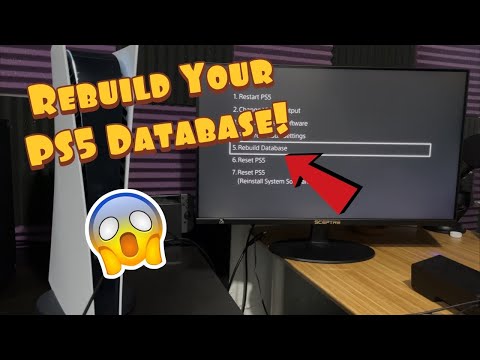
The question you’re asking is: How do I reset my Playstation database? The simple answer is that you don’t exactly reset the database; instead, you rebuild it. This process scans the Playstation’s storage drive and creates a new database of all your content. You can rebuild the database by booting your Playstation into Safe Mode and selecting the “Rebuild Database” option. This can fix corrupted data and improve system performance, but it does not delete your save data, games, or personal information.
Why Rebuild Your Playstation Database?
Think of your Playstation’s database like a library catalog. Over time, this catalog can become disorganized or corrupted, leading to slowdowns, errors, or even crashes. Rebuilding the database is like re-organizing the catalog, ensuring your system can quickly and efficiently access your games, apps, and other data. Here are a few common reasons why you might want to consider rebuilding your Playstation database:
- Slow Performance: Your Playstation is taking longer than usual to load games or navigate menus.
- Game Crashes: Games are frequently crashing or freezing.
- Error Messages: You’re encountering error messages related to corrupted data.
- Stuttering and Lag: Experiencing noticeable stuttering or lag during gameplay.
- General System Instability: The Playstation feels unstable or buggy.
- Recent Software Issues: After installing a software update, the system experiences performance issues.
It’s important to understand that rebuilding the database is a maintenance task, not a troubleshooting solution for all problems. If you’re experiencing serious system issues, further troubleshooting might be required.
How to Rebuild the Database on PS4 and PS5
The process for rebuilding the database is nearly identical for both PS4 and PS5. Follow these steps carefully:
-
Power Down Your Playstation Completely: Ensure your console is completely turned off. Do not just put it into Rest Mode. The light bar should be off.
-
Boot into Safe Mode: Press and hold the power button on the console until you hear a second beep. This usually takes around 7 seconds. The first beep happens when you initially press the button, and the second beep will follow a few seconds later.
-
Connect Your Controller: Connect your DualShock 4 (PS4) or DualSense (PS5) controller to the console using a USB cable.
-
Select “Rebuild Database”: Once in Safe Mode, you’ll see a menu of options. Use the controller to navigate and select option “5. Rebuild Database”. On some PS4 models, this may be option 6 or 7. The exact wording might be slightly different depending on the system software version, but it will clearly indicate rebuilding the database.
-
Confirmation and Execution: The system will display a warning that rebuilding the database may take some time. Confirm your choice to proceed.
-
Wait for the Process to Complete: The rebuilding process can take anywhere from a few minutes to several hours, depending on the size of your storage drive and the amount of data stored on it. Do not interrupt the process. The console will automatically restart once the process is complete.
-
Testing: After the system restarts, test your games and applications. They may need to redownload updates, but save data and installations should remain untouched.
Important Considerations Before Rebuilding
- Backup Your Data (Highly Recommended): Although rebuilding the database shouldn’t erase your data, it’s always a good idea to back up your save files and other important data to an external storage device or the Playstation Cloud (if you have a Playstation Plus subscription). This provides an extra layer of security in case something goes wrong.
- Patience is Key: The rebuilding process can take a considerable amount of time, so be patient and avoid interrupting it.
- Do Not Power Off: Do not power off the console or disconnect the power cord during the rebuilding process. This could lead to data corruption or even damage to the console.
- Alternative Solutions: If rebuilding the database doesn’t resolve your issue, you may need to consider other troubleshooting steps, such as initializing the Playstation (which will erase your data) or contacting Playstation support.
Rebuilding Database vs. Initializing Playstation
It’s crucial to understand the difference between rebuilding the database and initializing the Playstation.
- Rebuilding the Database: Reorganizes the existing database without deleting your data. It’s a maintenance task that can improve performance.
- Initializing the Playstation: Resets the console to its factory settings, deleting all your data, including games, save files, and personal information. It’s a more drastic measure that should only be used as a last resort.
Think of it like this: Rebuilding the database is like tidying up your room, while initializing the Playstation is like moving to a new house and starting from scratch.
Frequently Asked Questions (FAQs)
1. Will rebuilding my Playstation database delete my games and save data?
No, rebuilding the database should not delete your games, save data, or personal information. However, it’s always recommended to back up your data as a precaution.
2. How long does it take to rebuild the Playstation database?
The time it takes to rebuild the database can vary significantly depending on the size of your hard drive and the amount of data stored on it. It can take anywhere from a few minutes to several hours.
3. Can I interrupt the database rebuilding process?
No, you should never interrupt the database rebuilding process. Doing so could lead to data corruption or damage to your console.
4. What does Safe Mode do on Playstation?
Safe Mode allows you to start your Playstation with a limited set of functions, allowing you to troubleshoot various issues, including rebuilding the database, updating the system software, and restoring factory settings.
5. What if rebuilding the database doesn’t fix my problem?
If rebuilding the database doesn’t resolve your issue, you may need to consider other troubleshooting steps, such as checking your internet connection, updating the system software, or initializing the Playstation (as a last resort). You can also contact Playstation support for assistance.
6. Is it safe to rebuild the database regularly?
While it’s generally safe to rebuild the database, it’s not necessary to do it regularly unless you’re experiencing performance issues. Rebuilding it too frequently won’t necessarily improve performance. Only rebuild when it needs to be done.
7. What is the difference between Quick and Full Format in Playstation?
These options are available during initialization. Quick format will only erase a small portion of the data on the hard drive. This option is faster but less secure. Full Format erases all the data on the hard drive. This option takes longer, but it’s more secure.
8. How do I back up my Playstation data?
You can back up your Playstation data to an external storage device or to the Playstation Cloud (if you have a Playstation Plus subscription). To back up to an external storage device, go to Settings > System > Backup and Restore.
9. Will rebuilding the database fix my game lag?
Rebuilding the database may help with game lag if the lag is caused by corrupted data or a disorganized database. However, lag can also be caused by other factors, such as a slow internet connection or insufficient system resources.
10. Can I rebuild the database if my Playstation is frozen?
If your Playstation is completely frozen and unresponsive, you may need to force a shutdown by holding down the power button until the console turns off. Then, you can attempt to boot into Safe Mode and rebuild the database.
11. Will rebuilding the database affect my Playstation Network account?
No, rebuilding the database will not affect your Playstation Network account. Your account information is stored separately and will remain intact.
12. What if I see an error message during the database rebuilding process?
If you see an error message during the database rebuilding process, try restarting the console and attempting the process again. If the error persists, you may need to consult Playstation support for further assistance.
13. Can I rebuild the database remotely?
No, you cannot rebuild the database remotely. You need physical access to the console to boot it into Safe Mode and initiate the process.
14. Does rebuilding the database improve download speeds?
Rebuilding the database might indirectly improve download speeds if corrupted data is interfering with the download process. However, download speeds are primarily affected by your internet connection and the Playstation Network servers.
15. What are the other options in Playstation Safe Mode?
Besides Rebuild Database, Playstation Safe Mode offers options like Restart System, Change Resolution, Update System Software, Restore Default Settings, Initialize Playstation, and Initialize Playstation (Reinstall System Software). Be cautious when using options that initialize or reinstall, as they will erase data.
Rebuilding your Playstation database is a valuable maintenance procedure. By following these steps and understanding the potential issues, you can keep your console running smoothly and enjoy your gaming experience to the fullest. Remember to back up your data and proceed with caution, and always prioritize safety.