Resetting Your Nintendo Switch Firmware: A Comprehensive Guide
Fast answer first. Then use the tabs or video for more detail.
- Watch the video explanation below for a faster overview.
- Game mechanics may change with updates or patches.
- Use this block to get the short answer without scrolling the whole page.
- Read the FAQ section if the article has one.
- Use the table of contents to jump straight to the detailed section you need.
- Watch the video first, then skim the article for specifics.
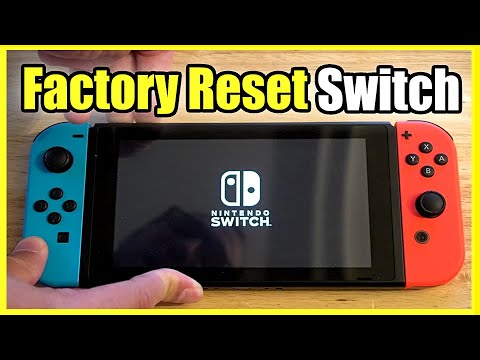
The Nintendo Switch is a fantastic piece of gaming technology, but like any complex device, it can occasionally encounter issues that require troubleshooting. While you can’t directly “reset” the firmware (system software) to an earlier version, the steps to address software glitches and restore your console to a functional state are straightforward.
Addressing Firmware Issues: The most direct action you can take when suspecting firmware trouble is to ensure your Switch is running the latest version. Nintendo regularly releases updates that include bug fixes, performance enhancements, and security patches. Keeping your console updated is crucial. If the latest update is the culprit, your options become more limited, but the following steps can still help:
- Restarting the Software: For game-specific issues, simply closing the game and restarting it is often the best first step.
- Performing a Soft Reset: Hold the POWER Button for three seconds to bring up the Power Menu. Select “Restart” to reboot the system without deleting any data.
- Performing a Hard Reset (Power Cycle): If the system is unresponsive, hold the POWER Button for at least twelve seconds to force a shutdown. Then, press the POWER Button again to turn it back on.
- Initializing Console Without Deleting Save Data: This option restores the system software to a clean state while preserving your saved games and user profiles. Access this via System Settings > System > Formatting Options > Initialize Console Without Deleting Save Data.
- Factory Reset (as a Last Resort): This option will delete all data on your console, including games, save data, and user information. Only use this if other options fail or if you are selling/giving away your Switch. Access this via System Settings > System > Formatting Options > Restore Factory Settings.
Using Recovery Mode (Maintenance Mode): In extreme cases where the Switch is not booting normally, you can try accessing Recovery Mode (also called Maintenance Mode).
- Ensure the console is powered off completely. If it’s frozen, hold the POWER Button for 12+ seconds.
- With the console powered off, press and hold down the volume up (+) and volume down (-) buttons simultaneously. Then, press the POWER Button to turn the console on while still holding the volume buttons.
- Continue holding the volume buttons until the Recovery Mode menu appears.
From Recovery Mode, you can select options such as:
- Update System: Attempts to update the system software via the internet or a microSD card.
- Restore System Without Deleting Save Data: Performs a more thorough system reset than the regular “Initialize Console Without Deleting Save Data” option.
- Restore to Factory Settings: Performs a full factory reset, deleting all data.
Important Considerations:
- Backups: If you have a Nintendo Switch Online subscription, your save data is likely backed up to the cloud for compatible games. Check your backup settings to ensure your data is safe.
- microSD Card: If you’re using a microSD card, try removing it before performing a reset to rule out any potential issues caused by the card.
- Parental Controls: Resetting the console will remove parental control settings. If you need to retrieve a master key to remove parental controls without a PIN, you’ll need to contact Nintendo Support.
- Contact Nintendo Support: If you’ve tried all the troubleshooting steps and your Switch is still experiencing issues, contact Nintendo Support for assistance.
By understanding these methods, you can effectively address software glitches and keep your Nintendo Switch running smoothly.
Frequently Asked Questions (FAQs)
How do I restart a crashed game on my Nintendo Switch?
Simply press the HOME Button to return to the HOME Menu, highlight the crashed game, press the X Button to close it, and then relaunch it.
What is a soft reset on the Nintendo Switch?
A soft reset is simply restarting the console through the Power Menu (accessed by holding the POWER Button for three seconds). It’s like rebooting a computer and doesn’t delete any data.
How do I perform a hard reset on my Nintendo Switch?
A hard reset (or power cycle) involves forcing the console to shut down by holding the POWER Button for at least twelve seconds. Then, press the POWER Button again to turn it back on.
What is the difference between initializing the console and a factory reset?
Initializing the console without deleting save data restores the system software to a cleaner state but preserves your save data, user profiles, and downloaded software. A factory reset, on the other hand, wipes everything, returning the console to its original factory settings.
Does a factory reset delete my digital games?
Yes, a factory reset deletes all data on the console, including downloaded digital games.
Will I lose my save data if I perform a factory reset?
Yes, unless you have Nintendo Switch Online and your save data is backed up to the cloud, you will lose your save data. Always check your backup status before performing a factory reset.
How do I back up my save data on the Nintendo Switch?
You need a Nintendo Switch Online subscription. Then, go to System Settings > Data Management > Save Data Cloud and enable automatic save-data backups.
How do I access Recovery Mode (Maintenance Mode) on my Nintendo Switch?
Ensure the console is powered off. Then, press and hold the volume up (+) and volume down (-) buttons simultaneously while pressing the POWER Button. Keep holding the volume buttons until the Recovery Mode menu appears.
What options are available in Recovery Mode?
The options in Recovery Mode include:
- Update System: Attempts to update the system software.
- Restore System Without Deleting Save Data: Performs a thorough system reset while preserving save data.
- Restore to Factory Settings: Performs a full factory reset, deleting all data.
My Nintendo Switch is not turning on after a hard reset. What should I do?
Try accessing Recovery Mode. If that doesn’t work, contact Nintendo Support for assistance.
How can I remove parental controls on my Nintendo Switch without the PIN?
You need to contact Nintendo Support and provide your Inquiry number and console serial number. They will issue a “master key” to reset the PIN. Note that using the master key will erase the parental control settings on the console.
Will a factory reset fix all software problems on my Nintendo Switch?
A factory reset can often resolve software problems, but it’s not guaranteed. If the issue persists after a factory reset, it may indicate a hardware problem that requires professional repair.
Where can I find the latest Nintendo Switch system updates?
The Nintendo Switch automatically checks for updates when connected to the internet. You can also manually check for updates in System Settings > System > System Update.
Does resetting my Nintendo Switch affect the firmware version?
Resetting the console (initializing or factory resetting) will not revert the firmware to an earlier version. It will only restore the current firmware to a clean state.
Is there any way to downgrade the firmware on a Nintendo Switch?
Officially, there is no supported way to downgrade the firmware on a Nintendo Switch. Attempting to do so through unofficial methods can void your warranty and potentially brick your console. We strongly advise against it.
For more information on games and learning, consider exploring the resources at the GamesLearningSociety.org website. It’s a great place to discover how gaming can positively impact education and development.