How Do I Restore My Switch Game? A Comprehensive Guide
Fast answer first. Then use the tabs or video for more detail.
- Watch the video explanation below for a faster overview.
- Game mechanics may change with updates or patches.
- Use this block to get the short answer without scrolling the whole page.
- Read the FAQ section if the article has one.
- Use the table of contents to jump straight to the detailed section you need.
- Watch the video first, then skim the article for specifics.
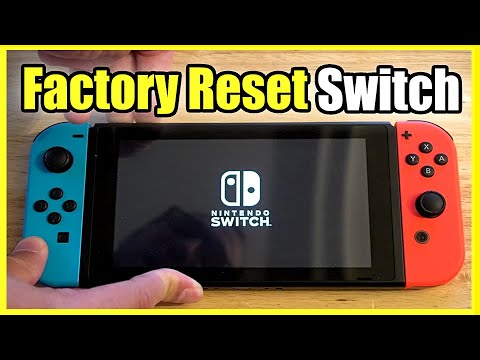
Restoring your Nintendo Switch game involves several steps, depending on whether you’re dealing with a redownload, data recovery, or transferring between consoles. The primary method involves accessing the Nintendo eShop with the Nintendo Account used to purchase the game. Here’s a comprehensive breakdown of how to restore your games and data on your Nintendo Switch:
To redownload a game, you must follow these steps:
- Access the Nintendo eShop using the Nintendo Account that originally purchased the game.
- Select your user icon in the top-right corner to access your account settings.
- Highlight Redownload on the left-hand side of the screen.
- Select the game in the list of previously purchased titles.
- Select the orange download icon to begin the redownload.
This will restore the game to your console without affecting your saved data. The save data is typically stored separately from the game itself, either in the system memory or the cloud if you have a Nintendo Switch Online membership.
Understanding Different Restoration Scenarios
Redownloading Purchased Games
The process detailed above is primarily for redownloading games that you’ve purchased digitally. This is incredibly useful if you’ve deleted the game to free up space or if you have a new console. As long as you are using the same Nintendo Account used to make the initial purchase, you can redownload the game at no extra cost.
Restoring Save Data
If you’re focused on restoring your game progress, the process depends on whether you’re using the cloud save feature.
-
Cloud Save Users: If you are a Nintendo Switch Online subscriber and you have enabled the automatic save-data backup feature, your save data is automatically backed up to the cloud. When you redownload the game or log in with your account on a new console, the data will typically sync automatically. You can verify your save data status by going to System Settings > Data Management > Save Data Cloud.
-
Non-Cloud Save Users: Some games do not support the cloud save feature. In these cases, your saved data is typically stored on your Nintendo Switch’s internal memory. If you’re using the same console, your game progress is likely preserved when you delete and redownload the game. However, if you’ve had to perform a factory reset or are switching to a new console, you might have to transfer the save data manually, or if you haven’t backed it up then you may have lost the data.
Transferring Data to a New Console
If you have a new Nintendo Switch, you can transfer all your data, including your user profiles, purchased games, and save data.
- Make sure both your old and new consoles are connected to the internet.
- On your old console, go to System Settings > Data Management > Transfer Your Save Data.
- Select Send Save Data to Another Console.
- On the new console, follow the onscreen instructions to receive the data from your old console.
- This process will move all data, including save files, user profiles and digital games to the new system, effectively removing it from the old console.
Frequently Asked Questions (FAQs)
Here are some frequently asked questions related to restoring your Nintendo Switch games and data:
1. Will I Lose My Game Progress If I Get a New Switch?
No, you won’t necessarily lose your game progress. If you intend to use a new console instead of your old one, you can transfer your user and save data to the new console. This can be done simultaneously, ensuring you continue where you left off. With the Nintendo Switch Family, you can transfer between console types.
2. Does Switch Cloud Save Game Progress?
Yes, if you have a Nintendo Switch Online membership and are connected to the internet, your save data will be backed up automatically, even when your Nintendo Switch is in sleep mode. No complicated settings or updates are required by default if you enable automatic backups.
3. Does Redownloading a Switch Game Delete Data?
No, redownloading a Switch game does not delete your game progress. The game save data is unaffected when you delete or archive software. When you redownload the game, you can resume your game progress where you left off.
4. Will I Lose Everything if I Delete Software on Nintendo Switch?
No, deleting or archiving software will not impact your save data. Once deleted, the software can be redownloaded using the same Nintendo Account used to purchase it, and you will still have your game progress from the saved data.
5. Can You Redownload Switch Games on Another Switch?
Yes, purchases made on a Nintendo Account can be redownloaded and played on any Nintendo Switch system linked to that account. You can link your Nintendo Account to a user profile on multiple systems. However, only one Nintendo Switch system can be your account’s primary console at a time.
6. Where Are My Purchased Games on Nintendo Switch?
To view your previously downloaded titles:
1. Go to the Nintendo eShop on the HOME Menu.
2. Select Menu in the upper-left corner.
3. Scroll down to Settings / Other.
4. Select Redownloadable Software.
5. Choose Your Downloads.
7. Is My Game Data Saved on My Nintendo Account?
Yes, save data is linked to your Nintendo Account, allowing you to access it by signing in. If you move to a new system, you can pick up where you left off in your game by downloading your data. Automatic backup is enabled by default for users with Nintendo Online.
8. What To Do If Your Switch Game Has Corrupted Data?
If you encounter corrupted data, try these solutions:
1. Restart the console.
2. Ensure you have performed a system update.
3. Check for any software updates for the problematic game.
4. Check for corrupt data within system settings.
5. Delete the problematic software and then redownload it.
9. How Do I Redownload Archived Switch Games?
Archived software can be redownloaded by simply selecting the software icon on the HOME Menu. Archiving software will not impact your save data.
10. Why Can’t I Find The Game I Downloaded On Nintendo Switch?
Check the “Redownloads” section in the Nintendo Switch eShop, under your account information. All purchased and redeemed games will appear here for redownload. Ensure the funds were taken from your Nintendo eShop balance when you made the purchase.
11. What If I Lose a Nintendo Switch Game Cartridge?
If you lose a physical game cartridge, you’ll need to buy it again. However, your game save data is stored separately on the Switch’s internal memory, so you can resume your progress after replacing the game whether you buy the digital version, or a physical cartridge.
12. Can You Transfer Saved Games From One Switch to Another?
Yes, you can transfer save data by going to System Settings > Data Management > Transfer Your Save Data. You can choose to send save data to another console or receive save data from another console, or also perform a full console transfer which would move all your data.
13. Can You Transfer Digital Switch Games to Another Account?
No, digital game purchases and code redemptions are final and cannot be transferred to a different Nintendo Account. Always ensure you are logged into the correct Nintendo Account when making a purchase.
14. Can You Have 2 Switches With The Same Account?
Yes, you can link your Nintendo Account to multiple consoles. However, only one console can be designated as your primary console at a time.
15. Do Downloaded Switch Games Transfer?
Yes, if you no longer have access to the original console you can still transfer your Nintendo Account and digital games to a different Switch. You can make the new console your account’s primary console to enable the playing of your downloaded games.
By following these instructions and understanding the nuances of saving, backing up, and transferring data, you can effectively restore your Nintendo Switch games and ensure your progress remains intact. Always double-check your account details and keep your system updated for the best experience.