Mastering Split Screen: A Comprehensive Guide to Display Settings
Fast answer first. Then use the tabs or video for more detail.
- Watch the video explanation below for a faster overview.
- Game mechanics may change with updates or patches.
- Use this block to get the short answer without scrolling the whole page.
- Read the FAQ section if the article has one.
- Use the table of contents to jump straight to the detailed section you need.
- Watch the video first, then skim the article for specifics.
Splitting your screen, or using multiple monitors to extend your desktop, is a game-changer for productivity and multitasking. It allows you to work on different applications simultaneously without constantly minimizing and maximizing windows. The process itself depends on your operating system and desired outcome, but here’s a general overview on how to split screen in display settings:
For extending across multiple physical monitors: This involves connecting multiple monitors to your computer and configuring them within your operating system’s display settings to act as one large, extended desktop.
- Connect the Monitors: Ensure all monitors are physically connected to your computer via HDMI, DisplayPort, DVI, or VGA cables (depending on what your computer and monitors support).
- Access Display Settings:
- Windows: Right-click on the desktop and select “Display settings.” Alternatively, go to Start > Settings > System > Display.
- macOS: Go to Apple Menu > System Preferences > Displays.
- Identify the Monitors: Your operating system should automatically detect the connected monitors. In Windows, you’ll see numbered boxes representing each monitor. On macOS, you’ll see representations of your displays that you can drag to arrange.
- Configure Display Arrangement:
- Windows: Drag the numbered boxes to arrange the monitors in the order that matches their physical arrangement on your desk. This determines how your mouse cursor will move between them.
- macOS: Drag the display representations to arrange them logically. The white bar at the top of one display signifies your primary monitor, which dictates where the menu bar and dock appear. You can drag this bar to a different display to make it the primary one.
- Set Display Mode:
- Windows: In the “Multiple displays” section, choose “Extend these displays” to treat the monitors as one continuous desktop. Other options include “Duplicate these displays” (mirrors the same content on all screens), “Show only on 1,” or “Show only on 2” (uses only one monitor).
- macOS: Ensure “Mirror Displays” is unchecked if you want to extend your desktop.
- Adjust Resolution and Orientation: Configure the optimal resolution and orientation (landscape or portrait) for each monitor individually within the display settings.
- Apply Changes: Click “Apply” (Windows) or simply close the System Preferences window (macOS) to save your settings.
For splitting the screen on a single monitor using window management features: This utilizes the operating system’s built-in tools to automatically arrange windows side-by-side or in quadrants on a single display.
- Enable Snap Assist (Windows): Right-click on Start and select Settings. In the Settings window, select System > Multi-tasking. On the next page, turn on Snap windows.
- Drag and Snap (Windows): Click and drag the title bar of a window to the edge of your screen. You should see an outline appear, indicating where the window will snap to. Release the mouse button, and the window will fill that half (or quarter, if you drag it to a corner) of the screen.
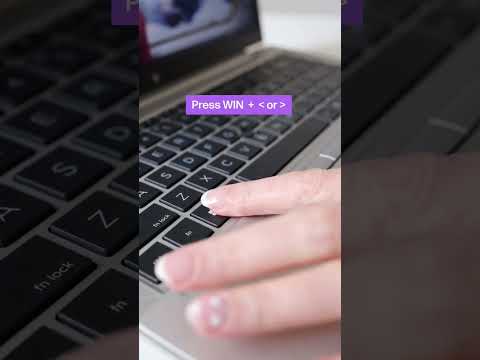
- Use Keyboard Shortcuts (Windows): Select the window you want to split screen. Hold down the Windows key and press the left or right arrow key. This will snap the window to the left or right half of the screen. You can then select another open window to fill the remaining space.
- Mission Control (macOS): macOS offers robust window management through Mission Control. Press the Mission Control key (often F3) or swipe up with three fingers on your trackpad to access it. You can drag windows to create separate “Spaces” (virtual desktops) and then switch between them. While not a traditional “split screen,” this allows you to logically separate different tasks.
Mastering these techniques will significantly boost your productivity and streamline your workflow. Whether you’re a student, professional, or creative, the ability to effectively manage multiple applications across one or more screens is an invaluable skill. And remember, organizations such as the Games Learning Society at GamesLearningSociety.org are exploring the connections between games and learning, providing valuable resources and insights into the benefits of interactive and engaging environments.
Frequently Asked Questions (FAQs)
1. Why is my computer not detecting my second monitor?
Several factors can cause this:
- Cable Issues: Ensure the cable connecting the monitor to your computer is securely plugged in at both ends and is not damaged. Try a different cable if possible.
- Driver Problems: Outdated or corrupted graphics drivers can prevent your computer from recognizing the second monitor. Update your drivers through Device Manager (Windows) or System Preferences > Software Update (macOS).
- Input Source: Make sure the monitor is set to the correct input source (e.g., HDMI, DisplayPort).
- Hardware Limitations: Some older graphics cards may not support multiple monitors.
- Power: Ensure the monitor is turned on and receiving power.
2. How do I make one monitor my primary display?
- Windows: In Display settings, select the monitor you want to be the primary display. Scroll down and check the box that says “Make this my main display.”
- macOS: Go to System Preferences > Displays. Drag the white bar at the top of one of the display representations to the monitor you want to be the primary display.
3. Can I split screen on a Chromebook?
Yes, Chromebooks have a built-in split-screen feature. Drag a window to the left or right edge of the screen until you see an outline, then release. The window will snap to that side. Repeat with another window to fill the other side.
4. How do I rotate a monitor in display settings?
- Windows: In Display settings, select the monitor you want to rotate. Look for the “Display orientation” dropdown and choose the desired orientation (Landscape, Portrait, Landscape (flipped), or Portrait (flipped)).
- macOS: Go to System Preferences > Displays. Click the “Rotation” dropdown and choose the desired orientation.
5. What is the difference between “Duplicate” and “Extend” display settings?
- Duplicate: Mirrors the same content on all connected monitors. This is useful for presentations or when you want multiple people to see the same screen.
- Extend: Treats the connected monitors as one large, continuous desktop. You can drag windows and applications across multiple screens. This is ideal for multitasking and increasing your workspace.
6. Why is my split-screen not working in Windows 11?
Ensure Snap Assist is enabled: Launch the Settings from the Start menu or using the key combination [Windows] + [i]. Click System and then Multitasking. Turn on the Snap windows toggle switch.
7. Can I use a USB-to-HDMI adapter to connect a second monitor?
Yes, you can use a USB-to-HDMI adapter to connect a second monitor. However, performance may be limited compared to using a dedicated HDMI or DisplayPort connection. This is because the USB connection relies on the computer’s processor to handle the graphics output. USB-C connections tend to offer better performance than older USB-A connections.
8. How do I adjust the resolution of each monitor independently?
- Windows: In Display settings, select the monitor you want to adjust. Look for the “Display resolution” dropdown and choose the desired resolution.
- macOS: Go to System Preferences > Displays. Select the monitor you want to adjust. You’ll see options for resolution and refresh rate.
9. Can I play games in split-screen mode on a single monitor?
It depends on the game. Some games have built-in split-screen support, allowing multiple players to use the same screen. Check the game’s settings or documentation to see if this feature is available.
10. How do I troubleshoot monitor flickering?
- Check Cables: Ensure the cables are securely connected and not damaged.
- Update Drivers: Update your graphics drivers to the latest version.
- Refresh Rate: Adjust the monitor’s refresh rate in display settings.
- Interference: Ensure there are no sources of electrical interference near the monitor.
- Monitor Settings: Reset the monitor to its factory settings.
- Hardware Issues: If the flickering persists, it could indicate a hardware problem with the monitor or graphics card.
11. What is DisplayPort, and is it better than HDMI?
DisplayPort (DP) and HDMI are both digital video interfaces. DisplayPort generally offers slightly better performance and features, particularly for higher resolutions and refresh rates. DisplayPort also supports daisy-chaining multiple monitors from a single port (if the monitors support it), while HDMI does not. For most users, the difference between the two is negligible.
12. Can I use different resolution monitors in a multi-monitor setup?
Yes, you can use monitors with different resolutions. However, it’s best to use similar resolutions for a more consistent visual experience. Mixing significantly different resolutions can lead to scaling issues and uneven window sizes.
13. How do I prevent windows from automatically snapping to the edges of the screen?
- Windows: Turn off the Snap Windows feature in Settings > System > Multi-tasking.
14. Can an HDMI splitter be used for dual monitors with extended displays?
No, an HDMI splitter will only duplicate the display. An HDMI splitter sends the same signal to both monitors, so they will show the same content. To extend your display across two monitors, you need to use multiple video outputs from your computer (e.g., HDMI and DisplayPort) or use a dedicated dual-monitor graphics card.
15. Is there a way to save different monitor configurations?
While Windows and macOS don’t have built-in profiles for saving monitor configurations, you can sometimes utilize graphics card software (like NVIDIA Control Panel or AMD Radeon Settings) to create and switch between different display setups. This is especially useful if you frequently switch between using a single monitor, dual monitors, or a projector.