How to Start Your Xbox Games on Your PC: A Comprehensive Guide
Fast answer first. Then use the tabs or video for more detail.
- Watch the video explanation below for a faster overview.
- Game mechanics may change with updates or patches.
- Use this block to get the short answer without scrolling the whole page.
- Read the FAQ section if the article has one.
- Use the table of contents to jump straight to the detailed section you need.
- Watch the video first, then skim the article for specifics.
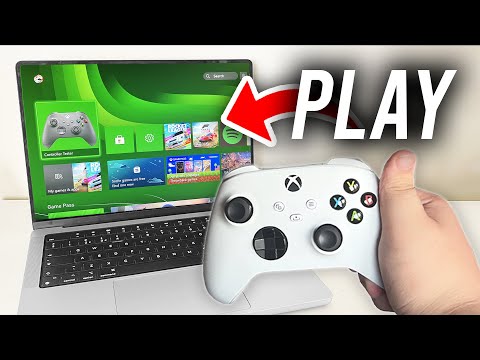
Want to ditch the couch and play your favorite Xbox games on your PC? Good news! It’s absolutely possible and, with the right setup, surprisingly simple. You have two primary methods: Xbox Play Anywhere and Xbox Remote Play. Let’s dive into the details.
For games that are part of the Xbox Play Anywhere program, you can purchase a digital copy and play it on both your Xbox console and your Windows PC without buying the game twice. For Remote Play, your PC essentially streams the game from your Xbox console, so you need a stable network connection.
Xbox Play Anywhere: Buy Once, Play Anywhere
The Xbox Play Anywhere program is a fantastic initiative from Microsoft that allows you to purchase eligible games digitally and play them on both your Xbox console and your Windows PC.
How it Works:
- Check for Compatibility: First, confirm that the game you want to play is part of the Xbox Play Anywhere program. You can usually find this information on the Xbox website, the Microsoft Store, or on the game’s packaging if you have a physical copy.
- Digital Purchase: Purchase the game digitally from the Microsoft Store, either on your Xbox or your PC. Make sure you’re signed in with the same Microsoft account on both devices.
- Download and Play: Once purchased, the game will be available for download on both your Xbox and your PC. Simply go to the Microsoft Store on your PC, find the game in your library, and download it. Once downloaded, launch the game and start playing!
- Progress Syncing: A key benefit of Xbox Play Anywhere is that your game progress, achievements, and saves are synced between your Xbox and PC. You can start playing on your console, then pick up right where you left off on your PC (and vice versa).
Xbox Remote Play: Stream Your Games
If your game isn’t an Xbox Play Anywhere title or if you prefer to play games installed on your Xbox, Remote Play is the way to go. This allows you to stream games from your Xbox console to your PC.
Setting Up Remote Play:
- Xbox Configuration:
- Turn on your Xbox console.
- Press the Xbox button on your controller to open the guide.
- Go to Profile & system > Settings > Devices & connections > Remote features.
- Enable Remote features by checking the box.
- Set your console’s power mode to Instant-on (or Sleep mode on newer consoles). This allows you to turn on your Xbox remotely.
- PC Setup:
- Download and install the Xbox app from the Microsoft Store on your PC.
- Sign in to the Xbox app using the same Microsoft account you use on your Xbox.
- In the Xbox app, click the Console icon (it looks like an Xbox) on the left-hand side of the screen.
- The app will search for available Xbox consoles on your network. Select your Xbox from the list and click Connect.
- Start Playing: Once connected, you can use the Xbox app to control your Xbox and stream games to your PC. You can use an Xbox controller connected to your PC via USB or Bluetooth.
Optimizing Remote Play:
- Network Connection: A stable and fast network connection is crucial for a smooth Remote Play experience. Use a wired Ethernet connection for both your Xbox and your PC if possible. If using Wi-Fi, ensure you have a strong signal and minimal interference.
- Console Location: Position your Xbox in a well-ventilated area to prevent overheating, especially during extended Remote Play sessions.
- Controller Connection: Connecting your Xbox controller via USB generally provides the most responsive input. Bluetooth is convenient, but may introduce slight latency.
- Close Unnecessary Applications: Close any resource-intensive applications on your PC to free up processing power and bandwidth for Remote Play.
Frequently Asked Questions (FAQs)
1. Do I need Xbox Game Pass to play Xbox games on my PC?
No, you don’t always need Xbox Game Pass. However, it significantly expands your options. Xbox Game Pass Ultimate includes access to a library of games that can be played on both Xbox and PC. For Xbox Play Anywhere titles, you only need to purchase the game once to play on both platforms, regardless of Game Pass. However, for Remote Play, Game Pass isn’t required; you can stream any game you own that’s installed on your Xbox.
2. Can I play Xbox games on my PC without owning an Xbox console?
No, not directly (unless they are specifically PC-only titles). Remote Play requires an Xbox console to stream games from. Xbox Play Anywhere titles still require you to purchase the game, even if you only intend to play on your PC. Cloud gaming via Xbox Game Pass Ultimate allows you to stream games to your PC without owning a console, but the game library is limited to those available on the service.
3. My Xbox app isn’t connecting to my console. What should I do?
First, ensure both your Xbox and PC are on the same network. Restart both devices. Check that Remote features are enabled on your Xbox. Update the Xbox app on your PC. If the problem persists, try manually entering your Xbox’s IP address in the Xbox app.
4. Can I use any Xbox controller with my PC?
Yes, most Xbox controllers are compatible with PCs. The Xbox Wireless Controller (the one that comes with Xbox Series X|S and later Xbox One consoles) can connect via Bluetooth or USB. Older Xbox One controllers might require a USB adapter for wireless use.
5. How do I improve the streaming quality for Remote Play?
Ensure you have a strong and stable network connection. Use a wired connection if possible. Reduce the resolution of the streamed game in the Xbox app settings. Close any unnecessary applications on your PC that might be consuming bandwidth.
6. Why are some of my Xbox games not available on PC?
Not all Xbox games are part of the Xbox Play Anywhere program or available for cloud gaming. Check the game’s product page to see if it’s available for PC. If you own the game digitally, it will be listed in your Microsoft Store library on your PC if it’s a Play Anywhere title.
7. Can I use a keyboard and mouse to play Xbox games on my PC?
Yes, many Xbox games support keyboard and mouse input on PC. However, not all games support this input method, so check the game’s settings or the Microsoft Store listing to confirm.
8. How much data does Remote Play consume?
Remote Play can consume a significant amount of data, especially at higher resolutions and frame rates. It’s estimated to use anywhere from 3.5 Mbps to 9 Mbps, or even higher. If you have a limited data plan, monitor your usage carefully.
9. Can I use Remote Play over a mobile data connection?
While technically possible, it’s generally not recommended. Mobile data connections are often less stable and have higher latency than Wi-Fi or wired connections, resulting in a poor Remote Play experience.
10. Does Remote Play work outside of my home network?
Yes, Remote Play can work over the internet, allowing you to stream games from your Xbox to your PC even when you’re not on the same local network. However, a fast and stable internet connection is essential for both your Xbox and your PC.
11. What is the difference between Xbox Remote Play and Xbox Cloud Gaming?
Xbox Remote Play streams games directly from your own Xbox console to your PC or other device. Xbox Cloud Gaming (part of Xbox Game Pass Ultimate) streams games from Microsoft’s cloud servers, eliminating the need for you to own the game or have it installed on a console.
12. Can I play multiplayer games using Remote Play?
Yes, you can play multiplayer games using Remote Play, just as you would on your Xbox console. Keep in mind that a stable network connection is even more important for multiplayer gaming to avoid lag and disconnects.
13. How do I update the Xbox app on my PC?
The Xbox app typically updates automatically through the Microsoft Store. You can manually check for updates by opening the Microsoft Store, clicking the three dots in the upper right corner, and selecting “Downloads and updates.”
14. Can I record gameplay while using Remote Play?
Yes, you can record gameplay while using Remote Play using the Windows Game Bar (press Windows key + G).
15. Is there a community or forum where I can get help with Xbox on PC issues?
Yes, the official Xbox support website and forums are great resources for troubleshooting and getting help with Xbox-related issues on PC. You can also find helpful information on gaming communities like Reddit. Educators will find resources at the Games Learning Society website: GamesLearningSociety.org.
Getting your Xbox games running on your PC opens up a world of flexibility. Whether you choose Xbox Play Anywhere or Remote Play, understanding the setup and optimization steps will ensure the best possible gaming experience. Enjoy!