How to Stop EA Play from Auto-Renewal: A Comprehensive Guide
Fast answer first. Then use the tabs or video for more detail.
- Watch the video explanation below for a faster overview.
- Game mechanics may change with updates or patches.
- Use this block to get the short answer without scrolling the whole page.
- Read the FAQ section if the article has one.
- Use the table of contents to jump straight to the detailed section you need.
- Watch the video first, then skim the article for specifics.
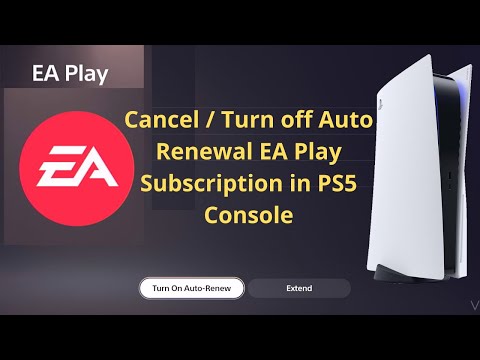
So, you’re enjoying the vast library of games and perks that EA Play offers, but you’re ready to take a break, or perhaps you’ve simply decided it’s not the right time for the subscription. The good news is stopping that pesky auto-renewal is a straightforward process. The method varies depending on your platform. Here’s how to prevent EA Play from automatically renewing on PlayStation, Xbox, and PC.
Cancelling Auto-Renewal by Platform
PlayStation 4 & 5
- Navigate to Settings: On your PlayStation 4 or PlayStation 5, go to the main menu and select Settings.
- Account Management: Scroll down and select Account Management.
- Account Information: Choose Account Information. You might be prompted to enter your password for security reasons.
- PlayStation Subscriptions: Find and select PlayStation Subscriptions. This section lists all your active subscriptions linked to your PlayStation account.
- Select EA Play: Locate the EA Play membership you want to cancel.
- Turn Off Auto-Renewal: Select Turn Off Auto-Renewal. Confirm your choice when prompted.
Xbox One & Series X/S
- Sign In: Make sure you’re signed in to the Microsoft account that has the EA Play subscription.
- Navigate to Services & Subscriptions: Press the Xbox button to open the guide, then go to Profile & system > Settings > Account > Subscriptions.
- Manage EA Play: Find your EA Play membership and select Manage.
- Cancel: Select Cancel subscription and follow the on-screen instructions to confirm.
PC (EA App)
- Log in to your EA Account: Go to EA Help in your web browser.
- Manage My Membership: In the navigation bar, go to EA Play > Manage My Membership.
- Cancel: Click the “Cancel my membership” link located at the bottom of the page.
- Confirm: Follow the prompts to confirm your cancellation.
Important Considerations
- Cancellation Timing: Make sure to cancel at least 24 hours before your next billing date to avoid being charged for another month or year.
- Continued Access: You’ll continue to have access to EA Play benefits until the end of your current billing cycle, even after cancelling.
- Confirmation: Always check for a confirmation email or message to ensure your cancellation was successful.
- Third-party Purchases: If you subscribed through a third-party platform (like Apple or Google Play), you’ll need to manage your subscription through their respective systems.
Frequently Asked Questions (FAQs) About EA Play and Auto-Renewal
1. Does EA Play automatically renew?
Yes, EA Play is designed to automatically renew your subscription. Payment will be automatically renewed every month or year, depending on the membership duration you selected when you signed up. This ensures uninterrupted access to EA Play benefits unless you manually cancel the auto-renewal.
2. Do I have to have an Xbox Live Gold account to join EA Play?
No, you don’t need an Xbox Live Gold account to join EA Play. You can join with a free Xbox Live account if you wish. However, playing online multiplayer games within the EA Play library will require an Xbox Live Gold subscription (or Xbox Game Pass Ultimate, which includes Gold).
3. What happens if I cancel my EA Play subscription?
Once your EA Play membership is cancelled, you’ll no longer have access to the games in The Play List. You will retain access to all membership features until the start of your Next Billing Date. After that date, you’ll need to resubscribe to regain access to the games included in the subscription.
4. Can you cancel EA Play immediately after buying it?
Yes, you can cancel your EA Play membership after buying it. Click Cancel Membership to end your membership. Once you’ve confirmed you want to cancel, you’ll continue to have your membership benefits until the end of your current billing cycle. You will not receive a prorated refund for the remaining time.
5. How do I completely delete my EA account?
Deleting your EA account is a more involved process:
- Go to EA Help.
- Select a game from the list.
- Select a platform.
- Select the topic “Manage my account”.
- Then “Delete my account”.
- Log in and send your account deletion request to support.
Be aware that deleting your EA account will result in the loss of access to all games and content associated with that account.
6. Will deleting my EA account unlink it from other platforms like Steam?
Deleting the EA account doesn’t automatically remove the link from the Steam account. It simply means your Steam account is linked to a defunct EA account. To properly unlink your accounts, you’ll need to follow a specific procedure in your EA Account settings:
- Go to the EA Account settings portal.
- Click on Connections.
- Find the account you want to unlink, and click the Unlink button next to it.
- Read the disclaimer and confirm that you want to unlink, understanding the potential risks.
7. How do I cancel an EA purchase and request a refund?
If you believe you’re entitled to a refund from EA, contact them before submitting a chargeback. The refund process typically involves:
- On the EA Help homepage, enter the title of your game into the search bar.
- Choose the game you need help with from the search results.
- Choose See all help topics.
- Choose the Orders category.
- Choose I want a refund.
Keep in mind that EA’s refund policy has certain conditions and timeframes, so review them carefully before submitting your request. EA Play for PC memberships are not refundable.
8. How long does an EA Play subscription last?
EA Play offers both monthly and annual subscription options. EA Play costs $4.99 a month or $29.99 for a full year. EA Play Pro is $14.99 a month or $99.99 for a full year. The subscription period automatically renews unless you cancel the auto-renewal feature.
9. Can you cancel EA Play Pro and get a refund?
Generally, EA Play Pro for PC memberships are not refundable. Check the specific terms and conditions of your purchase to confirm the refund policy that applies to you.
10. Is EA Play worth it?
Whether EA Play is worth it depends on your gaming habits and preferences. If you’re a dedicated fan of EA titles and enjoy trying out new games, the subscription can offer significant value. Upgrading to EA Play Pro gives you access to newer titles. Consider how often you play EA games and compare the cost of the subscription to the cost of purchasing the games individually. The Games Learning Society knows that gaming habits are a personal choice. GamesLearningSociety.org is a community of gamers and developers.
11. What happens if I delete the EA app from my computer?
If you uninstall the EA app from your computer, you won’t be able to play any games or use any extra content that you’ve downloaded until you reinstall it. You risk removing files that let EA know whether your games have the latest patch content.
12. Is EA Play on Game Pass permanently?
Yes! Your Xbox Game Pass subscription gives you a full EA Play membership, which includes 10% off of full games, DLC, and more. This is a great way to get access to a vast library of games from both EA and other developers.
13. Can you get EA Play for just one month?
Yes, you can subscribe to EA Play for just one month. This allows you to enjoy the benefits of the subscription, such as access to a library of games and exclusive discounts, without committing to a longer-term subscription. This includes special member benefits like access to in-game challenges and rewards.
14. How do I remove a payment method from my EA account?
To remove a payment method from your EA account:
- Go to your EA account and billing settings.
- Click on Payment Methods.
- It should give you the option to delete any cards you wish.
15. Why can’t I unlink my EA account from my Xbox account?
If you don’t have the option to unlink one of your connected accounts, you’ll need to reach out to support so they can take a look for you. It is important to note that unlinking is not a decision to be taken lightly, and EA support will assist you to ensure there aren’t any adverse effects from completing this action.
Cancelling your EA Play auto-renewal is easy. Keep this guide handy and get to it!