Migrating Your Gaming Kingdom: A Comprehensive Guide to Transferring Data from PS4 to PS5
Fast answer first. Then use the tabs or video for more detail.
- Watch the video explanation below for a faster overview.
- Game mechanics may change with updates or patches.
- Use this block to get the short answer without scrolling the whole page.
- Read the FAQ section if the article has one.
- Use the table of contents to jump straight to the detailed section you need.
- Watch the video first, then skim the article for specifics.
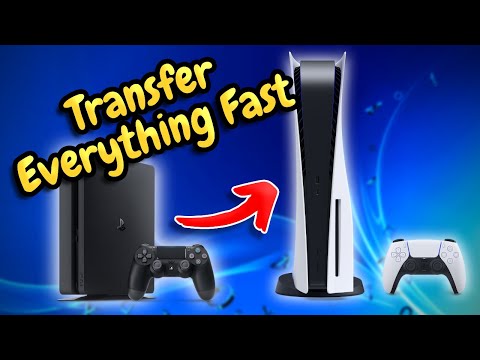
So, you’ve ascended to the next level and snagged yourself a shiny new PlayStation 5 (PS5)! Congratulations! But before you dive headfirst into the cutting-edge graphics and immersive gameplay, there’s the crucial task of bringing your gaming legacy with you. How do you transfer all your precious data – your meticulously crafted save files, downloaded games, and personalized settings – from your trusty PlayStation 4 (PS4) to your brand-new PS5?
The good news is, Sony has made the process relatively straightforward. Here’s a breakdown of the most reliable method:
Direct Data Transfer via Network
This is the easiest and often the fastest method, provided you have a stable and reasonably quick network connection.
-
Preparation is Key:
- Update Both Consoles: Ensure both your PS4 and PS5 are running the latest system software. Go to Settings > System Software Update on both consoles to check.
- Same PlayStation Network Account: Sign in to both consoles using the same PlayStation Network (PSN) account. This is essential for transferring your licenses and save data.
- Network Connection: Connect both consoles to the same network. Ideally, use a wired Ethernet connection for the most stable and fastest transfer. If you must use Wi-Fi, ensure a strong signal.
-
Initiate the Transfer on Your PS5:
- Go to Settings > System > System Software > Data Transfer.
- Select Continue.
- The PS5 will search for your PS4 on the network.
-
Prepare Your PS4:
- Once the PS5 locates your PS4, you’ll see instructions on your PS4 screen. Follow them.
- You might be asked to press the power button on your PS4 for one second.
-
Select the Data to Transfer:
- On your PS5, you’ll be presented with a list of games and applications installed on your PS4.
- Choose which games, applications, and save data you want to transfer. Be mindful of the total size, as this will affect the transfer time.
-
Start the Transfer:
- Confirm your selection and initiate the transfer. The PS5 will provide an estimated completion time.
Alternative Methods
While the direct network transfer is generally recommended, here are a couple of alternative methods:
- Cloud Storage (PlayStation Plus): If you have a PlayStation Plus subscription, your save data is likely already backed up to the cloud. On your PS5, go to Settings > Saved Data and Game/App Settings > Saved Data (PS4) > Cloud Storage > Download to Console Storage to retrieve your save files. Games themselves will still need to be re-downloaded or installed from disc.
- External USB Drive: You can copy save data from your PS4 to an external USB drive and then transfer it to your PS5. This is a good option if you have limited internet bandwidth or a particularly large amount of data. You cannot transfer entire games this way.
- On your PS4: Settings > Application Saved Data Management > Saved Data in System Storage > Copy to USB Storage Device.
- On your PS5: Connect the USB drive, then go to Settings > Saved Data and Game/App Settings > Saved Data (PS4) > USB Drive > Copy to Console Storage.
Important Considerations:
- Transfer Time: The transfer time will depend on the amount of data being transferred and the speed of your network connection. Be patient!
- Power Outages: Avoid interrupting the transfer process. Ensure both consoles are connected to a stable power source.
- Game Licenses: Make sure you are signed in with the same PSN account that you used to purchase the games. This will ensure that your digital licenses are transferred correctly.
- PS4 Games on Disc: If you have PS4 games on disc, simply insert the disc into your PS5. You may need to download updates.
Ultimately, transferring your data from PS4 to PS5 is a crucial step in embracing the new console generation. By understanding the available methods and taking the necessary precautions, you can ensure a smooth and seamless transition, allowing you to pick up right where you left off in your favorite games. Embrace the power of your PS5! And always keep learning with resources like the Games Learning Society at GamesLearningSociety.org.
Frequently Asked Questions (FAQs)
Here are 15 common questions related to transferring data from PS4 to PS5, answered for your convenience:
Data Transfer Deep Dive
-
Does transferring data from PS4 to PS5 delete everything on the PS4?
No, transferring data does not delete anything from your PS4. The data is copied, not moved. You can still use your PS4 after the transfer.
-
Does data transfer from PS4 to PS5 transfer accounts?
Yes, the data transfer process will move your account over to the PS5. You need to be using the same PSN account on both consoles for this to work seamlessly.
-
What happens if I don’t do a data transfer from PS4 to PS5?
If you skip the data transfer, your PS5 will be like a brand new system. You’ll need to sign in to your PSN account, re-download your digital games, and retrieve save data from the cloud (if you have PlayStation Plus) or transfer it from a USB drive.
-
Why can’t I transfer my PS4 data to PS5?
Several reasons could cause transfer issues:
- Network Problems: Ensure both consoles are on the same network and have a stable connection. Try using an Ethernet cable instead of Wi-Fi.
- Insufficient Storage: Make sure your PS5 has enough free space to accommodate the data you’re transferring.
- Software Issues: Ensure both consoles are running the latest system software.
- PSN Outage: Check the PlayStation Network status page to see if there are any reported outages.
-
What happens to all your PS4 games when you get a PS5?
Your PS4 games remain accessible. You can transfer digital games to your PS5 via network transfer or re-download them. You can also play PS4 games directly from an external USB storage drive connected to your PS5. PS4 game discs can be played in the PS5’s disc drive.
PS4 and PS5 After the Transfer
-
What should I do with my PS4 after getting a PS5?
The possibilities are endless! You can use it as a second console for remote play, give it to a family member, sell it, or trade it in. It’s still a perfectly capable gaming machine!
-
Will I lose my game progress if I reset my PS5?
Yes, resetting your PS5 will erase all data, including game progress. Always back up your save data to the cloud or a USB drive before resetting.
-
Why keep a PS4 after getting a PS5?
There are several reasons:
- Second Console: For multiplayer gaming with friends and family on different TVs.
- PSVR: If you have PlayStation VR, the PS4 may be more convenient for VR games (though PSVR also works on PS5 with an adapter).
- Shared Housing: A PS4 can serve as a communal console in a shared living space.
-
Does PS5 keep your PS4 games?
Yes, the PS5 is backwards compatible with most PS4 games. Both physical and digital PS4 games will work on the PS5.
-
Do PS4 games look better on PS5?
In many cases, yes. The PS5’s more powerful hardware can provide improved loading times, smoother frame rates, and sometimes even enhanced graphics for PS4 games. Some games even receive specific PS5 upgrade patches.
Transfer Specifics
-
What is the fastest way to transfer PS4 data to PS5?
Using a wired Ethernet connection for both consoles will provide the fastest and most stable data transfer. Avoid using Wi-Fi if possible.
-
What happens if you turn off PS5 during data transfer?
Turning off the PS5 during initial setup and data transfer isn’t the end of the world, it will just return it to the beginning of the initial setup, where the data transfer can be skipped.
-
Do I have to rebuy games I had on PS4 for PS5?
No, you don’t need to rebuy PS4 games for PS5. The PS5 is fully backward compatible with PS4.
-
Does PS5 automatically transfer data?
If you’re a PS Plus subscriber, your save data is automatically synced up. But if you can select each game file, but the console is still blocking a transfer, it probably means that your PS5 is running out of storage space.
-
Can I put my PS5 in Rest Mode when transferring data?
To avoid unexpected issues, it’s best not to put your console in Rest Mode while transferring data.