How to Transfer Save Data on Xbox: A Comprehensive Guide
Fast answer first. Then use the tabs or video for more detail.
- Watch the video explanation below for a faster overview.
- Game mechanics may change with updates or patches.
- Use this block to get the short answer without scrolling the whole page.
- Read the FAQ section if the article has one.
- Use the table of contents to jump straight to the detailed section you need.
- Watch the video first, then skim the article for specifics.
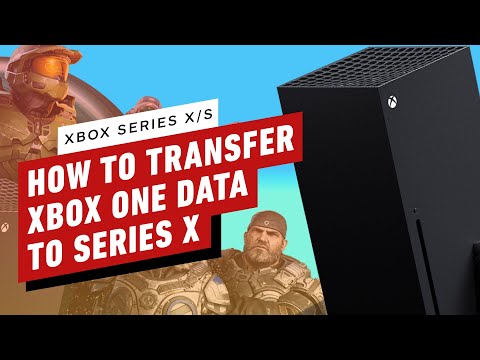
Transferring your hard-earned progress in your favorite games is crucial when upgrading to a new Xbox console or switching between setups. Thankfully, Xbox makes this process relatively seamless through its cloud storage system. In short, game save data is automatically linked to your Xbox user profile and stored in the cloud when you’re connected to the Xbox network. This means that as long as you use the same user profile, your progress will be available regardless of the console you are using. You don’t need to do anything specific to “transfer” saves as they’re tied to your account. However, understanding how this system works and addressing potential issues is essential, so let’s delve deeper into the process.
Understanding Xbox Save Data and Cloud Storage
The cornerstone of Xbox save data transfer is the cloud. Whenever you play a game, your progress is not just stored locally on your console; it’s also backed up to Microsoft’s servers. This automatic synchronization means that if you log in to another console (Xbox One, Xbox Series X|S), your progress is retrieved from the cloud and is ready for you to continue playing. There’s no need for manual backups or USB drives for standard game saves.
How Does Automatic Cloud Storage Work?
The process is essentially invisible. While connected to the Xbox network, your console automatically uploads your save data periodically to the cloud. When you sign in to another Xbox console with your same gamertag (user account), the console downloads the corresponding data from the cloud. This feature is enabled by default, making transferring saves incredibly straightforward.
Key Factors Affecting Save Data Transfer
While the process is usually smooth, several factors can impact the transfer:
- Internet Connection: A stable internet connection is essential for both uploading and downloading game saves. If your internet is intermittent, you might encounter delays or experience issues accessing your saves.
- Microsoft Account: Your saves are tied to your Microsoft account (which is also your Xbox profile). Always ensure that you’re logging in to the correct account when switching consoles.
- Server Status: Occasionally, Microsoft servers may experience downtime. During these periods, you might temporarily lose access to your cloud saves. Check the Xbox Live status page if you suspect a server issue.
Troubleshooting Save Data Issues
If you experience issues accessing your game saves, there are steps you can take to troubleshoot the problem:
- Check Your Internet Connection: Ensure your console is connected to the internet and that the connection is stable. Restart your router and modem if necessary.
- Restart Your Xbox Console: Sometimes a simple restart can resolve the problem. Press and hold the Xbox button on your console, then select “Restart console.”
- Verify Your Account: Double-check that you are signed in to the correct Xbox profile associated with your saves.
- Check Xbox Live Status: Visit the Xbox Live status page to confirm if there are any server issues affecting cloud saves.
- Resync Your Saves: In some cases, you might need to manually sync your saves. Navigate to your game’s settings and look for a sync option.
- Contact Xbox Support: If all else fails, contacting Xbox Support is a good option. They can assist with more complex issues.
Frequently Asked Questions (FAQs)
Here are some common questions regarding transferring game data on Xbox:
1. Can I transfer game data from one account to another?
No, you cannot directly transfer game save data from one user account to another. Game progress is tied to the specific user account that created the saves. However, you can share your account on the same console so other profiles can play that game on your primary xbox console, so long as the games are not played at the same time as the account holder on another console.
2. Can I transfer digital games from one account to another?
While you can’t directly transfer the license, you can make sure other accounts on your primary console can play digital games you own. Digital games are licensed to your account, but they can be shared with other users on your designated Home Xbox. The same games cannot be played simultaneously by your account on another console.
3. Will I lose my game progress if I get a new Xbox?
No, you will not lose your game progress. As long as you log in to your new Xbox with the same gamertag (user account), your saved game data will automatically sync from the cloud.
4. How do I recover my Xbox One game progress?
Simply sign in to your Xbox console with the account that was used to save the data. The saves will sync automatically from the cloud. You don’t need to manually recover them.
5. Will I lose my games if I change my home Xbox?
No, you will not lose your games. Changing your Home Xbox just changes which console has access to offline play for your digital games. Your games remain associated with your account and are available on any console where you sign in.
6. Can I merge two Xbox accounts?
You cannot directly merge two Microsoft accounts or Xbox accounts, but you can share your Xbox subscription and game library on your Home Xbox by ensuring both profiles are added to the console and the primary account sets it to their Home Xbox. This allows both accounts to play all the games purchased by the primary account on that console.
7. Can you have 2 Xbox Ones on the same account?
Yes, you can sign in to multiple devices, including multiple Xbox consoles, with the same account. However, only one Xbox can be designated as your Home Xbox, which determines the sharing capabilities.
8. How do I link my Xbox account to another Xbox?
Press the Xbox button on the controller to open the guide, go to Profile & System, select Add or Switch, and then select Add New.
9. How do you share games on Xbox?
The easiest way to share games on Xbox is to make your friend’s console your Home Xbox. This allows all users on that console to play the games that are licensed to your account. Your friend would need to do the same for your console.
10. How do I transfer game progress from one account to another on Steam?
Just like on Xbox, there is no way to directly transfer a game from one Steam account to another. Game licenses are permanently bound to the account that purchases them and cannot be moved.
11. Why do I have 2 gamertags?
You may see multiple gamertags if you have a modern and classic gamertag associated with your account. This usually happens if you had an Xbox account before the current naming conventions were in place.
12. Do I need 2 Xbox Live accounts for 2 consoles?
No, you only need one Xbox Live account with an active subscription. If one console is set as the Home Xbox, all other profiles on that console can benefit from the Live account on the Home console.
13. How much is Xbox Game Pass Core?
Xbox Game Pass Core, which replaced Xbox Live Gold, costs $10 per month or $60 per year.
14. Can you share your game pass Ultimate with family?
Yes, standard Xbox home sharing policies apply. If your console is set to your Home Xbox, all profiles on that console can share your Game Pass Ultimate subscription.
15. Can you Gameshare with 3 Xboxes?
No, you can only gameshare with one console at a time via the Home Xbox setting. You can sign into additional consoles, but it cannot gameshare in this manner.
Conclusion
Transferring game save data on Xbox is largely handled by the automatic cloud saving system. As long as you are connected to the internet, your saves are backed up and ready for you on any Xbox console where you sign in with the correct account. Remember that save data is tied to your Microsoft account and not the console, and you can only share your game licenses and Xbox Game Pass Ultimate subscription on your Home Xbox. By following these guidelines, you can enjoy a seamless transition between consoles and continue enjoying your games without losing your hard-earned progress. If you encounter any issues, don’t hesitate to refer back to the troubleshooting section or contact Xbox support for further assistance.