How to Turn On Speakers in Windows 10: A Comprehensive Guide
Fast answer first. Then use the tabs or video for more detail.
- Watch the video explanation below for a faster overview.
- Game mechanics may change with updates or patches.
- Use this block to get the short answer without scrolling the whole page.
- Read the FAQ section if the article has one.
- Use the table of contents to jump straight to the detailed section you need.
- Watch the video first, then skim the article for specifics.
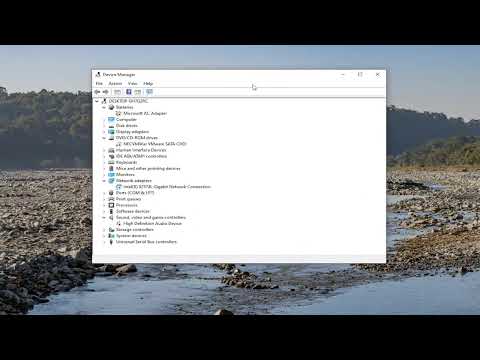
Turning on your speakers in Windows 10 should be a simple task. The easiest way is to check your volume icon in the system tray. Click it and ensure the volume is not muted and is turned up to an audible level. If that’s not the issue, right-click the speaker icon, select “Open Sound settings,” and under “Choose your output device,” make sure your desired speakers are selected. If your speakers are not listed, proceed with the troubleshooting steps outlined below.
Troubleshooting Speaker Issues in Windows 10
Sometimes, turning on speakers isn’t as straightforward as it seems. Several factors can contribute to audio problems, from disabled devices and incorrect settings to driver issues. Let’s dive into the common causes and how to fix them.
Check Physical Connections
Before diving into software solutions, ensure your speakers are physically connected correctly.
- External Speakers: Verify the power adapter is plugged in and the speaker’s power is turned on.
- Cables: Confirm the speaker cables are securely connected to the correct ports on your computer. The most common connection is via a 3.5mm audio jack, usually color-coded green. Check for loose connections or damaged cables. USB connections should also be securely plugged in.
- Bluetooth Speakers: Ensure your Bluetooth speaker is turned on and paired with your computer. Go to Settings > Devices > Bluetooth & other devices to manage Bluetooth connections.
Adjust Volume Settings
It sounds obvious, but confirm that the volume is turned up and not muted in various places:
- System Tray: As mentioned above, check the volume icon in the system tray.
- Individual Applications: Some applications have their own volume controls. Make sure the volume isn’t muted or too low within the app.
- Volume Mixer: Right-click the volume icon in the system tray and select “Open Volume mixer.” This gives you control over the volume of individual applications.
- Hardware Mute Buttons: Check for physical mute buttons on your keyboard or laptop. These can override software volume settings.
Enable Disabled or Hidden Devices
Windows 10 might have disabled your speakers or be hiding them from view.
- Right-click the volume icon in the system tray.
- Select “Open Sound settings.”
- Under “Related Settings,” click “Sound Control Panel” (this opens the classic Sound dialog).
- In the “Playback” tab, right-click in the empty space within the device list.
- Check “Show Disabled Devices” and “Show Disconnected Devices.”
- If your speakers appear, right-click them and select “Enable”.
Update or Reinstall Audio Drivers
Outdated, corrupt, or missing audio drivers are a common cause of speaker problems.
- Right-click the Start button and select “Device Manager.”
- Expand “Sound, video and game controllers.”
- Right-click your audio device (usually Realtek High Definition Audio or similar) and select “Update driver.”
- Choose “Search automatically for drivers.”
- If Windows doesn’t find a new driver, you can try uninstalling the driver (right-click > Uninstall device) and then restarting your computer. Windows will often automatically reinstall the driver upon restart.
If automatic driver updates don’t work, you can download the latest drivers from the manufacturer’s website (e.g., Realtek, Creative, or your computer manufacturer’s support page).
Check the Windows Audio Service
The Windows Audio service is essential for audio playback. If it’s not running, you won’t hear any sound.
- Press Windows key + R to open the Run dialog.
- Type “services.msc” and press Enter.
- Scroll down to “Windows Audio” and double-click it.
- Ensure the “Startup type” is set to “Automatic.”
- If the “Service status” is “Stopped,” click “Start.”
- Click “Apply” and “OK.”
- Repeat for Windows Audio Endpoint Builder service.
Set Default Playback Device
Make sure your desired speakers are set as the default playback device.
- Right-click the volume icon in the system tray.
- Select “Open Sound settings.”
- Under “Choose your output device,” select your speakers. If they are not listed, go to “Sound Control Panel” as described above.
- In the “Playback” tab of the Sound Control Panel, select your speakers and click “Set Default.” You can set “Default Device” for normal audio and “Default Communication Device” for voice chat applications.
Run the Audio Troubleshooter
Windows 10 has a built-in audio troubleshooter that can automatically diagnose and fix common audio problems.
- Right-click the volume icon in the system tray.
- Select “Troubleshoot sound problems.”
- Follow the on-screen instructions.
Reset Audio Settings
You can reset audio settings to their default values.
- Go to Settings > System > Sound.
- Click on Advanced sound options under Related settings.
- Click on App volume and device preferences.
- Click Reset under Reset to the Microsoft recommended defaults.
Check for Hardware Conflicts
In rare cases, hardware conflicts can cause audio issues. Device Manager can help identify such conflicts.
- Right-click the Start button and select “Device Manager.”
- Look for any devices with a yellow exclamation mark or red X. This indicates a problem.
- If you find a conflicting device, try updating its driver or disabling it to see if it resolves the audio issue.
Frequently Asked Questions (FAQs)
1. How do I turn my computer speakers back on if I accidentally disabled them?
Go to your Sound settings (right-click the speaker icon in the system tray and select “Open Sound settings”). Click “Sound Control Panel” on the right, select the “Playback” tab, right-click your speakers, and click “Enable.”
2. Why don’t I see speakers listed in Windows 10’s playback devices?
If you cannot see speakers in the device list, they might be disabled or disconnected. Right-click on the blank area in the “Playback” tab of the Sound Control Panel and select “Show Disabled Devices” and “Show Disconnected Devices.” If the speakers appear, right-click them and select “Enable”.
3. How do I reset my speakers on Windows 10 to the default settings?
To reset your speakers, navigate to Settings > System > Sound then click App volume and device preferences under the Advanced sound options section. Finally, select Reset under the Reset to the Microsoft Recommended defaults section.
4. How do I unmute my speakers in Windows 10?
Press the Mute key on your keyboard (usually in the top row). Alternatively, click the volume icon on the taskbar and adjust the volume slider to unmute.
5. My volume is not working at all. What should I do?
First, check the volume level in the system tray. Then, restart your computer. If that doesn’t work, ensure the Windows Audio service is running. If that doesn’t work either, try updating or reinstalling your audio drivers.
6. Why is my PC not detecting my external speakers?
Make sure the external speakers are powered on and properly connected. Check the cables and the power adapter. Ensure they are selected as the default playback device in the Sound settings.
7. Where can I find the speaker properties in Windows 10?
Go to Settings > System > Sound. On the right, click “Sound Control Panel” under Related Settings. In the “Playback” tab, select your speakers and click “Properties.”
8. How do I enable speakers that are currently disabled in Device Manager?
In Device Manager, expand “Sound, video and game controllers,” right-click your audio device, and select “Enable device.” If the option is grayed out, the device is already enabled.
9. My Android phone’s speaker isn’t working. Is there anything similar I can try on my PC?
Yes, many troubleshooting steps are similar. Try rebooting your PC, ensuring the volume is not muted, and checking for any physical obstructions that might be blocking the speaker. Also, update the drivers!
10. How do I reset the Realtek audio console app?
Click the Windows logo then type Realtek audio console, right-click the search result, and click App settings. On the new window, scroll down and click Reset to reset the app. After the reset, restart your system.
11. The Windows Audio Service keeps stopping. How do I fix this?
Open the Services app (services.msc), locate “Windows Audio,” right-click, select “Properties,” go to the “Recovery” tab, and set the “First Failure,” “Second Failure,” and “Subsequent Failures” options to “Restart the Service.”
12. How do I know if my Realtek audio drivers are up to date?
Open Device Manager, expand “Sound, video and game controllers,” right-click Realtek High Definition Audio, select “Properties,” and go to the “Driver” tab. The driver date and version will be displayed. Compare this with the latest driver available on the Realtek website or your computer manufacturer’s website.
13. How do I reinstall audio drivers in Windows 10 if the Roll Back Driver button is greyed out?
If the Roll Back Driver option is unavailable, uninstall the device (right-click > Uninstall device) and restart your computer. Windows will attempt to reinstall the driver automatically. If that doesn’t work, download and install the latest driver from the manufacturer’s website.
14. Where has my volume icon disappeared from the taskbar?
In the Taskbar menu under the Notification area, click on the Turn system icon on or off settings. A new panel will display where you can toggle on/off the various system icons. Make sure the Volume control toggle is set to ON. Restart Windows and see if the sound icon is back in the taskbar.
15. What is the Realtek driver, and why is it important?
The Realtek High Definition Audio Driver is a sound driver that allows your audio devices to function correctly on Windows systems. It helps manage surround sound, Dolby, and DTS sound systems on your computer. Without it, you may experience serious audio errors.
By following these steps, you should be able to troubleshoot and resolve most speaker issues in Windows 10. Remember to check the basics first and then move on to more advanced troubleshooting.
If you are interested in the intersection of learning and games, check out the Games Learning Society at GamesLearningSociety.org.