Unlinking Your Account on PS4: A Comprehensive Guide
Fast answer first. Then use the tabs or video for more detail.
- Watch the video explanation below for a faster overview.
- Game mechanics may change with updates or patches.
- Use this block to get the short answer without scrolling the whole page.
- Read the FAQ section if the article has one.
- Use the table of contents to jump straight to the detailed section you need.
- Watch the video first, then skim the article for specifics.
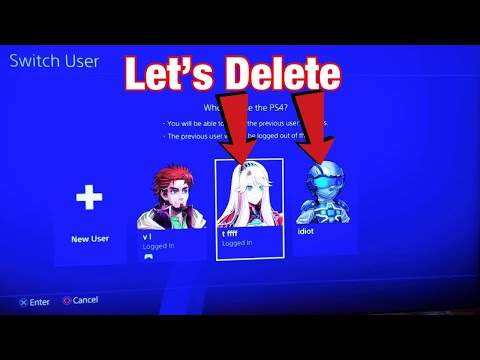
So, you’re looking to unlink an account on your PS4. Maybe you’re passing the console on to someone else, or perhaps you’re tidying up your digital life. Whatever the reason, the process isn’t always straightforward, and understanding the implications is crucial. Here’s a detailed breakdown of how to do it, along with everything else you need to know.
First, it’s vital to understand that “unlinking” a PlayStation Network (PSN) account from your PlayStation 4 console is not quite the same as deleting a user profile. Deleting a user profile on the console simply removes the local data and access for that user on that specific PS4. However, the PSN account itself remains active and associated with your Sony account.
To truly separate a PSN account from an Epic Games account, for instance, the process is different and has its own set of consequences. Here’s a breakdown of what we’re addressing and how to proceed:
Understanding the Different Types of “Unlinking”
-
Removing a User Profile from Your PS4: This is the most common scenario. You want to remove access to a specific user account from your console.
-
Unlinking a PSN Account from an External Service (e.g., Epic Games): This involves severing the connection between your PSN account and services like Fortnite or other games that use cross-platform progression.
-
Deactivating a PS4 as Your Primary Console: This prevents other accounts on the console from accessing your PlayStation Plus benefits and digital games without you being logged in.
Steps to Remove a User Profile from Your PS4 (The Most Common Scenario):
This is the most common “unlinking” scenario you might encounter. If you’re sharing a console or selling it, here’s how to remove a user account:
-
Log in to your PS4 with an account that has administrative privileges (typically the account used to initially set up the console).
-
Navigate to Settings: Find the “Settings” icon on the main menu (it looks like a toolbox).
-
Go to Login Settings: Scroll down the Settings menu until you find “Login Settings” and select it.
-
Select User Management: Within Login Settings, choose “User Management”.
-
Delete User: In the User Management menu, select “Delete User”.
-
Choose the User: Select the user profile you want to remove from the console.
-
Confirm Deletion: You will be prompted to confirm that you want to delete the user. Be absolutely certain before proceeding! Remember, this only removes the profile from the console. It does not delete the PSN account associated with that profile.
Important Considerations Before Removing a User Profile:
- Back Up Save Data: If the user has important game saves, encourage them to back up their data to a USB drive or PlayStation Plus cloud storage (if they have a subscription). Once the profile is deleted from the console, the saved data will be inaccessible on that console.
- Digital Purchases: The user will still own any digital games purchased with their PSN account. They can access these games on another PS4 by logging in with their account.
- PlayStation Plus: If the user has a PlayStation Plus subscription, it remains tied to their PSN account, not the console.
Unlinking Your PSN Account from Other Services (e.g., Epic Games):
This is a more complex process, and the exact steps vary depending on the specific service. Here’s the general idea:
-
Identify the Account You Want to Unlink: Determine which external service (e.g., Epic Games, Twitch) you want to disconnect from your PSN account.
-
Access the Service’s Account Settings: Log in to the website or application of the service you want to unlink.
-
Look for “Connections,” “Linked Accounts,” or Similar Settings: Navigate to the account settings or profile section. You should find an option to manage linked accounts.
-
Unlink Your PSN Account: Find your PlayStation Network account in the list of linked accounts and select the option to unlink or disconnect it.
Important Considerations Before Unlinking a PSN Account from Other Services:
- Data Loss: This is critical! Unlinking your PSN account from services like Epic Games (Fortnite) can result in the loss of game progress, skins, and other in-game items associated with your PSN account on that service. Always research the specific consequences before unlinking. The article you provided states that unlinking your account can cause data loss. Pay close attention to official documentation and support articles for the specific service you’re unlinking from.
- Linking Restrictions: Some services have restrictions on how frequently you can link and unlink accounts. You might have to wait a significant amount of time (e.g., a year) before you can link your PSN account to a different account on that service.
- Check Epic Games Account: As long as your Epic Games account isn’t deleted, your data is safe. You only lose access to the data from the disconnected console.
Deactivating a PS4 as Your Primary Console:
If you have multiple PS4 consoles and want to control which one benefits from your PlayStation Plus subscription and digital game licenses, you need to manage your primary console activation.
-
Log in to Your PSN Account on the PS4 You Want to Deactivate: Make sure you’re logged in with the PSN account that is currently activated as primary on the console you want to deactivate.
-
Navigate to Settings: Go to the Settings menu on the PS4.
-
Go to Account Management: Select “Account Management”.
-
Select Activate as Your Primary PS4: Choose “Activate as Your Primary PS4”.
-
Select Deactivate: Choose “Deactivate”.
Important Considerations Before Deactivating a PS4:
- Game Access: After deactivating a console, other users on that console will no longer be able to play your digital games or access PlayStation Plus features when you’re not logged in.
- Activation Limits: You can only activate one PS4 as your primary console per account.
- Remote Deactivation: If you no longer have access to the PS4 you want to deactivate, you can remotely deactivate all devices from the Account Management website (mentioned at the beginning of this article). This can only be done once every six months.
Frequently Asked Questions (FAQs)
How do I sign out of my PSN account on all devices remotely?
Sign in to Account Management online. From the left sidebar, select Security. Then, select Sign Out on All Devices from the bottom of the screen. This will sign you out of all devices linked to your PSN account.
What happens if I unlink my PSN account from a game like Fortnite?
As the document states, your game progress and purchases are stored on your Epic Games account, so if you unlink your console account from your Epic Games account, you’ll lose access to that data from your disconnected console account.
Can I have two PSN accounts on the same PS4?
Yes, you can have multiple accounts on a single PS4. Up to four users can log in simultaneously. Each user will have their own save data and settings.
Can I use the same PSN account on multiple PS4s?
Yes, you can use the same PSN account on up to 5 consoles. However, you cannot log in with multiple consoles at the same time.
How many PS4s can I activate as my primary console?
You can only activate one PS4 system as your primary console per account.
Will I lose my games if I delete a user on my PS4?
You won’t lose the games themselves, but you will lose access to them on that specific user profile if they are digital games purchased with that account. The games remain tied to the PSN account that purchased them.
Does deleting a game from my PS4 also delete the saved data?
No, deleting a game from your PS4 does not automatically delete the saved data. You can delete the saved data separately through the Storage Management options in the Settings menu.
Can someone tell if I’m using their PlayStation account?
You can check the Remote Play Connection History to see which users have connected to your system.
Are my PlayStation games linked to my account or the console?
PlayStation games are linked to your PSN account.
Can I transfer my PlayStation account to someone else?
No, you cannot directly transfer your PlayStation account to another person. PSN accounts are non-transferable.
Can I merge two Fortnite accounts into one?
While you can’t merge Epic Games accounts, you can link and unlink platform accounts (like PSN) to your Epic Games account. However, be mindful of the restrictions and potential data loss.
Can I relink a PSN account to a Fortnite account after unlinking it?
Yes, but there might be a waiting period. Epic Games may impose a cooldown period before you can relink the same PSN account or link a new one. As the provided document says, you can remove a restriction and link a new platform account once every 365 days (1 year).
How do I factory reset my PS4?
Log in to your PS4 and go to Settings. Go to Initialisation then choose Initialize PS4. Choose Full, then Initialise. Select Yes. Be sure to back up your data!
Will a factory reset delete my account?
Yes, a factory reset will delete all users and their data from the system, including your account.
Where can I learn more about gaming and its impact on learning?
Explore the website of the Games Learning Society at https://www.gameslearningsociety.org/ for insights into the intersection of games and education. You can also visit GamesLearningSociety.org to find the same.
Unlinking accounts and managing user profiles on your PS4 requires careful consideration. Always back up your data, understand the potential consequences, and follow the official instructions provided by Sony and the specific services you’re using. Good luck!