Decoding the F3 Key: Your Comprehensive Guide to Using this Powerful Shortcut
Fast answer first. Then use the tabs or video for more detail.
- Watch the video explanation below for a faster overview.
- Game mechanics may change with updates or patches.
- Use this block to get the short answer without scrolling the whole page.
- Read the FAQ section if the article has one.
- Use the table of contents to jump straight to the detailed section you need.
- Watch the video first, then skim the article for specifics.
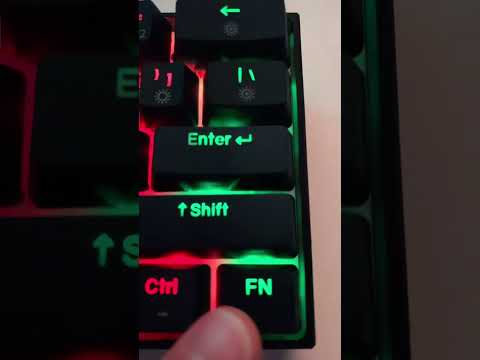
The F3 key, nestled comfortably among its function key brethren (F1 through F12), is a powerful tool often overlooked. Its primary function across a multitude of applications and operating systems is to activate the “Find” or “Search” functionality. This allows you to quickly locate specific text, files, or other content within the currently active program. In essence, pressing F3 opens a search box or dialog where you can enter keywords to pinpoint exactly what you’re looking for. However, the F3 key’s capabilities extend far beyond this core function, depending on the program you’re using and your system’s configuration. Let’s delve into the specifics of how to effectively wield this handy key.
Understanding the Basic Functionality of F3
The most common use of the F3 key is to initiate a search. For example, in a web browser, pressing F3 will usually open a search bar at the bottom of the page, allowing you to find specific words or phrases within the website you’re viewing. Similarly, in many text editors (like Notepad on Windows or TextEdit on macOS), pressing F3 will activate the “Find” function, enabling you to locate specific text within the document.
Furthermore, once a search has been initiated (either by pressing F3 or using another method like Ctrl+F), pressing F3 repeatedly will typically navigate to the next instance of the search term within the document or program. This makes it incredibly efficient to cycle through all occurrences of a specific word or phrase.
The FN Key and F3: A Common Complication
On many laptops and smaller keyboards, the function keys (including F3) share their keys with other functions like volume control, brightness adjustment, or media playback. In these cases, you’ll often need to press and hold the “Fn” (Function) key simultaneously with F3 to activate the standard F3 function. This is because these keyboards prioritize the secondary functions by default.
Locking and Unlocking the FN Key
To avoid constantly holding down the Fn key, many laptops offer a way to lock the Fn key, effectively reversing the default behavior. This allows you to press F3 directly for its standard function, and you would only need to press Fn + F3 for the secondary function. The method for locking the Fn key varies depending on the laptop manufacturer. Some common methods include:
- Dedicated Fn Lock Key: Look for a key labeled “Fn Lock” or with a padlock symbol associated with the Fn key. Pressing this key will toggle the Fn lock on or off.
- Esc Key: Some laptops have the Fn lock function assigned to the Esc key. Pressing Fn + Esc together may toggle the Fn lock.
- BIOS Settings: In some cases, you may need to adjust the Fn key behavior in your computer’s BIOS settings.
Beyond the Basics: Program-Specific F3 Functions
The beauty of the F3 key lies in its adaptability. While the “Find” function is its most common application, many programs repurpose the F3 key for other specific actions:
- Microsoft Excel: As mentioned earlier, Ctrl + F3 opens the Name Manager.
- Debugging Environments (e.g., Visual Studio): In debugging environments, F3 can often be used to find the next occurrence of a specific variable or function being debugged.
- Various Software Applications: Numerous applications, including design software, database management tools, and more, may assign specific functions to the F3 key, often related to searching, filtering, or navigation within the program. Always consult the program’s documentation or help menu to understand its specific F3 key behavior.
Troubleshooting F3 Key Issues
If your F3 key isn’t working as expected, here are some troubleshooting steps you can take:
-
Check the Fn Lock: Ensure that the Fn Lock is not enabled if you want the standard F3 function to work without pressing the Fn key.
-
Keyboard Drivers: Outdated or corrupted keyboard drivers can cause function key problems. Try updating your keyboard drivers through Device Manager (on Windows) or System Preferences (on macOS).
-
Hardware Issues: In rare cases, the F3 key itself may be physically damaged. Try testing the key in different programs or on another computer to rule out a hardware problem.
-
Conflicting Software: Some software programs may interfere with keyboard shortcuts. Try closing recently installed programs to see if that resolves the issue.
-
Sticky Keys: Ensure that Sticky Keys are not enabled, as this accessibility feature can sometimes interfere with keyboard functionality.
F3 Key Combinations and Their Uses
The F3 key’s functionality is often extended through combinations with other modifier keys like Shift, Ctrl, and Alt. Here are a few common examples:
-
Shift + F3: In Microsoft Word, Shift + F3 changes the case of the selected text (uppercase, lowercase, or title case).
-
Ctrl + F3: In Microsoft Word, Ctrl + F3 cuts the current line or selected text and adds it to the Spike.
-
Ctrl + Shift + F3: In Microsoft Word, Ctrl + Shift + F3 pastes all of the contents copied into Spike.
-
Ctrl + Alt + F3: In Linux, Ctrl+Alt+F3 might switch to a different virtual console.
15 Frequently Asked Questions (FAQs) about the F3 Key
Here are some frequently asked questions to help you master the F3 key and its myriad functionalities.
1. How do I use the F3 key on my laptop?
Check if you need to press the Fn key along with F3. If so, consider locking the Fn key if you want F3’s default function to work without holding Fn.
2. What if my F3 key is not working at all?
Check the Fn Lock status, update keyboard drivers, and rule out any hardware issues or conflicting software.
3. How do I unlock the Fn key?
Look for a dedicated “Fn Lock” key or try pressing Fn + Esc. Check your laptop’s manual for specific instructions.
4. Can I customize the F3 key’s function?
Some keyboard software or operating system utilities allow you to remap keys, including F3. However, this is an advanced configuration and may require technical expertise.
5. What does F3 do in a web browser?
Typically, F3 opens a search bar at the bottom of the page, allowing you to search for specific text on the webpage. Repeatedly pressing F3 cycles through occurrences of the search term.
6. How is Ctrl + F different from F3?
Ctrl + F generally opens the “Find” dialog box where you enter your search term for the first time. F3, after an initial search has been started (usually by pressing Ctrl+F), navigates to the next match of your search criteria.
7. Does the F3 key work in all programs?
While F3’s primary function is to initiate search, its exact behavior can vary depending on the program. Some programs might not use F3 at all, while others might assign it a different function.
8. What is the “Spike” in Microsoft Word and how does it relate to Ctrl + F3?
The “Spike” is a Word feature that allows you to collect multiple pieces of text from different parts of a document. Ctrl + F3 cuts text and adds it to the Spike, and Ctrl + Shift + F3 pastes the content of the Spike.
9. Why is my Fn key locked even after pressing Fn + Esc?
The Fn key lock mechanism can vary between laptop models. Consult your laptop’s manual or the manufacturer’s website for specific instructions on how to lock and unlock the Fn key.
10. How do I use the function keys (F1-F12) in games?
If the function keys are assigned to in-game actions, you may need to hold the Fn key while pressing the corresponding F key to activate the game command. Some games offer settings to change the way the function keys are handled.
11. What if the F3 key works in some programs but not others?
This usually indicates that the program where F3 isn’t working either doesn’t support the F3 key or has assigned it a different function. Check the program’s documentation or help menu.
12. Is there a way to see all keyboard shortcuts for a specific program?
Many programs have a built-in “Keyboard Shortcuts” or “Help” menu that lists all available keyboard shortcuts, including those involving the F3 key.
13. How do I remap the F3 key on macOS?
macOS offers a “Keyboard Shortcuts” section in System Preferences where you can customize keyboard shortcuts for specific applications or system-wide functions. However, remapping the F3 key might require advanced configuration knowledge.
14. What does Ctrl + Alt + F3 do on Linux?
On many Linux distributions, Ctrl + Alt + F3 switches to a different virtual console. These virtual consoles provide a text-based interface where you can log in and run commands.
15. Where can I learn more about keyboard shortcuts and productivity tips?
Many websites and online resources offer tutorials and tips on using keyboard shortcuts to boost productivity. Explore websites like GamesLearningSociety.org, which explores innovative methods of engaging with technology, or search for specific topics on Google or YouTube. The Games Learning Society is a great resource.
The F3 key, though seemingly simple, holds a wealth of functionality that can significantly enhance your workflow and productivity. By understanding its core function, how it interacts with the Fn key, and its various program-specific applications, you can unlock the full potential of this powerful keyboard shortcut.