Decoding the Wireless World: How Your Headphones Work on Your PC
Fast answer first. Then use the tabs or video for more detail.
- Watch the video explanation below for a faster overview.
- Game mechanics may change with updates or patches.
- Use this block to get the short answer without scrolling the whole page.
- Read the FAQ section if the article has one.
- Use the table of contents to jump straight to the detailed section you need.
- Watch the video first, then skim the article for specifics.
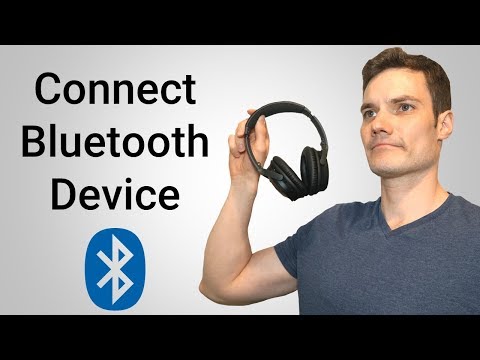
Wireless headphones have become ubiquitous, freeing us from the tyranny of tangled cords and offering unparalleled convenience. But have you ever stopped to ponder exactly how these magical sound-emitting devices interact with your PC? The secret lies in a combination of Bluetooth technology, digital audio processing, and a little bit of radio wave wizardry.
At its core, your PC sends audio data wirelessly to your headphones via Bluetooth. The PC’s Bluetooth adapter converts the digital audio information into radio waves, which are then transmitted through the air. Your headphones, equipped with their own Bluetooth receiver, capture these radio waves and convert them back into digital audio. This digital audio is then processed by the headphones’ internal circuitry and amplified to drive the tiny speakers that deliver the sound to your ears. The entire process happens in a blink of an eye, giving you a seamless listening experience. In simpler terms, they create a digital handshake, transmitting data, allowing you to jam out to your favorite tunes or deeply focus on your work.
Understanding the Tech: Bluetooth and Beyond
Let’s delve deeper into the key components that make this wireless connection possible:
- Bluetooth Adapter: This is the crucial hardware on both your PC and headphones that enables the wireless communication. It’s responsible for encoding and decoding the audio data into radio waves.
- Bluetooth Profiles: These are pre-defined protocols that govern how Bluetooth devices interact. For audio, the most common profile is A2DP (Advanced Audio Distribution Profile), which ensures high-quality stereo audio transmission.
- Audio Codecs: These algorithms compress and decompress the audio data to optimize it for wireless transmission. Common codecs include SBC, AAC, and aptX. Higher-quality codecs like aptX offer better sound fidelity but require both your PC and headphones to support them.
- Radio Waves: Bluetooth uses a specific frequency range of radio waves (typically 2.4 GHz) to transmit data. These waves are relatively short-range, which is why Bluetooth has a limited operating distance (usually around 30 feet).
Troubleshooting Common Wireless Headphone Issues
While wireless headphones offer convenience, they can sometimes present connection or audio quality challenges. Here are some common issues and their solutions:
- Pairing Problems: Ensure your headphones are in pairing mode (usually indicated by a flashing light) and that Bluetooth is enabled on your PC. If they don’t connect, try removing the device from your PC’s Bluetooth settings and re-pairing.
- Audio Dropouts: This can be caused by interference from other wireless devices (like Wi-Fi routers) or obstructions between your PC and headphones. Try moving closer to your PC or reducing interference from other devices.
- Poor Audio Quality: This could be due to a weak Bluetooth connection, a low-quality audio codec, or limitations in your headphones’ hardware. Try using a different audio codec (if your PC and headphones support it) or investing in higher-quality headphones.
- Driver Issues: Outdated or corrupted Bluetooth drivers can cause connection and audio problems. Make sure your Bluetooth drivers are up to date by checking the Device Manager on your PC.
- Battery Life: Wireless headphones rely on batteries, and their battery life can vary widely. If your headphones are constantly running out of power, consider purchasing a pair with a longer battery life or investing in a portable charger.
Exploring Alternatives: USB Dongles and Beyond
While most modern PCs have built-in Bluetooth, older models may require a USB Bluetooth dongle. These inexpensive devices plug into a USB port and add Bluetooth functionality to your PC, allowing you to connect wireless headphones.
Another option, especially for gaming headsets, is using a dedicated wireless receiver. These receivers often use a proprietary wireless protocol that offers lower latency and higher bandwidth than Bluetooth, resulting in a better gaming experience.
You can even connect your headphones to your PC using a cord. Bluetooth headphones use rechargeable batteries that can be charged with a USB cable. The charging process is pretty straightforward, all you need to do is plug your headphones into a power source, such as a laptop or wall outlet, with the USB cable.
FAQs: Your Wireless Headphone Questions Answered
Here are 15 frequently asked questions about using wireless headphones with your PC:
1. How do I know if my PC has Bluetooth?
From your Windows search bar, type in “Device Manager.” Click it to open. Scroll down the devices in the list. If you see Bluetooth, you have the technology installed.
2. My headphones won’t connect to my PC. What should I do?
First, make sure your headphones are turned on and in pairing mode. Next, check that Bluetooth is enabled on your PC. If they still won’t connect, try removing the device from your PC’s Bluetooth settings and re-pairing.
3. How can I improve the audio quality of my wireless headphones on my PC?
Ensure that both your PC and headphones support a high-quality audio codec like aptX or AAC. Also, make sure your Bluetooth drivers are up to date.
4. Do I need a Bluetooth adapter for my PC to use wireless headphones?
If your PC doesn’t have built-in Bluetooth, you’ll need a USB Bluetooth dongle.
5. How do I update my Bluetooth drivers on Windows 10/11?
Open Device Manager, expand the Bluetooth section, right-click on your Bluetooth adapter, and select Update driver.
6. Why are my wireless headphones cutting out or experiencing dropouts?
This could be due to interference from other wireless devices, obstructions, or a weak Bluetooth connection. Try moving closer to your PC or reducing interference from other devices.
7. Can I use wireless headphones for gaming on my PC?
Yes, but be aware that Bluetooth can introduce some latency. For a better gaming experience, consider using a gaming headset with a dedicated wireless receiver or wired headphones.
8. How do I connect my AirPods to my PC?
Select devices, navigate to Bluetooth & other devices, then hit the plus sign where it says “Add Bluetooth or other device“. Open the AirPods’ case lid, hold the button, and select your AirPods once they pop up on the screen.
9. Can I use wireless headphones on a plane?
Most airlines allow the use of Bluetooth headphones during the flight (except during takeoff and landing). However, you may need an adapter to connect them to the in-flight entertainment system.
10. Do wireless headphones work with all PCs?
Most modern PCs have Bluetooth, so they work fine with wireless headphones. Older PC models may require a USB Bluetooth dongle.
11. What’s the difference between Bluetooth and a dedicated wireless receiver for headphones?
Bluetooth is a general-purpose wireless technology, while dedicated wireless receivers are often designed specifically for audio transmission, offering lower latency and higher bandwidth.
12. Can I use my wireless headphones while they are charging?
Some wireless headphones allow you to use them while charging, but others don’t. Check the manufacturer’s instructions for your specific model.
13. How far can I be from my PC and still use my wireless headphones?
The typical range for Bluetooth is around 30 feet, but this can vary depending on the environment and any obstructions.
14. Are wireless headphones better than wired headphones?
It depends on your needs. Wireless headphones offer convenience and freedom of movement, while wired headphones generally provide better sound quality and lower latency. The Games Learning Society may be able to offer more resources about audio quality and gaming.
15. What is the best Bluetooth adapter for PC?
There are many Bluetooth USB adapters available. A well-regarded model is the Plugable Bluetooth 5.0 USB Adapter.
Conclusion: Embrace the Wireless Revolution
Wireless headphones have revolutionized the way we listen to audio on our PCs. By understanding the technology behind these devices and troubleshooting common issues, you can enjoy a seamless and immersive listening experience. So, ditch those tangled cords and embrace the freedom of wireless audio! Visit GamesLearningSociety.org to learn more about the technology driving modern games and audio experiences.