How to Fix a Stuttering Game: A Comprehensive Guide
Fast answer first. Then use the tabs or video for more detail.
- Watch the video explanation below for a faster overview.
- Game mechanics may change with updates or patches.
- Use this block to get the short answer without scrolling the whole page.
- Read the FAQ section if the article has one.
- Use the table of contents to jump straight to the detailed section you need.
- Watch the video first, then skim the article for specifics.
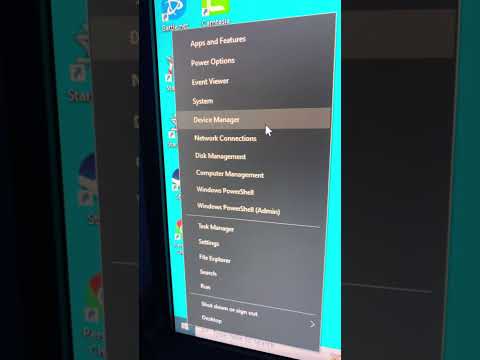
Fixing a stuttering game often involves a multi-pronged approach that addresses potential issues with your hardware, software, and in-game settings. Start by ensuring your system meets the minimum and recommended specifications for the game. Then, update your graphics drivers, check for any missing OS or BIOS updates, and optimize your power plan. Monitor your system temperatures to rule out overheating, and close unnecessary background applications. Fine-tune your in-game graphics settings, starting with lower presets and gradually increasing them. Finally, consider upgrading your RAM or storage if performance remains poor.
Understanding Stuttering in Games
Before diving into solutions, it’s crucial to understand what stuttering actually is. Unlike constant low FPS (frames per second), stuttering is characterized by sudden, jarring drops in performance that create a jerky or choppy visual experience. These stutters can be caused by a multitude of factors, making diagnosis sometimes tricky.
Troubleshooting Steps: The Deep Dive
Here’s a more detailed look at each step involved in tackling game stuttering:
- Hardware Check:
- CPU & GPU: Ensure both your processor and graphics card meet the game’s requirements. If they are borderline, consider overclocking (with caution and proper cooling) or upgrading.
- RAM: Insufficient RAM is a common culprit. 8GB is a bare minimum for modern games, and 16GB or more is highly recommended.
- Storage: Running games from an old or failing HDD (Hard Disk Drive) can cause stuttering, especially during loading screens or when the game streams assets. Switching to an SSD (Solid State Drive) dramatically improves loading times and reduces stuttering.
- Overheating: Monitor your CPU and GPU temperatures using software like MSI Afterburner or HWMonitor. If they are consistently hitting high temperatures (above 80-90°C), address the cooling issue with better fans, liquid cooling, or cleaning out dust.
- Software Optimization:
- Graphics Drivers: Always use the latest drivers from NVIDIA, AMD, or Intel. Outdated drivers can cause compatibility issues and performance problems.
- Operating System: Ensure your operating system (Windows, macOS, Linux) is up-to-date with the latest patches and updates.
- Background Processes: Close any unnecessary programs running in the background, such as web browsers, streaming services, or resource-intensive applications.
- Power Plan: Set your power plan to “High Performance” in Windows settings to ensure your CPU and GPU receive maximum power.
- Game Bar & DVR: Disable the Windows Game Bar and Game DVR, as they can sometimes interfere with performance.
- In-Game Settings:
- Graphics Presets: Start with the lowest graphics preset and gradually increase settings until you find a balance between visual quality and performance.
- Resolution: Lowering the resolution can significantly improve performance, especially on lower-end hardware.
- Texture Quality: High texture quality can strain your VRAM (video memory). Reduce this setting if you experience stuttering.
- Shadows & Lighting: Shadows and lighting effects are often performance-intensive. Lowering or disabling these settings can provide a noticeable boost.
- Anti-Aliasing: Anti-aliasing smooths out jagged edges but can impact performance. Experiment with different anti-aliasing methods or disable it altogether.
- VSync: While VSync can eliminate screen tearing, it can also introduce input lag and stuttering. Try disabling it or using adaptive sync technologies like G-Sync (NVIDIA) or FreeSync (AMD) if your monitor supports them.
- Advanced Troubleshooting:
- Driver Rollback: If stuttering started after updating your graphics drivers, try rolling back to a previous version.
- Hardware Conflicts: In rare cases, hardware conflicts can cause stuttering. Try removing or disabling any recently installed hardware.
- Memory Test: Run a memory test (e.g., using Memtest86) to check for faulty RAM modules.
- Disk Defragmentation (HDDs Only): If you’re still using an HDD, defragmenting the drive can improve performance. SSDs should not be defragmented.
- Clean Install of Windows: As a last resort, consider performing a clean install of Windows to eliminate any software conflicts or accumulated junk files.
Additional Tips
- Monitor your FPS: Use in-game FPS counters or third-party tools like Fraps or MSI Afterburner to track your FPS and identify when stuttering occurs.
- Pay attention to patterns: Does the stuttering happen in specific areas of the game or during certain events? This can help narrow down the cause.
- Read online forums: Search for other players experiencing similar issues with the same game. They may have found solutions or workarounds.
- Explore the Games Learning Society and other educational resources to deepen your understanding of game technology and optimization. GamesLearningSociety.org offers a wealth of information on these topics.
Frequently Asked Questions (FAQs)
1. Why do games suddenly start stuttering even if they ran fine before?
Sudden stuttering can be caused by several factors: driver updates, new game patches, background processes, hardware degradation, or increased system temperatures. Start by checking for any recent changes to your system and addressing the most likely culprits.
2. Can a bad CPU cause stuttering in games?
Yes, a weak or overheating CPU can definitely cause stuttering. The CPU is responsible for handling game logic, physics, and AI, so if it’s struggling to keep up, it can lead to frame drops and stuttering.
3. Does slow RAM cause stuttering in games?
Yes, insufficient or slow RAM can cause stuttering. If your system runs out of RAM, it will start using the hard drive as virtual memory, which is much slower and can lead to noticeable stuttering.
4. Can a bad hard drive cause stuttering in games?
Yes, an old or failing hard drive can cause stuttering, especially during loading screens or when the game needs to stream data from the drive. Switching to an SSD can significantly improve performance.
5. Can mouse movements cause stuttering in games?
In some cases, a faulty mouse or driver issues can cause stuttering. Try testing a different mouse or updating your mouse drivers. Also, ensure your mouse settings are not causing excessive CPU usage.
6. Does VSync always cause stuttering?
VSync doesn’t always cause stuttering, but it can. It can also introduce input lag. If you experience stuttering with VSync enabled, try disabling it or using adaptive sync technologies like G-Sync or FreeSync.
7. How do I know if my RAM is enough for gaming?
Signs that you need more RAM include slow loading times, frequent hard drive access during gameplay, and error messages related to memory. You can also monitor your RAM usage using Task Manager to see if you’re consistently hitting 100% utilization.
8. Is it normal for my computer to get hot while gaming?
It’s normal for your computer to get warm while gaming, but excessive heat is not. Monitor your CPU and GPU temperatures to ensure they are within safe limits. If they are too high, address the cooling issue.
9. How often should I update my graphics drivers?
You should update your graphics drivers whenever new drivers are released, especially if they include optimizations or fixes for the games you play. Check the NVIDIA, AMD, or Intel websites regularly.
10. What are the best in-game graphics settings for reducing stuttering?
The best settings for reducing stuttering are usually the ones that put the least strain on your GPU and CPU. Start by lowering texture quality, shadow quality, lighting effects, and anti-aliasing.
11. Can a motherboard cause stuttering?
While a motherboard is unlikely to be the primary cause of stuttering, a faulty or outdated motherboard can contribute to performance issues, especially if it’s limiting the performance of other components like the CPU or RAM.
12. What does FPS stutter mean?
FPS stutter refers to the sudden and noticeable drops in frame rate that cause a game to feel jerky and unresponsive. It’s different from a consistently low FPS, which results in a smoother but slower experience.
13. How do I fix low 99% FPS?
Low 99% FPS indicates inconsistent frame times. To fix it, focus on improving overall system performance by updating drivers, closing background processes, optimizing in-game settings, and ensuring your hardware is adequate.
14. What are the signs of a broken CPU?
Signs of a broken CPU include random crashes, system instability, overheating, and the inability to boot up your computer. If you suspect your CPU is failing, it’s best to have it tested by a professional.
15. Can a bad graphics card cause stuttering?
Yes, a failing or underpowered graphics card is a common cause of stuttering. Make sure your graphics card meets the game’s requirements and that it’s not overheating. Consider upgrading if necessary.