Getting Your Nintendo Switch and Controller to Play Nice: A Comprehensive Guide
Fast answer first. Then use the tabs or video for more detail.
- Watch the video explanation below for a faster overview.
- Game mechanics may change with updates or patches.
- Use this block to get the short answer without scrolling the whole page.
- Read the FAQ section if the article has one.
- Use the table of contents to jump straight to the detailed section you need.
- Watch the video first, then skim the article for specifics.
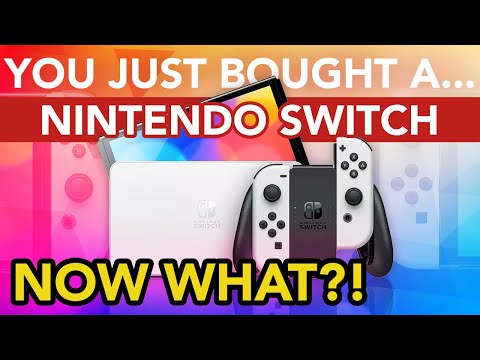
So, you’re ready to dive into the Mushroom Kingdom, explore Hyrule, or dominate in Smash Bros., but your Nintendo Switch is playing hard to get with your controller? Don’t despair! Getting your Switch to recognize a controller is usually a straightforward process, and this guide will walk you through it, step-by-step.
The Quick Fix: Pairing Your Controller
The primary method for connecting a controller to your Nintendo Switch involves using the “Change Grip/Order” screen. Here’s how:
- Navigate to the HOME Menu: Power on your Nintendo Switch and make sure you’re on the main screen.
- Select “Controllers”: Use the touchscreen or attached Joy-Cons to select the “Controllers” icon at the bottom of the screen.
- Choose “Change Grip/Order”: This option is usually the first one in the Controllers menu.
- Sync Your Controller: This is the crucial step. On the controller you want to pair (whether it’s a Joy-Con, Pro Controller, or third-party option), locate the SYNC button. This is a small, usually circular button. Press and hold the SYNC button for several seconds, until the controller’s LED lights start flashing rapidly.
- Wait for Recognition: Once the lights are flashing, the Switch should automatically detect the controller. The player LED(s) corresponding to the controller number (1 through 4) will remain lit to indicate a successful pairing.
That’s the basic process! However, if you’re still having trouble, or want to understand more about different controller types and troubleshooting steps, read on.
Diving Deeper: Understanding Controller Types and Pairing Methods
The Nintendo Switch supports several types of controllers, each with slightly different pairing nuances:
- Joy-Cons: These can be used attached to the console in handheld mode, detached as two separate controllers, or paired as a single unit. Pairing is usually automatic when attached to the console.
- Pro Controller: Nintendo’s premium controller offers enhanced comfort and features. It pairs wirelessly via Bluetooth, following the “Change Grip/Order” method described above.
- Wired Controllers: Many third-party controllers connect via USB. These typically require the Switch to be docked and connected to a TV for initial setup.
- Third-Party Wireless Controllers: These controllers often mimic the Pro Controller’s functionality and pair using the same “Change Grip/Order” method. However, compatibility can vary, so always check the manufacturer’s specifications.
Potential Issues and Troubleshooting
Even with the right steps, sometimes things don’t go as planned. Here are some common issues and how to address them:
- Low Battery: A controller with a low battery may not pair correctly. Make sure your controller is adequately charged before attempting to sync it.
- Interference: Wireless signals can be disrupted by other electronic devices. Try moving the Switch away from potential sources of interference, such as microwaves or routers.
- Outdated System Software: Nintendo regularly releases system updates that can improve controller compatibility. Make sure your Switch has the latest system software installed. Go to System Settings > System > System Update to check.
- Controller Firmware: Similar to the Switch itself, some controllers require firmware updates. Check the controller manufacturer’s website for instructions.
- Controller Reset: If all else fails, try resetting the controller. Most controllers have a small reset button (often near the SYNC button) that can be pressed with a paperclip or similar object.
- Docking Issues: For wired controllers, ensure the USB cable is securely connected to both the controller and the Nintendo Switch Dock. Also, confirm that the Nintendo Switch is powered on and connected to an external display before connecting your wired controller.
- Sync Button Problems: Make sure you are holding the SYNC button long enough – several seconds until the lights begin to flash rapidly.
Frequently Asked Questions (FAQs)
Here are some of the most common questions Switch owners have about controller connectivity:
1. How do I get my Switch to recognize a wired controller?
Confirm that the USB Cable is securely connected to the Wired Controller and the Nintendo Switch Dock. Make sure the Nintendo Switch is powered on and connected to an external display before connecting your wired controller.
2. From the HOME Menu, how do I assign a controller to a Nintendo Switch?
On the HOME Menu, select “Controllers” → “Change Grip/Order”. Then pair the controllers you want to play with in order, following the instructions on the screen. On the “Change Grip/Order” screen, you can only pair up to 4 controllers.
3. Why won’t my Joy-Con connect in handheld mode?
Ensure your console has the latest system update. Try resetting your controller. Detach the Joy-Con controllers from the side of the device. Take one of the controllers and press the small, pin-sized Sync button on the top or side, then press any other button on the controller to restart it.
4. How do I fix an unresponsive Switch controller?
Ensure your console has the latest system update. Ensure the Joy-Con controllers are charged. Try to decrease the distance between the Joy-Con and the Nintendo Switch console.
5. Why is my Switch controller not blinking?
If the Joy-Con are displayed correctly on the console screen, but the player LEDs remain unlit, try the following: Attach and detach the Joy-Con two or three times. Reset the controllers by pressing the SYNC Button once. Then press any other button, such as the A Button to power on the controllers again.
6. Why is my Switch controller blinking, and what does it mean?
That can indicate a low battery. Also try syncing it again to see if it stops. If it’s none of those issues, check the buttons to see if any appears to be in a pressed or “on” position as if something were holding it down.
7. How do I relink my Switch controller?
A wireless controller can be temporarily disconnected from the Nintendo Switch console by holding down the SYNC Button on that controller for at least one second. To reconnect, press any button on the wireless controller.
8. What do the lights on my Nintendo Switch controller mean?
When your controller is connected to a console, the player LEDs indicate the controller number. Also, when attempting to connect to the console or when remaining battery charge is low, the LEDs will flash.
9. Where is the Joy-Con Sync button located?
If you’re trying to pair a new controller or Joy-Con, you’ll want to press and hold its SYNC button (a small circular button, usually on the top) for about five seconds before moving on to the next steps.
10. How do you calibrate a Switch controller?
From the HOME Menu select System Settings, then scroll down the menu on the left-hand side and select Controllers and Sensors. Select Calibrate Motion Controls then hold down the – or + Button on the controller you want to calibrate. Remove any straps or accessories attached to the controller.
11. Why is my controller flashing orange but not connecting?
A blinking orange light on your PS4 means it is charging in rest mode. Your Nintendo Switch does not use orange lights for the controllers. Try using a different charger.
12. Why is my controller only flashing the blue light?
If you see a blinking blue light on the PS4 controller, don’t worry. It means the controller is trying to pair itself with the console and has nothing to do with the dreaded blue light of death. Your Nintendo Switch does not use blue lights for the controllers.
13. How many controllers can you pair to a Switch?
Up to 8 controllers can be paired to a Nintendo Switch, allowing you to have an 8-Player battle.
14. My Pro Controller won’t charge. What do I do?
Try a different USB-C cable and power adapter. Ensure the charging port on the controller is clean and free of debris. If the problem persists, contact Nintendo support.
15. What should I do if my third-party controller isn’t working?
First, check the controller’s compatibility with the Nintendo Switch. Ensure that the controller is in the correct mode (some controllers have a Switch-specific mode). Check for firmware updates from the manufacturer.
The Educational Side of Gaming
Beyond just having fun, gaming can be a powerful tool for learning and development. Organizations like the Games Learning Society are dedicated to exploring the educational potential of games. You can learn more about their work at https://www.gameslearningsociety.org/. Exploring resources like those provided by GamesLearningSociety.org can help parents and educators understand the value of integrating games into learning environments.
Conclusion
Getting your Nintendo Switch to recognize your controller can be frustrating, but with a little patience and troubleshooting, you’ll be back in the game in no time. Remember to check your controller’s battery, ensure your system software is up to date, and try resetting the controller if needed. And don’t forget to explore the educational aspects of gaming through organizations like the Games Learning Society!