Unleash Your Minecraft Universe: A Comprehensive Guide to Modpacks
Fast answer first. Then use the tabs or video for more detail.
- Watch the video explanation below for a faster overview.
- Game mechanics may change with updates or patches.
- Use this block to get the short answer without scrolling the whole page.
- Read the FAQ section if the article has one.
- Use the table of contents to jump straight to the detailed section you need.
- Watch the video first, then skim the article for specifics.
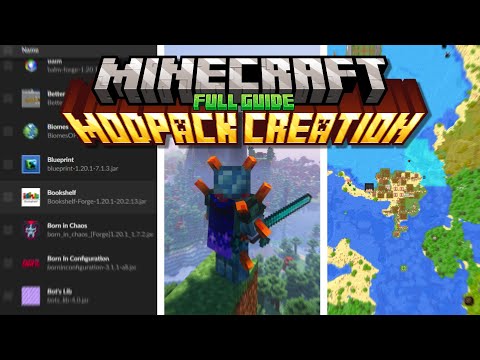
So, you’re looking to supercharge your Minecraft experience? Modpacks are the answer! In essence, you acquire modpacks in Minecraft primarily through downloading and installing them via dedicated launchers like CurseForge, Technic Launcher, or ATLauncher. These launchers act as centralized hubs, allowing you to browse, install, and manage pre-configured collections of mods (modpacks) that alter and enhance the base game. This streamlined approach avoids the hassle of individually selecting and configuring mods, offering a cohesive and often thematic gameplay experience. Now, let’s dive into the details!
Understanding Minecraft Modpacks: What Are They?
Before we get to how to install them, let’s clarify what a Minecraft modpack actually is. Think of it as a curated collection of Minecraft mods designed to work together seamlessly. Instead of hunting down individual mods and hoping they don’t conflict, a modpack offers a pre-packaged, tested, and often themed experience. You might find a modpack focused on exploration, technology, magic, or even a complete overhaul of the game’s mechanics. They offer a fantastic way to completely transform your Minecraft experience without the headache of manual mod management.
The Easiest Route: Using a Dedicated Launcher
The most user-friendly way to install and manage Minecraft modpacks is through a dedicated launcher. Here are a few of the most popular:
- CurseForge Launcher: This is arguably the most popular launcher. It’s tightly integrated with the CurseForge website, giving you access to a massive library of modpacks. It’s easy to use, allows for one-click installs, and keeps your modpacks updated automatically.
- Technic Launcher: The Technic Launcher is another well-established option. It hosts its own library of modpacks and offers a similar experience to CurseForge, with easy browsing and installation.
- ATLauncher: ATLauncher is a great alternative, particularly if you’re interested in a wide variety of modpack sources and a slightly more advanced level of control.
Installing a Modpack with CurseForge (Example)
Let’s walk through the process using the CurseForge Launcher:
- Download and Install: First, download the CurseForge Launcher from its official website (overwolf.com/curseforge). Install it following the on-screen instructions. Overwolf is required as Curseforge runs within it.
- Connect to Minecraft: Launch the CurseForge Launcher and connect it to your Minecraft account. This usually involves logging in with your Mojang or Microsoft account.
- Browse Modpacks: Navigate to the Minecraft section within the launcher. You’ll see a “Browse Modpacks” or similar option.
- Choose Your Modpack: Browse the available modpacks, filtering by category, popularity, or keywords. Read the descriptions carefully to find one that suits your interests.
- Install: Once you’ve found a modpack you like, click the “Install” button. The launcher will automatically download and install all the necessary mods and configurations.
- Play: After the installation is complete, a “Play” button will appear. Click it to launch Minecraft with the modpack loaded.
Manual Installation: The Advanced Approach
While launchers are recommended for ease of use, you can manually install modpacks. This is a more complex process, recommended for advanced users who want greater control or are dealing with unsupported modpacks.
- Find and Download: Locate the modpack you want to install. These are typically found on websites like CurseForge or Modrinth, often packaged as ZIP files. Ensure you download the server pack version, if available.
- Create a Minecraft Instance: You’ll need to create a separate Minecraft instance for the modpack. This prevents conflicts with your vanilla installation. Most launchers (including the default Minecraft launcher) allow you to create profiles or instances.
- Extract the Modpack: Extract the contents of the downloaded ZIP file into the directory of your newly created Minecraft instance.
- Install Forge: If the modpack doesn’t include a pre-installed version of Minecraft Forge, download the appropriate version from the official Forge website (files.minecraftforge.net). Install it by running the downloaded installer and selecting the option to create a new profile.
- Configure the Launcher: In your Minecraft launcher, select the Forge profile you created. Ensure the game directory is pointed to the instance directory where you extracted the modpack files.
- Launch and Play: Launch Minecraft using the Forge profile. The modpack should now be loaded.
Frequently Asked Questions (FAQs)
1. Are Minecraft Modpacks free?
Yes, Minecraft modpacks are generally free to download and use. The mods themselves are created by community developers and distributed freely. However, some modpacks may require you to own a copy of Minecraft. Some launchers like Curseforge may offer premium subscriptions that allow you to download mods without speed limits.
2. What are the system requirements for running Minecraft Modpacks?
The system requirements vary depending on the complexity of the modpack. However, as a general rule, you’ll need more RAM than vanilla Minecraft. 8GB of RAM is a good starting point, but some larger modpacks may require 16GB or more. A decent CPU and graphics card are also important.
3. Can I install multiple Modpacks at the same time?
Technically, no. You can’t have multiple modpacks active in the same Minecraft instance. However, you can have multiple modpack installations on your computer, each in its own directory or profile. You’ll need to switch between them in your launcher.
4. Are Minecraft Mods safe to download?
While most Minecraft mods are safe, there’s always a risk of downloading malicious software. Stick to reputable sources like CurseForge, Modrinth, and the official Minecraft forums. Always scan downloaded files with your antivirus software.
5. Do I need Minecraft Forge to install Modpacks?
Most modpacks require Minecraft Forge, which is a mod loader that allows you to run mods. Some modpacks may come with Forge pre-installed, but you’ll often need to install it separately.
6. How do I update a Modpack?
Using a launcher like CurseForge, updating modpacks is usually a one-click process. The launcher will notify you when updates are available. For manual installations, you’ll need to download the updated modpack and replace the existing files.
7. Can I add my own mods to a Modpack?
Yes, you can usually add your own mods to a modpack. Simply place the mod’s JAR file in the “mods” folder within the modpack’s directory. However, be aware that adding mods can sometimes cause conflicts or instability.
8. Where do I find Minecraft Modpacks?
Popular websites for finding Minecraft modpacks include CurseForge, Modrinth, and the Technic Platform.
9. What is the difference between a Mod and a Modpack?
A mod is a single modification to Minecraft, while a modpack is a collection of mods designed to work together. Modpacks offer a more comprehensive and curated experience.
10. Can I use Modpacks on a Minecraft server?
Yes, you can use modpacks on a Minecraft server. You’ll need to download the server pack version of the modpack and follow the server installation instructions. This usually involves uploading the modpack files to your server and configuring the server settings.
11. Why is my Modpack crashing?
Modpack crashes can be caused by various factors, including insufficient RAM, incompatible mods, outdated drivers, or corrupted files. Try allocating more RAM to Minecraft, updating your drivers, or reinstalling the modpack. Checking the crash logs can also provide valuable information.
12. Can I create my own Modpack?
Yes, you can create your own modpack by selecting and configuring a collection of mods. This requires more technical knowledge and testing to ensure compatibility. Launchers like CurseForge offer tools to help you create and share your own modpacks.
13. What if a Modpack needs a specific version of Java?
Some older modpacks might require older versions of Java to run properly. You can manage multiple Java installations using tools like the Java Version Manager or within some launchers settings. Ensure the modpack uses compatible Java version
14. Are there Modpacks for different versions of Minecraft?
Yes, modpacks are typically designed for specific versions of Minecraft. Make sure the modpack you choose is compatible with the version of Minecraft you have installed.
15. How do I report a problem with a Modpack?
If you encounter problems with a modpack, such as bugs or crashes, report the issue to the modpack creator or on the modpack’s forum or Discord server. This helps them improve the modpack for everyone. You can learn more about the educational aspects of gaming, including Minecraft, at the GamesLearningSociety.org website.
By following these tips and using the right tools, you can unlock a whole new world of possibilities within Minecraft through the power of modpacks! Happy crafting!