Mastering the Art of Sim Relocation: A Comprehensive Guide to Moving Sims in The Sims 4
Fast answer first. Then use the tabs or video for more detail.
- Watch the video explanation below for a faster overview.
- Game mechanics may change with updates or patches.
- Use this block to get the short answer without scrolling the whole page.
- Read the FAQ section if the article has one.
- Use the table of contents to jump straight to the detailed section you need.
- Watch the video first, then skim the article for specifics.
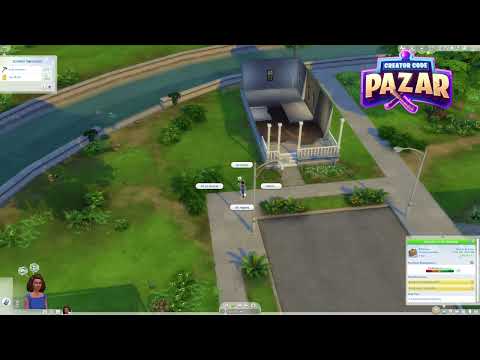
So, you’re looking to shuffle your Sims around? Whether you’re creating sprawling family dramas, meticulously crafting the perfect neighborhood dynamic, or simply want to give your Sim a fresh start, moving Sims is a fundamental skill in The Sims 4. The game offers multiple ways to relocate your digital denizens, each with its own nuances and advantages. Here’s a comprehensive breakdown of how to move Sims characters, ensuring you can orchestrate their lives with precision.
The core methods for moving Sims are:
-
Moving an Entire Household: This involves relocating all members of a Sim’s current household to a new location.
-
Moving Individual Sims: This allows you to split up households, transfer Sims to existing households, or create entirely new households for them.
-
Using the Gallery/Library: Move Sims or entire households from your saved library or the online gallery into your current game.
Let’s delve into each of these methods, providing step-by-step instructions and helpful tips along the way.
Moving an Entire Household
This is the simplest method for relocating Sims, ideal for when you want to move a family to a new house or neighborhood.
- Access the Phone: Select any Sim within the household you wish to move. Click on their cell phone icon located in the bottom-right corner of the screen.
- Navigate to the Travel Menu: Within the phone menu, select the second tab, which is usually represented by a car icon.
- Select the “Move Household” Option: Choose this option. This will bring up a world map where you can select your destination.
- Choose a New Lot: Select an unoccupied lot on the map. You can also choose an existing occupied lot if you want to move your family in with another household (though be prepared for some potential awkwardness!).
- Confirm the Move: The game will prompt you to confirm your decision. Consider the lot price; your Sims will need sufficient funds to purchase it.
- Enjoy Your New Home! Your entire household will relocate to the chosen lot. All relationships and skills will remain intact.
Moving Individual Sims
This method allows you to break up households, create new ones, or integrate Sims into existing families.
- Enter Manage Worlds: Click the “Manage Worlds” button located in the top-right corner of the screen. It looks like a globe.
- Access Manage Households: In Manage Worlds, find the icon depicting two Sims with a pen next to them. This is the “Manage Households” option.
- Select the Household: Click on the household containing the Sim you want to move.
- Choose “Transfer Sims Between Households”: A window will pop up with options. Select the option that reads “Transfer Sims Between Households.”
- Select the Sim to Move: You’ll see two panels. One represents the current household, and the other will be empty initially. Click on the Sim you want to move from the current household.
- Create or Select a Destination Household:
- To Create a New Household: Click on “Create New Household” on the right panel. This will move the Sim into a new, independent household.
- To Move to an Existing Household: Click on the icon representing the household you want to move the Sim into.
- Confirm and Apply Changes: Once the Sim is in the desired household, click the “Confirm” button (usually a checkmark) to apply the changes.
- Age Warning: If you created a new household for the Sim, remember that if you don’t play with that household, the Sim will age without your control!
Important Considerations:
- Children: You cannot move children without an adult. They require adult supervision to reside in a household.
- Teenagers: Teenagers can be moved freely to other households or to create their own.
- Relationships: Be mindful of the relationships between Sims. Moving a Sim away from their spouse or family can have emotional consequences within the game.
Utilizing the Gallery/Library
The Gallery and Library are invaluable resources for adding Sims to your game, whether they are premade Sims from your library or creations from other players.
- Enter Live Mode: Ensure you are playing an active household.
- Open the Gallery: Click on the Gallery button, located in the top-right corner of the screen. It resembles a picture frame.
- Find the Sim/Household: Browse the Gallery or your personal Library to find the Sim or household you want to add.
- Select “Place Household”: Once you’ve found your desired Sim or household, click the “Place Household” button. This will usually be found in the lower-right corner.
- Merge or Replace: A prompt will appear, asking if you want to “Merge” the chosen Sims into your current household or “Replace” your current household.
- Merge: Adds the chosen Sims to your existing household.
- Replace: Deletes your current household and replaces it with the selected one (use this option with caution!).
- Adjust Funds: If you’re merging a household, the game may ask you to adjust the household funds. This is because the incoming household may have more or less money than your current one.
Additional Tips and Tricks
- Free Moves: Sometimes you can move households for free by selecting “Move in Household from Library” when clicking on an empty lot. This bypasses the usual lot purchase fee.
- Testingcheats: Use “testingcheats true” in the cheat console followed by “cas.fulleditmode” to fully edit any Sim, even non-playable ones. This gives you complete control over their appearance, traits, and aspirations.
- Relationship Management: Moving Sims can impact their relationships. Use friendly interactions to maintain positive relationships after a move, or let the drama unfold naturally!
- Story Progression: Moving Sims is a great way to create compelling storylines. Experiment with different household combinations and see where the story takes you.
- Satisfaction Points: Accumulate 5000 satisfaction points to purchase a Re-Traiting Potion from the rewards store, which allows you to change a Sim’s traits without cheats.
Moving Sims is a vital aspect of The Sims 4, enabling you to craft intricate narratives and manage your Sim’s lives with precision. By mastering the methods outlined above, you can become a true architect of your Sim universe. Remember to experiment, be creative, and most importantly, have fun!
Frequently Asked Questions (FAQs)
1. Why can’t I move a child Sim on their own?
Children in The Sims 4 require adult supervision. The game mechanics prevent moving a child without an adult present in the household. This reflects the real-world need for caregivers.
2. Can teenagers live independently in The Sims 4?
Yes! Teenagers can be moved out of their family’s household and live independently, either alone or with other Sims. This opens up new gameplay possibilities, such as creating teenage runaway scenarios.
3. How do I move a Sim into an already occupied house?
When moving a household using the “Move Household” option on the phone, select the occupied lot on the map. The two households will merge. Alternatively, when moving individual Sims through “Manage Households,” choose the destination household to integrate the Sim.
4. What happens to a Sim’s relationships when they move?
Moving a Sim can affect their relationships. Proximity plays a role; Sims living nearby are more likely to interact and maintain their relationships. Distance can cause relationships to decay over time.
5. How do I move a Sim from one computer to another in The Sims 4?
The game can be installed in any computer through Origin, and can be played in any computer as long as they aren’t using the same Origin account at once. The only thing that won’t transfer is the save file, you may need to search it manually and copy it to the new computer.
6. Can I move a Sim without taking their belongings?
When moving a household, all belongings are automatically transferred. However, if you’re moving an individual Sim, any furniture or items in their personal inventory will remain with the original household unless you manually move them to the new household’s inventory.
7. Is there a way to move Sims for free?
Yes! Bring your active sim to the neighborhood, click on the lot and select “Move in Household from Library.” Simply choose the household you want to move in. Sims moved this way will not use any of their funds to purchase the lot.
8. What do I do if my Sim gets stuck and can’t move?
Sometimes your Sims get stuck in The Sims 4, but you can reset them with the “resetSim” command in the cheat window. You may want or need to reset your Sims if they become stuck or unresponsive. There are two ways you can reset your Sim. For either, open the cheat window by pressing CTRL + Shift + C.
9. Can I move a Sim back to their original household?
Yes, using the “Manage Households” function, you can transfer a Sim back to their original household or any other household in your game.
10. What happens if I move all the adults out of a household leaving only children?
The game will prevent you from doing this in most cases. It requires at least one teen or older Sim to remain in the household to supervise the children.
11. How do I edit a Sim that isn’t in my household?
You can edit NPC Sims in your game and give them a makeover by using testing cheats. Open a cheat window by pressing Ctrl + Shift + C on your keyboard and then typing testingcheats on in the cheats window then pressing Enter. Then type another cheat called cas. fulleditmode in the cheat window and press Enter again.
12. Can two computers play Sims with the same account?
Yes, you can open any game you have on any computer and play it with your Origin account. However, you cant play the game on 2 different devices at the exact same time. You can only do it on a one by one basics.
13. How do I change my Sims traits without cheating?
To achieve this, players need to accumulate 5000 satisfaction points which can be used to purchase Re-Traiting Potion from the rewards store.
14. Where can I find saved Sims and lots?
The Tray folder is where all the lots and sims that are in your library are stored. You can delete them directly but your library will be empty. So anything you’ve downloaded or saved to your library will be gone. I do not recommend you delete those files directly.
15. What if I want to learn more about game-based learning principles applied in The Sims 4?
For those interested in exploring the educational aspects of gaming and how games like The Sims 4 can be used as learning tools, visit the Games Learning Society website, located at GamesLearningSociety.org. They delve into the power of games in educational settings and provide valuable resources for educators and researchers alike.