Minecraft Bedrock Multiplayer: Your Comprehensive Guide to Playing with Friends
Fast answer first. Then use the tabs or video for more detail.
- Watch the video explanation below for a faster overview.
- Game mechanics may change with updates or patches.
- Use this block to get the short answer without scrolling the whole page.
- Read the FAQ section if the article has one.
- Use the table of contents to jump straight to the detailed section you need.
- Watch the video first, then skim the article for specifics.
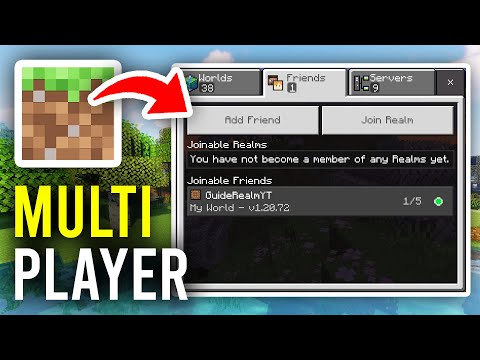
So, you want to dive into the blocky world of Minecraft: Bedrock Edition with your friends? Excellent choice! Playing together expands the creative possibilities and adds a whole new layer of fun to this already incredible game. The process of connecting with others can seem a little daunting at first, but fear not! This guide breaks down everything you need to know.
Here’s the direct answer: To play multiplayer on Minecraft Bedrock Edition, you essentially have four options:
-
LAN (Local Area Network): If you and your friends are on the same Wi-Fi network, this is the simplest option. Enable “Visible to LAN Players” in your world’s settings.
-
Minecraft Realms: These are private, always-online servers hosted by Mojang. They require a subscription but offer a hassle-free experience for playing with a select group of friends.
-
Servers: Bedrock Edition supports joining public and private servers. Connecting to a server requires knowing its IP address and port.
-
Xbox Live/Nintendo Switch Online/PlayStation Network: On consoles, you’ll need a subscription to the respective online service to play multiplayer with friends who aren’t on your local network.
Let’s delve into each of these options in more detail.
Exploring Your Multiplayer Options in Bedrock
LAN (Local Area Network) Multiplayer
The LAN option is the easiest way to play if you’re all physically in the same location and connected to the same network.
-
Host Setup: The person who wants to host the world should launch Minecraft Bedrock Edition and either create a new world or open an existing one. Before loading the world, navigate to the game settings for that world (the pencil icon) and select “Multiplayer” from the left-hand menu. Make sure the “Visible to LAN Players” toggle is switched on.
-
Joining the Game: Other players on the same network can then launch Minecraft Bedrock Edition, select “Play,” go to the “Friends” tab, and the host’s world should appear under the “LAN Games” section. Simply click to join.
This is great for impromptu gaming sessions at home!
Minecraft Realms: The Always-On Option
Realms are like your own personal Minecraft server, hosted by Mojang. They’re perfect for playing with a consistent group of friends, even when the host isn’t online.
-
Subscription Required: You’ll need to purchase a Minecraft Realms subscription. There are different subscription tiers available, depending on the number of players you want to support.
-
Creating a Realm: Once subscribed, you can create a new Realm or upload an existing world.
-
Inviting Players: You can invite friends to your Realm via their Gamertags. They’ll receive an invitation in their Minecraft client and can join at any time.
Realms are fantastic for long-term projects and building a dedicated community.
Servers: Expanding Your Horizons
Servers offer a vast range of experiences, from mini-games and role-playing to large-scale building projects.
-
Finding a Server: You can find lists of Bedrock Edition servers online. Be cautious when joining unknown servers, as some may have inappropriate content or malicious intent.
-
Adding a Server: In Minecraft Bedrock Edition, select “Play,” then go to the “Servers” tab. Click “Add Server.”
-
Entering Server Details: You’ll need to enter the server’s IP address and port. You can also give the server a name.
-
Joining the Server: Once added, the server will appear in your server list, and you can click to join.
Servers can offer a more diverse and social Minecraft experience.
Console Multiplayer: Xbox, PlayStation, and Nintendo Switch
On consoles like Xbox, PlayStation, and Nintendo Switch, playing multiplayer typically requires a subscription to the respective online service:
- Xbox: Requires Xbox Game Pass Ultimate or Xbox Live Gold (note: free-to-play games, including Minecraft, no longer require Xbox Live Gold).
- PlayStation: Requires PlayStation Plus.
- Nintendo Switch: Requires Nintendo Switch Online.
Once you have the necessary subscription, you can add friends via their platform accounts (e.g., Xbox Gamertag, PlayStation Network ID, Nintendo Switch Friend Code) and invite them to your world or join their world through the “Friends” tab.
Also note that it is important to check your privacy settings on your console, as you may need to enable the permission to join multiplayer games.
Troubleshooting Multiplayer Issues
Sometimes, things don’t go according to plan. Here are a few common issues and how to fix them:
-
“Unable to connect to world” or “Failed to connect to server”: This could be due to a network issue, incorrect server address, or a firewall blocking the connection. Ensure you have a stable internet connection, double-check the server address, and temporarily disable your firewall to see if that resolves the issue.
-
Outdated client: Make sure you and your friends are all running the latest version of Minecraft Bedrock Edition.
-
Incompatible versions: Bedrock Edition is cross-platform compatible, but it’s not compatible with Java Edition. Make sure everyone is using Bedrock.
-
Account permissions: Ensure that you have the necessary permissions enabled in your Microsoft/Xbox account, particularly for children’s accounts.
-
Creeper Error: This error indicates a network issue preventing sign-in. Check your internet connection and its configuration.
Remember to consult the official Minecraft help resources for more detailed troubleshooting steps. And you might even find some advice, tips and tricks by playing some strategic games found on GamesLearningSociety.org.
Frequently Asked Questions (FAQs)
Here are some frequently asked questions to further clarify the process of playing multiplayer on Minecraft Bedrock Edition:
1. Is Minecraft Bedrock cross-platform?
Yes! Minecraft Bedrock Edition supports cross-platform multiplayer, meaning you can play with friends on PC, Xbox, PlayStation, Nintendo Switch, iOS, and Android.
2. Do I need Xbox Live Gold to play Minecraft Bedrock on Xbox?
No, for free-to-play games like Minecraft Bedrock, an Xbox Live Gold subscription is no longer required for online multiplayer.
3. How do I join a friend’s Minecraft world on Bedrock?
In Minecraft, select “Play,” then go to the “Friends” tab. You should see your friend’s world listed if they are online and their world is set to allow friends to join.
4. Can I play split-screen multiplayer on Minecraft Bedrock?
Yes, split-screen multiplayer is available on console versions of Minecraft Bedrock Edition (Xbox, PlayStation, and Nintendo Switch).
5. How many players can play on a Minecraft Realm?
Minecraft Realms Plus supports up to 10 players, plus the owner. A standard realm supports 2 players plus the owner.
6. What is the difference between Minecraft Realms and servers?
Realms are private servers hosted by Mojang, offering a simple and hassle-free experience for playing with a small group of friends. Servers are public or private servers hosted by third parties, offering a wide range of experiences and communities.
7. How do I find Minecraft Bedrock server IP addresses?
You can find lists of Bedrock Edition servers online through websites and forums dedicated to Minecraft servers.
8. My friend’s world isn’t showing up on the “Friends” tab. What should I do?
Make sure you are both friends on your respective platform (e.g., Xbox, PlayStation, Nintendo Switch, Microsoft account). Also, ensure that both of you are online and that the host’s world is set to allow friends to join. Double-check your account permissions.
9. Can Java Edition players play with Bedrock Edition players?
No. Minecraft: Java Edition and Minecraft: Bedrock Edition are separate versions and are not cross-compatible.
10. Is Minecraft appropriate for children?
Minecraft is generally considered appropriate for children ages 8 and up, but younger children can also enjoy it with parental guidance. Parental controls are available to manage access to certain features and content.
11. How do I enable multiplayer for my child’s Minecraft account?
You’ll need to manage your child’s Microsoft/Xbox account settings and enable the necessary permissions for multiplayer access. This typically involves parental consent and may require payment information for verification.
12. I’m getting a “Creeper” error when trying to join a server. What does that mean?
The “Creeper” error typically indicates a network issue preventing you from signing in. Check your internet connection, firewall settings, and ensure that Minecraft has permission to access the internet.
13. What is Bedrock Together and how does it work?
Bedrock Together is a third-party app that allows players on certain platforms (like consoles) to connect to Bedrock Edition servers by routing the connection through the app. You’ll need to enter the server’s IP address and port into the app.
14. How do I start a LAN game on Minecraft Bedrock?
Start the game and press “Play”, then create or edit the world by pressing the pen button. Select the “Multiplayer” option and turn on the “Visible to LAN” option.
15. Where can I learn more about game design and learning through games?
The Games Learning Society (GamesLearningSociety.org) website is a great resource for learning more about the educational potential of games.
Final Thoughts
Playing Minecraft Bedrock Edition with friends is a fantastic way to enhance the gaming experience. By understanding the various multiplayer options and troubleshooting common issues, you can create countless memories together in the blocky world. So, gather your friends, choose your preferred method, and get ready to build, explore, and adventure together!