Mastering the Exit: A Comprehensive Guide to Quitting The Crew 2
Fast answer first. Then use the tabs or video for more detail.
- Watch the video explanation below for a faster overview.
- Game mechanics may change with updates or patches.
- Use this block to get the short answer without scrolling the whole page.
- Read the FAQ section if the article has one.
- Use the table of contents to jump straight to the detailed section you need.
- Watch the video first, then skim the article for specifics.
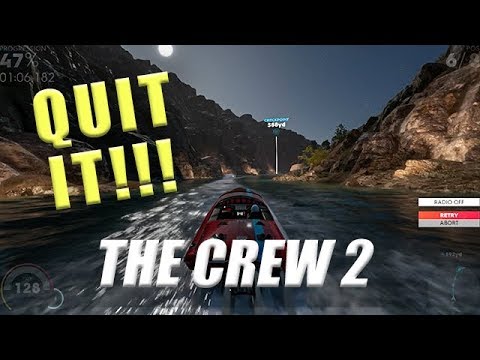
So, you’re ready to hang up your virtual driving gloves and step away from the adrenaline-fueled world of The Crew 2? Whether you’re on PC, PlayStation, or Xbox, knowing the proper way to quit the game is essential to avoid losing progress and ensure a smooth gaming experience. Here’s a breakdown of how to exit the game on each platform:
Quitting The Crew 2: Platform-Specific Instructions
The method for quitting The Crew 2 varies depending on the platform you’re playing on:
PC: The Tool Menu Method
- Access the Tool Menu: The most common and reliable way to quit on PC is through the Tool Menu. By default, this is accessed by pressing the “B” key on your keyboard.
- Navigate to “Quit Game”: Once the Tool Menu is open, you’ll see the “Quit Game” option.
- Hold Left Mouse Button: Select “Quit Game” and hold the left mouse button on the option. A meter will fill up. Once the meter is full, the game will exit. This holding mechanic prevents accidental quitting.
PlayStation 4/PlayStation 5: Utilizing the PlayStation Menu
- Press the PS Button: Press the “PS” button on your PlayStation controller. This will take you to the PlayStation main menu.
- Highlight The Crew 2: Navigate through your game library or recently played games to highlight The Crew 2.
- Press the Options Button: With The Crew 2 highlighted, press the “Options” button on your controller. This button is usually located to the right of the touchpad.
- Select “Close Application”: A side menu will appear. From this menu, select the “Close Application” option. This will gracefully exit the game.
Xbox One/Xbox Series X/S: Leveraging the Xbox Guide
- Press the Xbox Button: Press the “Xbox” button on your controller. This opens the Xbox Guide.
- Highlight The Crew 2: Find The Crew 2 in your recently played games or from your game library.
- Press the Menu Button: With The Crew 2 highlighted, press the “Menu” button on your controller (it looks like three horizontal lines).
- Select “Quit”: A menu will appear. Choose the “Quit” option. This will close the game.
Important Considerations Before Quitting
- Progress Saving: The Crew 2 saves your progress automatically to Ubisoft’s servers. However, it’s always a good idea to ensure you’re not in the middle of a crucial race or activity before quitting. Losing progress in an ongoing race is a frustrating experience.
- Aborting or Retrying Races: If you’re in a race you wish to exit, you can typically abort or retry. This option is usually found within the Tool Menu (B on keyboard, Triangle on PlayStation, Y on Xbox). Be aware that quitting an ongoing race will result in the loss of any progress made during that race.
- Free Roam is Your Friend: When you just want to free roam , you may just do the intro race, and after that you can quit out of the menu and play free roam.
The Tool Menu: Your All-Purpose Control Center
The Tool Menu is a vital resource in The Crew 2, not just for quitting but for various other functions. Accessing it is key to many in-game actions. Remember the default key bindings:
- Keyboard: B key
- Xbox Controller: Y button
- PlayStation Controller: Triangle button
This menu allows you to abort races, retry events, change settings, and, of course, quit the game. Familiarize yourself with its layout for a smoother gameplay experience.
Understanding Autosaving in The Crew 2
The Crew 2 relies heavily on autosaving. While this means you don’t need to manually save your progress, it also implies that abrupt exits during certain actions could lead to minor data loss. Ideally, finish any ongoing events or activities before quitting to minimize any potential issues.
Exploring Free Roam and Open-World Dynamics
The Crew 2 is known for its expansive open-world environment and encourages both racing and free-roaming across the United States. Knowing how to navigate the world and exit effectively is crucial for a positive gaming experience.
Frequently Asked Questions (FAQs) about Quitting The Crew 2
Here are some frequently asked questions to further clarify the process of exiting The Crew 2 and address common concerns:
1. How do I quit The Crew 2 on PC if the “B” key isn’t working?
If the default key binding isn’t working, check your key bindings in the game settings. You can remap the Tool Menu activation to a different key. Access the settings menu (usually accessible via the F10 key), navigate to key bindings, and reassign the Tool Menu function.
2. Will I lose progress if I quit mid-race in The Crew 2?
Yes, you will lose any progress made during the ongoing race if you quit before finishing or using the “Abort”/ “Retry” option in the Tool Menu.
3. How can I restart a race in The Crew 2?
To restart a race, open the Tool Menu (B on keyboard, Triangle on PlayStation, Y on Xbox) and select the “Retry” option.
4. Can I pause The Crew 2?
The game can be paused at any time during the Party and Versus modes. When you Play Online or Play on Twitch, the pause menu will open, but the game will continue in the background.
5. How do I get back to the main menu in The Crew 2?
To return to the main menu, open the Tool Menu and select “Quit Game”. After quitting, relaunch the game.
6. Can I start a new game in The Crew 2?
As the progress is saved on their servers, those save files cannot be deleted to reset your progression. However, you can replay any mission you have come across during your game.
7. How do I free roam in The Crew 2?
Complete the introductory race, after which you can quit out of the menu and explore the open world at your leisure.
8. Can I sell cars in The Crew 2?
Unfortunately, The Crew 2 does not currently allow you to sell cars. This feature may be added in future updates based on community demand.
9. Is The Crew 2 fun to play alone?
Yes! The Crew 2 offers a vast array of solo content, including events, challenges, and races designed to be enjoyed alone.
10. How do I toggle the radio in The Crew 2?
Press B on keyboard, also if on Playstation controller then triangle, same position as Y on Xbox controllers to bring up the menu, which allows you to toggle the radio.
11. Can I replay events in The Crew 2?
Yes, you can replay introduction to events by accessing their location in the open world.
12. How do I close The Crew 2 if it freezes on PS4?
If the game freezes, try pressing and holding the PS button until the quick menu appears, then select “Close Application”. If that doesn’t work, you may need to perform a hard reset of your console.
13. What do I do if The Crew 2 won’t close on my PC?
Open the Task Manager (Ctrl+Shift+Esc), find The Crew 2 in the Processes tab, and select “End Task”.
14. Does The Crew 2 run better on PS5?
With the extra horsepower of the PS5, The Crew 2 should run at 60fps while matching the visual fidelity of PS4 Pro without a hitch.
15. What’s the difference between quitting and closing the application on PS4?
They essentially achieve the same result. “Quitting” usually refers to exiting through the game’s menu (if available), while “Closing Application” forces the game to shut down via the PlayStation’s operating system. Both methods will stop the game from running.
Final Thoughts
Mastering the art of exiting The Crew 2 efficiently ensures a seamless and frustration-free gaming experience. By understanding the platform-specific methods and keeping in mind the importance of saving progress, you can confidently dive into the world of motorsports and exit whenever you need a break. Remember, the Games Learning Society at GamesLearningSociety.org is a valuable resource for further exploration of the educational aspects of gaming. Enjoy the ride and know when to pull over!