Mastering Joy-Con Separation: A Comprehensive Guide to Nintendo Switch Controllers
Fast answer first. Then use the tabs or video for more detail.
- Watch the video explanation below for a faster overview.
- Game mechanics may change with updates or patches.
- Use this block to get the short answer without scrolling the whole page.
- Read the FAQ section if the article has one.
- Use the table of contents to jump straight to the detailed section you need.
- Watch the video first, then skim the article for specifics.
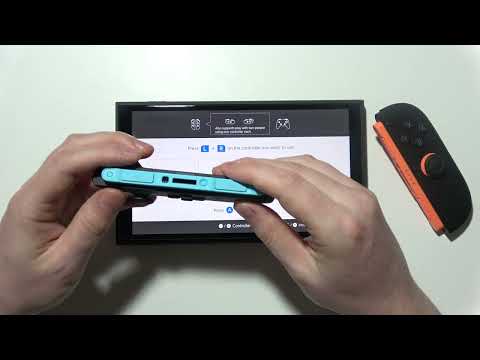
Separating your Joy-Cons from the Nintendo Switch is a fundamental skill for anyone wanting to experience the console’s versatility. To detach them, simply press the release button located on the back of each Joy-Con and slide the controller upwards along the Switch’s rail. It’s a straightforward process, but understanding the nuances can enhance your gaming experience.
Understanding Joy-Con Detachment and Usage
The beauty of the Nintendo Switch lies in its adaptability. Being able to separate the Joy-Cons unlocks a world of possibilities, from single-player handheld mode to multiplayer madness. This guide will walk you through everything you need to know, from the basic detachment procedure to troubleshooting common issues and maximizing your gaming sessions.
Detaching Your Joy-Cons: A Step-by-Step Guide
The process is simple, but precision is key. Here’s how to detach your Joy-Cons safely:
-
Locate the Release Button: On the back of each Joy-Con, you’ll find a small, circular button at the top, near where it connects to the Switch console. This is the release button.
-
Press and Hold: Gently press and hold the release button. You should feel a slight click or give, indicating that the locking mechanism is disengaged.
-
Slide Upwards: While holding the release button, slide the Joy-Con upwards along the rail of the Nintendo Switch. Use a smooth, even motion. Avoid forcing it, as this could damage the connection.
-
Repeat for the Other Joy-Con: Do the same for the other Joy-Con.
Reattaching Your Joy-Cons
Reattaching is even easier. Simply slide the Joy-Con down along the rail until it clicks into place. Make sure it’s fully seated to ensure a proper connection and charging.
Maximizing Multiplayer: Splitting Joy-Cons for Two Players
Many Nintendo Switch games support two-player mode using a single set of Joy-Cons. This is where things get interesting! After detaching your Joy-Cons:
-
Game Selection: Begin by choosing a game that supports split Joy-Con functionality, like Mario Kart 8 Deluxe, Super Smash Bros. Ultimate, or Super Mario Party.
-
Syncing: Navigate to the game’s multiplayer setup. The game will likely prompt you to re-sync your controllers.
-
Horizontal Grip: Hold each Joy-Con sideways, with the buttons facing you.
-
SL and SR Buttons: Simultaneously press and hold the SL and SR buttons (these are the small black buttons located on the top of the Joy-Con rail).
-
Confirmation: After a moment, the Joy-Con should sync as a half-controller. An on-screen indicator will usually confirm the connection.
-
Repeat for Second Joy-Con: Repeat the process with the other Joy-Con.
Essential Tip: Joy-Con Straps
Before embarking on any motion-controlled adventure, always attach the Joy-Con straps. These straps provide a more secure grip and, more importantly, protect against accidental throws. To attach, slide the Joy-Con into the strap until it clicks. Tighten the strap around your wrist for added security.
Troubleshooting Common Joy-Con Issues
Even with careful use, Joy-Cons can sometimes experience connection problems or other glitches. Here’s how to tackle some common issues:
- Joy-Con Not Connecting: Ensure the Joy-Con is properly seated on the Switch or fully charged. Try re-syncing by attaching and detaching the Joy-Con several times. If the problem persists, try attaching a different Joy-Con to isolate the issue.
- Drifting: Joy-Con drift, where the analog stick registers movement even when untouched, is a common problem. Contact Nintendo support, as they often offer free repairs or replacements for this issue. You can also try cleaning around the analog stick with a toothpick to remove any debris.
- Charging Problems: Make sure the Switch is powered on or in sleep mode to charge the Joy-Cons when attached. If charging is still an issue, try a different USB-C cable and power adapter. For detached Joy-Cons, consider using the Joy-Con Charging Grip (sold separately).
Cleaning Your Joy-Cons
Regular cleaning can help prevent issues and prolong the life of your Joy-Cons.
-
Power Off: Always power off your Nintendo Switch before cleaning.
-
Gentle Wipe: Use a soft, dry, lint-free cloth to wipe down the Joy-Cons.
-
Stubborn Dirt: For stubborn dirt, slightly dampen the cloth with water. Avoid getting any moisture into the openings of the Joy-Cons.
-
Button Cleaning: Use a toothpick to gently remove dirt and debris around the buttons and analog sticks.
Exploring Advanced Joy-Con Functionality
Beyond basic detachment and usage, Joy-Cons offer a range of advanced features:
-
HD Rumble: The HD Rumble feature provides incredibly detailed and realistic vibrations, adding a new dimension to gameplay.
-
IR Motion Camera: The right Joy-Con has an IR Motion Camera that can detect shapes, motion, and distance of nearby objects. This is used in games like 1-2-Switch.
-
Amiibo Support: Both Joy-Cons support Amiibo scanning. Simply tap your Amiibo figure to the Joy-Con‘s NFC touchpoint to unlock in-game content.
Frequently Asked Questions (FAQs) About Joy-Cons
Here are some frequently asked questions about Joy-Cons to enhance your understanding and address common concerns:
-
How do I know if my Joy-Cons are fully charged? When attached to a charging Nintendo Switch, a battery icon will appear on the screen indicating the charging status. When fully charged, the icon will be full.
-
Can I use third-party Joy-Cons? Yes, there are third-party Joy-Con alternatives available. However, quality and features may vary. It’s crucial to read reviews and research compatibility before purchasing.
-
How many Joy-Cons can I connect to one Switch? You can connect up to eight controllers to a single Nintendo Switch console simultaneously.
-
Do Joy-Cons drain the Switch battery? When physically connected, Joy-Cons will charge using the Switch’s battery, which will slightly reduce battery life.
-
How long do Joy-Cons last on a full charge? Joy-Cons can last approximately 20 hours on a full charge, depending on usage and features like HD Rumble.
-
Can I charge Joy-Cons without the Switch? Yes, you can use the Joy-Con Charging Grip (sold separately) or third-party charging docks to charge Joy-Cons independently.
-
What do I do if my Joy-Cons are unresponsive? Try re-syncing them by attaching and detaching them to the console. Ensure they are charged. If the issue persists, a system restart might be necessary.
-
Can I play all Switch games with a single Joy-Con? No, not all games are compatible with single Joy-Con play. Check the game’s packaging or eShop description to confirm controller compatibility.
-
Are Joy-Cons region-locked? No, Joy-Cons are not region-locked and can be used with any Nintendo Switch console, regardless of region.
-
How do I update my Joy-Con firmware? You can update your Joy-Con firmware through the Nintendo Switch system settings. Go to “System Settings,” then “Controllers and Sensors,” and select “Update Controllers.”
-
Can I use Joy-Cons on a PC? Yes, you can connect Joy-Cons to a PC via Bluetooth, although you may need additional software or drivers for full functionality.
-
What is Joy-Con drift, and how can I fix it? Joy-Con drift is when the analog stick registers movement even when you’re not touching it. Try cleaning the area around the stick, updating the firmware, or contacting Nintendo for repair or replacement.
-
How do I pair Joy-Cons wirelessly? From the HOME Menu, select “Controllers,” then “Change Grip/Order.” Press and hold the SYNC button on the Joy-Con until the LEDs start flashing. The Joy-Con will then pair with the console.
-
Can I use Joy-Cons with the Nintendo Switch Lite? Yes, but since the Nintendo Switch Lite doesn’t have detachable Joy-Cons, you’ll need to pair them wirelessly. You may need a stand to prop up the screen.
-
Where can I learn more about game controller design and its impact on learning? A great resource to explore the intersection of games and learning is the Games Learning Society. Visit their website at GamesLearningSociety.org for insightful articles and research.
By mastering these techniques and troubleshooting tips, you’ll be well-equipped to make the most of your Nintendo Switch and its versatile Joy-Con controllers. Happy gaming!