Soft Resetting Your Xbox Series S: A Comprehensive Guide
Fast answer first. Then use the tabs or video for more detail.
- Watch the video explanation below for a faster overview.
- Game mechanics may change with updates or patches.
- Use this block to get the short answer without scrolling the whole page.
- Read the FAQ section if the article has one.
- Use the table of contents to jump straight to the detailed section you need.
- Watch the video first, then skim the article for specifics.
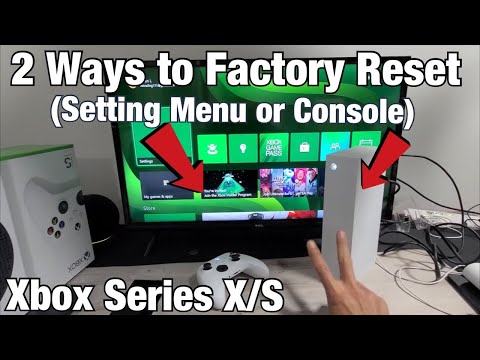
So, you’re experiencing a little hiccup with your Xbox Series S? Maybe a game is freezing, the dashboard is acting up, or you’re just not getting that smooth gaming experience you crave. Don’t panic! More often than not, a simple soft reset can work wonders. Think of it as a digital deep breath for your console, clearing out temporary glitches without wiping your data.
How do you soft reset an Xbox Series S?
There are two primary methods to perform a soft reset on your Xbox Series S, both safe and effective:
-
Via the Controller (Most Common Method):
- Press and hold the Xbox button in the center of your controller. This brings up the Xbox Guide.
- Use the D-pad or analog stick to navigate to the Power options, usually located on the right side of the guide.
- Select Restart console.
- Choose Restart. Your Xbox Series S will power down and then automatically boot back up.
-
Via the Console’s Power Button (If Controller is Unresponsive):
- Locate the power button on the front of your Xbox Series S console.
- Press and hold the power button for approximately 10 seconds. This forces a hard shut down.
- Wait a few seconds, and then press the power button again to turn your Xbox Series S back on. This initiates the reboot sequence.
These methods clear the console’s cache and restart the operating system without deleting any of your games, apps, saves, or settings. It’s the equivalent of restarting your computer – often the first step in troubleshooting.
Why Perform a Soft Reset?
A soft reset is your go-to fix for a range of common Xbox Series S issues. It’s a quick and non-destructive way to address temporary problems and get you back in the game. A healthy console is crucial for any gamer so let’s dive into some troubleshooting.
Common Issues Resolved by a Soft Reset:
- Game Freezing or Crashing: If a particular game is consistently freezing or crashing, a soft reset can clear corrupted temporary files that might be causing the issue.
- Slow Dashboard Performance: If the Xbox dashboard is sluggish or unresponsive, a soft reset can clear the system cache and improve performance.
- App Issues: Problems with specific apps, such as streaming services or media players, can often be resolved with a soft reset.
- Controller Syncing Problems: If you’re having trouble syncing your controller to the console, a soft reset can sometimes help re-establish the connection.
- Minor Network Connectivity Issues: While it won’t fix major network problems, a soft reset can sometimes resolve minor connectivity glitches.
- Audio/Visual Glitches: Experiencing distorted audio or visual artifacts? Try a soft reset before diving into more complex troubleshooting.
Understanding the Difference: Soft Reset vs. Hard Reset vs. Factory Reset
It’s important to understand the distinctions between different types of resets, as they have varying degrees of impact on your console and data.
Soft Reset (As Described Above):
- Clears the system cache.
- Restarts the operating system.
- Does not delete any games, apps, saves, or settings.
Hard Reset (Power Cycling):
- Similar to a soft reset but involves completely cutting off power to the console.
- Unplug the power cord from the back of the Xbox Series S.
- Wait for at least 30 seconds.
- Plug the power cord back in and turn on the console.
Factory Reset:
- Erases all data from your console, including games, apps, saves, settings, and account information.
- Returns the console to its original factory state.
- Should only be used as a last resort when troubleshooting persistent issues or preparing to sell or give away the console.
- You can perform a factory reset from the settings menu, and you’ll be given the option to keep installed games and apps or to erase everything.
Important Note: Before performing a factory reset, make sure your game saves are backed up to the Xbox Cloud. This will allow you to restore them after the reset.
Frequently Asked Questions (FAQs) about Soft Resetting an Xbox Series S
Here are 15 frequently asked questions to provide further clarification and helpful tips regarding soft resetting your Xbox Series S:
-
Will a soft reset delete my game progress?
No, a soft reset will not delete any of your game progress. Your game saves are typically stored in the cloud or on your console’s internal storage, and a soft reset does not affect these files.
-
How often should I soft reset my Xbox Series S?
You should only soft reset your Xbox Series S when you’re experiencing issues. There’s no need to perform a soft reset on a regular basis if your console is working fine.
-
My controller isn’t working; can I still soft reset?
Yes, you can use the power button on the console itself to perform a soft reset if your controller is unresponsive.
-
How long does a soft reset take?
A soft reset typically takes about 1-2 minutes to complete, including the time it takes for the console to power down and boot back up.
-
What if a soft reset doesn’t fix the problem?
If a soft reset doesn’t resolve the issue, try a hard reset (power cycling). If the problem persists, consider a factory reset or contacting Xbox Support.
-
Can I perform a soft reset while a game is running?
It’s not recommended to perform a soft reset while a game is running, as it could potentially lead to data loss or corruption. Always save your progress and close the game before performing a reset.
-
Does a soft reset affect my Xbox Game Pass subscription?
No, a soft reset does not affect your Xbox Game Pass subscription or any other account-related information.
-
Is there a way to schedule automatic soft resets?
No, the Xbox Series S does not have a built-in feature to schedule automatic soft resets.
-
Will a soft reset fix network connection problems?
A soft reset can sometimes resolve minor network connection problems, but it’s not a guaranteed fix. If you’re experiencing persistent network issues, you may need to troubleshoot your internet connection or router.
-
I performed a soft reset, and now my console won’t turn on. What should I do?
Ensure the power cord is securely plugged into both the console and the wall outlet. If the console still doesn’t turn on, try a different power outlet or contact Xbox Support.
-
What’s the difference between a soft reset and a cold boot?
A soft reset is initiated through the Xbox Guide or by holding the power button for a short period, while a cold boot (hard reset or power cycling) involves completely removing power from the console. They accomplish essentially the same thing.
-
Can a soft reset improve game loading times?
In some cases, a soft reset can improve game loading times by clearing the system cache and freeing up resources.
-
Will a soft reset fix disc reading errors?
While it’s not a guaranteed fix, a soft reset can sometimes resolve disc reading errors by clearing the system cache and ensuring that the console’s optical drive is functioning properly.
-
Does a soft reset affect my customized console settings?
No, a soft reset does not affect your customized console settings, such as display settings, audio settings, or accessibility options.
-
Where can I learn more about video game mechanics and the science of learning through games?
For more information about how video games can be used as powerful learning tools, be sure to visit the Games Learning Society at https://www.gameslearningsociety.org/. You can find valuable resources and research on the intersection of gaming and education at GamesLearningSociety.org.
Conclusion
A soft reset is a simple yet powerful troubleshooting tool for your Xbox Series S. By understanding how to perform one and when to use it, you can quickly resolve many common issues and keep your console running smoothly. Remember, it’s the digital equivalent of a deep breath for your console and the first step to getting back in the game! If problems persist, don’t hesitate to explore other troubleshooting options or reach out to Xbox Support. Happy gaming!