Transferring Your Minecraft Modpack: A Comprehensive Guide
Fast answer first. Then use the tabs or video for more detail.
- Watch the video explanation below for a faster overview.
- Game mechanics may change with updates or patches.
- Use this block to get the short answer without scrolling the whole page.
- Read the FAQ section if the article has one.
- Use the table of contents to jump straight to the detailed section you need.
- Watch the video first, then skim the article for specifics.
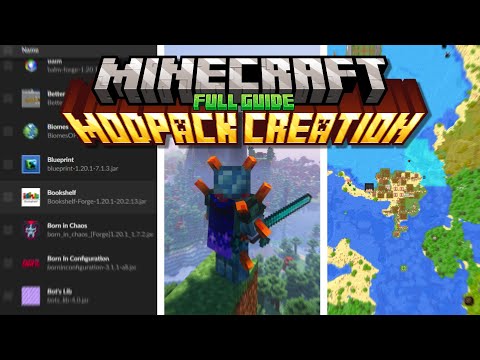
So, you’re looking to move your painstakingly crafted Minecraft modpack from one place to another? Whether it’s a new computer, sharing with friends, or setting up a dedicated server, transferring a modpack can seem daunting. Don’t worry, this guide will walk you through everything you need to know!
The core process of transferring a Minecraft modpack involves these key steps: Locating the modpack files, packaging them (usually into a zip file), transferring the package to the destination, and finally, unpacking and configuring the modpack in its new home. The specific steps will vary depending on which launcher you used to create the modpack. This can be either the CurseForge launcher, MultiMC, or some other custom solution. Let’s dive into each step in detail.
Understanding Modpack Structure
Before we begin, it’s crucial to understand what makes up a Minecraft modpack. At its heart, a modpack is a collection of mods – modifications to the base Minecraft game that add new features, content, and gameplay mechanics. These mods, along with configuration files, resource packs, and sometimes custom scripts, are bundled together to create a unique Minecraft experience.
A typical modpack structure includes:
- Mods folder: Contains all the
.jarfiles for the installed mods. - Config folder: Holds configuration files that customize the behavior of the mods.
- Scripts folder: May contain custom scripts for modifying gameplay or adding new features.
- Resourcepacks folder: Contains resource packs that change the look and feel of the game.
- World folder: This is where your saved games (worlds) are stored.
- Instance settings: Launcher-specific settings that define which mods are enabled, Java versions, and memory allocation.
Knowing this structure will help you identify the essential files to transfer.
Method 1: CurseForge Launcher
The CurseForge launcher offers a convenient built-in export feature. This is the easiest method if your modpack was created using CurseForge.
Exporting a Modpack from CurseForge
- Open the CurseForge app and navigate to the Minecraft tab.
- Locate the modpack you want to export.
- Click the three dots (context menu) in the top right corner of the modpack’s tile.
- Select “Export Profile”.
- A window will appear allowing you to select which folders you want to include in the export. Be mindful of sensitive files, like personal configurations, that you might not want to share.
- Click “OK” to begin the export process.
- The CurseForge launcher will create a
.zipfile containing your modpack. Choose a location to save this file.
Importing a Modpack to CurseForge
- Open the CurseForge app and navigate to the Minecraft tab.
- Click “Create Custom Profile”.
- Click “Import”.
- Browse to the
.zipfile you exported earlier and select it. - The CurseForge launcher will automatically install the modpack.
Method 2: MultiMC Launcher
MultiMC is a popular alternative launcher that offers more control over instance management.
Exporting a Modpack from MultiMC
- Open MultiMC and select the instance you want to export.
- Right-click on the instance and select “Export Instance”.
- Choose a location to save the exported instance file (usually a
.zipfile).
Importing a Modpack to MultiMC
- Open MultiMC.
- Click “Add Instance”.
- Click “Import from zip”.
- Browse to the
.zipfile you exported earlier and select it. - MultiMC will automatically install the modpack.
Method 3: Manual Transfer
This method involves manually copying the modpack files. It’s useful when dealing with modpacks from unknown sources or when other methods fail.
Locating the Modpack Files
The location of your modpack files depends on the launcher you’re using. Here are some common locations:
- CurseForge:
%appdata%.minecraftInstances[Modpack Name] - MultiMC:
[MultiMC Installation Directory]instances[Modpack Name] - Technic Launcher:
%appdata%.technicmodpacks[Modpack Name]
Copying and Packaging the Files
- Navigate to the modpack directory.
- Select all the folders and files within the directory (including the
mods,config,scripts,resourcepacks, andsavesfolders). - Right-click and select “Send to” > “Compressed (zipped) folder”. This will create a
.ziparchive of your modpack.
Transferring the Package
You can use several methods to transfer the .zip file:
- Cloud Storage: Upload the file to services like Google Drive, Dropbox, or OneDrive.
- External Hard Drive: Copy the file to an external hard drive or USB drive.
- Local Network: Transfer the file over your local network.
Unpacking and Configuring
- On the destination computer, extract the contents of the
.zipfile to a new folder. - Move the extracted folder to the appropriate location based on the launcher you are using. For example, if using CurseForge, place the folder in
%appdata%.minecraftInstances. - Launch the launcher. If needed, refresh the modpack list and the modpack should be available.
- The modpack may require manual configuration, such as setting the correct Java version or allocating sufficient memory.
Transferring a Modded Minecraft World
If you’re only interested in transferring your world, you can skip transferring the entire modpack and just focus on the world folder.
- Locate the world folder within your modpack directory (usually in the
savesfolder). - Copy the world folder to the destination computer.
- Install the same modpack on the destination computer.
- Place the copied world folder into the
savesfolder of the newly installed modpack.
Setting up a Modpack on a Server
Converting a modpack into a server requires a slightly different approach.
- Locate the modpack files.
- Find the
serverpackfiles if provided by the launcher, which is often a zip archive. - Follow instructions for your specific server hosting provider to install the serverpack into the server environment.
- Ensure that you remove any client-side mods from the server environment, as they are not required and can cause issues.
Modded Minecraft offers many exciting opportunities for learning and collaboration. You might be interested in checking out the Games Learning Society at GamesLearningSociety.org, which explores the educational aspects of gaming.
Frequently Asked Questions (FAQs)
1. Where are Minecraft modpacks stored?
Minecraft modpacks are typically stored in launcher-specific directories. Common locations include: %appdata%.minecraftInstances[Modpack Name] for CurseForge, [MultiMC Installation Directory]instances[Modpack Name] for MultiMC, and %appdata%.technicmodpacks[Modpack Name] for the Technic Launcher.
2. How do I send a Minecraft modpack to someone?
The easiest way to send a Minecraft modpack is to export it as a .zip file using your launcher, then upload the file to a cloud storage service like Google Drive or Dropbox. Share the download link with your friend.
3. Can I download a modpack without CurseForge?
Yes, some websites allow you to download mod files as .jar files, but using the CurseForge launcher is generally safer and more convenient, as it manages dependencies and updates.
4. How do I import a modpack into my server?
You can’t directly import a client modpack into a server. You need a server pack, which typically includes the necessary server files (e.g., minecraft_server.jar, forge.jar, configuration files). Upload the server pack to your server via FTP and follow your hosting provider’s instructions.
5. Is it safe to download from CurseForge?
Yes, CurseForge is widely regarded as a safe and reputable source for Minecraft mods and modpacks. However, always be cautious and review the mod description and comments before downloading.
6. How do I convert a CurseForge modpack into a server?
Most CurseForge modpacks offer a separate “server pack” download. If not, you can manually create one by copying the modpack’s files, installing Forge server, and removing client-side mods.
7. Do you need Java for CurseForge?
Yes, Java is required to run Minecraft and modpacks launched through CurseForge or any other launcher. Make sure you have the correct version of Java installed (usually Java 8 for older modpacks, Java 17 for newer ones).
8. How do I add a modpack zip file to Minecraft?
Using a Launcher such as CurseForge, you can add a modpack zip file to Minecraft by using the Create Custom Profile option and then selecting the file to import.
9. How to play modded Minecraft with friends without a server?
You can play modded Minecraft with friends without a server using a Local Area Network (LAN). One player hosts a LAN world, and others can join if they are on the same network and have the same mods installed.
10. How do I install a modpack single player?
To install a modpack for single-player mode, use a launcher like CurseForge or MultiMC. Import the modpack file, and the launcher will handle the installation.
11. Can I use a USB Drive for transferring?
Absolutely. Copying the zipped or unzipped modpack files to a USB drive and then transferring them to the appropriate folder in the destination computer is an effective way to transfer a modpack.
12. How much space do I need for a Modpack?
This depends on the size of the individual mods, how many mods are involved, and how many resource packs there are. A typical Modpack should not exceed 5GB.
13. How do I update a Modpack after transferring it?
Launchers such as CurseForge and MultiMC will detect updates to the modpack if they are available. Simply click on the update button to proceed with the updating of the modpack.
14. Is it possible to share a modpack across different Operating Systems, such as Windows and Mac?
Yes, it’s possible to share a modpack across different operating systems. Make sure to have the correct version of Java installed in the operating system you wish to share the modpack with.
15. What are some common problems with transferring Modpacks and how can I fix them?
One common problem is missing dependencies. Make sure all necessary mods are installed and compatible. Another is corrupted files. Redownload the modpack. Finally, incorrect Java version or insufficient memory allocation. This can be updated in the launcher settings.
Transferring Minecraft modpacks might seem challenging at first, but by following these steps, you can easily share your favorite modded experiences with others or move your modpack to a new computer. Remember to choose the method that best suits your needs and always double-check that you have all the necessary files before transferring. Now get out there and enjoy the endless possibilities of modded Minecraft!