How Long Does a CMOS Battery Last? Unveiling the Secrets of Your PC’s Timekeeper
Fast answer first. Then use the tabs or video for more detail.
- Watch the video explanation below for a faster overview.
- Game mechanics may change with updates or patches.
- Use this block to get the short answer without scrolling the whole page.
- Read the FAQ section if the article has one.
- Use the table of contents to jump straight to the detailed section you need.
- Watch the video first, then skim the article for specifics.
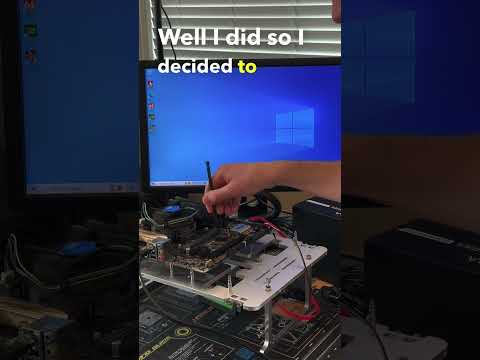
A CMOS battery typically lasts between 3 to 10 years, but this lifespan can vary widely depending on several factors. While some users report their batteries lasting over a decade, others might find they need replacing sooner. Understanding the factors that influence CMOS battery life can help you anticipate and prepare for replacement. This seemingly small component plays a crucial role in maintaining your computer’s basic functions.
Understanding the CMOS Battery
The CMOS (Complementary Metal-Oxide Semiconductor) battery is a small, non-rechargeable lithium coin cell battery (typically CR2032) found on your computer’s motherboard. Its primary function is to provide power to the CMOS chip, which stores the BIOS (Basic Input/Output System) settings and the system’s date and time when the computer is turned off. Think of it as your computer’s short-term memory, remembering crucial settings even without a main power source. Without it, your computer would “forget” its configuration every time you shut it down.
Factors Influencing CMOS Battery Lifespan
Several factors can affect how long your CMOS battery will last:
- Quality of the Battery: Higher quality batteries from reputable manufacturers like Duracell, Panasonic, and Energizer generally offer a longer lifespan.
- Usage Patterns: How often you use your computer and whether it’s frequently unplugged can impact battery life. Systems that are constantly connected to a power source experience less drain on the CMOS battery.
- Environmental Conditions: Extreme temperatures, both hot and cold, can negatively affect battery performance and lifespan.
- Motherboard Design: The specific design and power management features of the motherboard can also influence how efficiently the CMOS battery is used.
- Storage Conditions: A CMOS battery that sits on the shelf for a long time may already have lost some of its life before it’s even installed.
Recognizing the Signs of a Failing CMOS Battery
Being able to identify the symptoms of a failing CMOS battery is crucial to maintaining your PC’s optimal performance. Here are some key indicators that your CMOS battery might need replacing:
- Incorrect Date and Time: The most common symptom is the system displaying an incorrect date and time, especially after the computer has been turned off for a while.
- Loss of BIOS Settings: The computer may revert to default BIOS settings upon startup, requiring you to reconfigure them.
- Checksum Errors: Error messages related to CMOS checksum during the boot process are a strong indication of a failing battery.
- Booting Issues: Random shutdowns or difficulties booting the computer can sometimes be attributed to a weak CMOS battery.
- Hardware Failures: In some cases, a failing CMOS battery can lead to unexpected hardware issues or driver problems.
Replacing the CMOS Battery: A Step-by-Step Guide
Replacing a CMOS battery is a relatively straightforward process, but it’s essential to follow these steps carefully:
- Power Down and Disconnect: Turn off your computer completely and unplug it from the power outlet. This is crucial for safety.
- Locate the CMOS Battery: Open the computer case and locate the CMOS battery on the motherboard. It’s typically a small, silver coin-shaped battery. Refer to your motherboard manual if you’re unsure of its location.
- Remove the Old Battery: Gently press the retaining clip or lever holding the battery in place, and carefully remove the old battery.
- Insert the New Battery: Insert the new CMOS battery (usually a CR2032) into the socket, ensuring the correct polarity (+ side facing up).
- Reassemble and Power On: Close the computer case, reconnect the power cord, and turn on the computer.
- Enter BIOS and Configure: Upon startup, you’ll likely need to enter the BIOS settings (usually by pressing Delete, F2, or F12 during boot) and reconfigure the date, time, and other custom settings.
FAQs: Delving Deeper into CMOS Batteries
Here are 15 frequently asked questions about CMOS batteries to provide even more valuable information:
-
Can a CMOS battery last 20 years?
While theoretically possible under ideal conditions with minimal drain, a 20-year lifespan for a CMOS battery is highly unlikely. Expect a more realistic lifespan of 3-10 years.
-
How often should I replace the CMOS battery?
A good practice is to replace the CMOS battery every 5-7 years, even if it’s not showing obvious signs of failure. This proactive approach helps prevent unexpected issues.
-
How do I know if my CMOS battery needs replacing?
The most common signs include incorrect date and time, loss of BIOS settings, checksum errors, and booting problems.
-
How long does it take for a CMOS battery to go bad?
The time it takes for a CMOS battery to fail varies widely. Some might last only a few years, while others can last close to a decade. It depends on usage and environmental factors.
-
What problems can a bad CMOS battery cause in a PC?
A bad CMOS battery can lead to a range of issues, including incorrect date and time, loss of BIOS settings, hardware failures, and difficulties booting the computer.
-
Can a PC start without a CMOS battery?
Yes, a PC can start without a CMOS battery, but the BIOS settings will revert to default, and you’ll need to manually set the date and time each time you boot the computer. You also may not be able to save your changes to the BIOS.
-
Will I lose data if I replace the CMOS battery?
No, replacing the CMOS battery will not delete any data stored on your hard drive. However, you will lose your BIOS settings, which you’ll need to reconfigure.
-
How do I check my CMOS battery health?
The easiest way to check CMOS battery health is to set the correct date and time, shut down the PC, remove the power cord, wait an hour, and then reboot. If the date and time are incorrect, the battery likely needs replacing.
-
What should I do before replacing the CMOS battery?
Before replacing the CMOS battery, disconnect all external devices, turn off the computer completely, and unplug it from the power outlet.
-
How long should I wait after removing the CMOS battery before reinserting it?
Wait for about 1-5 minutes after removing the CMOS battery before reinserting the new one. This allows any residual charge to dissipate.
-
Which CMOS battery brands are recommended?
Reputable brands like Duracell, Panasonic, Energizer, and VARTA are generally recommended for CMOS batteries.
-
What kills a CMOS battery?
A CMOS battery drains because it is constantly providing power to the CMOS chip to maintain BIOS settings and the system’s date and time.
-
Can a dead CMOS battery cause a no-display issue?
In some cases, a dead CMOS battery can prevent the computer from booting properly and result in a no-display issue. However, this is less common than other symptoms.
-
Does changing the CMOS battery void my warranty?
Generally, changing the CMOS battery will not void your warranty, as it’s considered a user-replaceable component. However, check your specific warranty terms to be sure.
-
Why should I reset the CMOS?
Resetting the CMOS can help resolve certain computer problems, troubleshoot hardware compatibility issues, or restore the BIOS to its default settings.
The Importance of a Functional CMOS Battery
While often overlooked, the CMOS battery is an essential component of your computer. Maintaining a functional CMOS battery ensures that your system retains its crucial settings and operates smoothly. By understanding the factors that affect its lifespan and recognizing the symptoms of failure, you can take proactive steps to keep your computer running optimally.
If you’re interested in learning more about how technology impacts education and learning, be sure to visit the Games Learning Society at GamesLearningSociety.org or https://www.gameslearningsociety.org/.