How Much Storage Can a PS3 Support?
Fast answer first. Then use the tabs or video for more detail.
- Watch the video explanation below for a faster overview.
- Game mechanics may change with updates or patches.
- Use this block to get the short answer without scrolling the whole page.
- Read the FAQ section if the article has one.
- Use the table of contents to jump straight to the detailed section you need.
- Watch the video first, then skim the article for specifics.
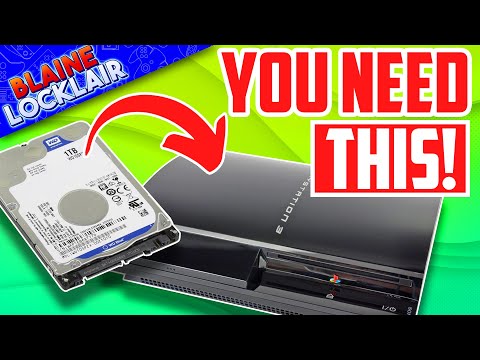
The PlayStation 3 (PS3), a beloved console from the 2000s, offered a significant leap in gaming and multimedia capabilities. One common question among PS3 enthusiasts, especially those who still enjoy the console today, revolves around its storage capacity. The simple answer is: the PS3 officially supports a maximum internal hard drive size of 1TB. However, the reality is a bit more nuanced, with some caveats and workarounds worth exploring.
While 1TB is the official limit, some users have successfully used larger drives, though with potential risks. There are reports of PS3s recognizing drives in between 1TB and 2TB, allowing game installations, and even running fine for a while. However, these larger drives can cause issues with the file system maintenance functions and could potentially lead to data corruption or instability. Thus, sticking with the 1TB official limit is generally considered the safest bet for optimal PS3 performance and longevity.
It’s important to note that the PS3 uses a standard 2.5-inch SATA hard drive, with a maximum thickness of 9.5mm. This form factor is crucial when selecting a new drive, whether it’s an HDD or an SSD. The console is compatible with both 5400 RPM and 7200 RPM drives, although the difference in speed is often negligible, especially compared to the performance boost gained from an SSD.
Understanding the Limitations
The key limitation isn’t necessarily the hardware itself but rather the PS3’s firmware and the way it manages larger storage devices. The file system was designed with a certain capacity in mind, and while it can sometimes “trick” larger drives into working, the underlying structure isn’t optimized for handling those extra gigabytes.
This is why, despite the fact that you can find articles claiming that you could use a 2TB drive, this is not advised. There are reports of PS3 consoles working with this type of storage, but these setups are notoriously unstable and there are no official confirmations about their efficiency and safety.
While the official max capacity of a PS3 hard drive is 1TB, this limitation applies to internal storage. For additional storage, the PS3 does support external storage through USB. While games can’t be installed directly to external drives, it can be used to store game saves, media files, or act as a backup device. Keep in mind that this form of external storage won’t improve the performance of your games or loading times.
Frequently Asked Questions (FAQs) About PS3 Storage
1. Can I use an SSD instead of an HDD in my PS3?
Yes, absolutely! You can replace the stock HDD in your PS3 with a 2.5-inch SATA SSD (Solid State Drive) as long as it is 9.5mm in thickness or less. SSDs offer significantly faster read and write speeds compared to traditional hard drives, which will result in quicker game load times, faster XMB (XrossMediaBar) navigation, and an overall more responsive system.
2. What’s the maximum SSD size I can use in my PS3?
While the official HDD size limit is 1TB, some users have had success using slightly larger SSDs. However, just as with HDDs, there have been reports of users struggling with a 1.75TB setup. Therefore, the safest and most reliable option for an SSD upgrade is to choose a 1TB model.
3. Will using an SSD make my PS3 run faster?
Yes, significantly. While game installations may not be drastically faster, you will notice a considerable improvement in XMB navigation speeds and game loading times. Games that are digitally downloaded will load much faster compared to using the standard HDD.
4. Can I put a 2TB HDD in my PS3?
Technically, some users have reported success in the past, however, these installations are known to be unstable and should be avoided. It’s best to stick with the officially supported 1TB maximum for internal hard drives.
5. Can I use an external hard drive for games on my PS3?
No, you cannot install or run games directly from an external hard drive on a stock PS3 system. However, external USB storage can be used for backups of game saves, media files (photos, videos, music), and game data. To use it as such, it must be formated through the PS3 settings in the storage tab.
6. How do I upgrade the hard drive in my PS3?
Upgrading the PS3 hard drive is relatively straightforward. You need a 2.5-inch SATA HDD or SSD with a 9.5mm height or less, a Philips head screwdriver, and the PS3 system update (which can be downloaded from Sony’s official website). The process involves removing the hard drive tray, replacing the old drive with the new one, and reinstalling the system software.
7. How much space do PS3 games typically take up?
The size of PS3 games can vary significantly. Typical PS3 games may range from 10-20 GB. Some smaller downloadable titles might be a few GBs, while some large-scale games can occupy upwards of 20-40 GB of storage. Some Blu-ray games can also take some of the space for game data files.
8. Is 1TB enough storage for a PS3?
For many casual users, 1TB is typically enough for a collection of digital games, downloaded content, and save files. However, for users who have a large library of digital titles and a lot of multimedia content, this may not be enough. If you often purchase new titles, you may need to decide which old games will need to be uninstalled to make space for new ones.
9. Does the PS3 support RAM upgrades?
The PS3 does not support user-upgradeable RAM. The RAM is soldered directly onto the motherboard and cannot be replaced or upgraded by the end user.
10. Can I jailbreak my PS3 to bypass storage limitations?
Jailbreaking your PS3 can enable you to do things not originally intended by Sony’s designers. However, the act of doing so can expose your console to certain risks, such as being banned from online gaming servers, encountering instability issues, and in some cases, completely ruining your console. It is generally not advised.
11. Will a 7200 RPM HDD make my PS3 faster than a 5400 RPM one?
In practice, there is not a significant difference between a 5400 RPM and 7200 RPM HDD when used in a PS3. The potential benefits of a higher RPM drive are usually outweighed by the limitations of the PS3’s system architecture. Therefore, it is best to focus on an SSD upgrade.
12. What are the best SSDs for PS3?
Popular choices for PS3 SSD upgrades include the Crucial MX500 SATA SSD, the Crucial BX500 SATA SSD, the Samsung SSD 860 EVO, and the Western Digital WD Blue SSD. Generally, the Samsung SSD 860 EVO and the Crucial MX500 are highly recommended because of their reliability and speed.
13. How do I free up space on my PS3?
To free up space, you can delete old game data, uninstall games that you no longer play, and remove unnecessary media files. To manage game data, go to Game Data Utility, where you can delete data related to games you no longer use. Be careful not to delete saved data by mistake, which can be found under Saved Data Utility in the same main menu.
14. How much free space do I need for a PS3 update?
To perform a system update, you will need a minimum of 200MB of free space on either your internal hard drive or a removable storage device (such as a USB flash drive).
15. How do I know if my PS3 hard drive is failing?
Common signs of a failing hard drive include access denied errors, data loss, system crashes, boot failures, or the appearance of error messages. If you experience these issues, consider backing up your data immediately and prepare to replace your hard drive.
By understanding the storage capabilities and limitations of the PS3, you can better manage your game library, optimize performance, and keep enjoying your classic console for years to come.