How to Do Voice Chat on Steam: A Comprehensive Guide
Fast answer first. Then use the tabs or video for more detail.
- Watch the video explanation below for a faster overview.
- Game mechanics may change with updates or patches.
- Use this block to get the short answer without scrolling the whole page.
- Read the FAQ section if the article has one.
- Use the table of contents to jump straight to the detailed section you need.
- Watch the video first, then skim the article for specifics.
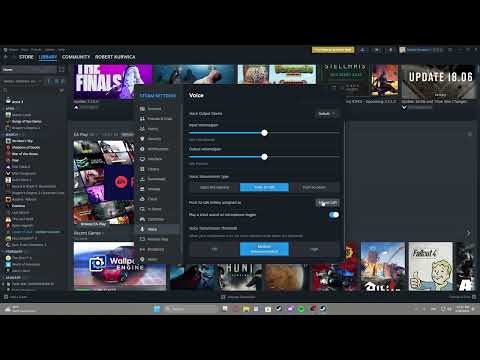
Voice chat on Steam is a fantastic way to connect with friends while gaming, making coordinated strategies, and simply enjoying a more social experience. It’s built directly into the Steam client, offering an easy and convenient way to communicate without needing third-party apps. This article will guide you through setting up and using voice chat on Steam, along with troubleshooting common issues and answering frequently asked questions.
Getting Started with Steam Voice Chat
To initiate a voice chat with a friend, the process is quite straightforward. Here’s a step-by-step guide:
- Open the Steam Client: Launch the Steam application on your computer.
- Locate Your Friend: Navigate to your Friends List, usually found in the bottom-right corner of the Steam window.
- Start a Voice Chat: You have two primary options:
- Right-Click Method: Right-click on the friend’s name you want to chat with. In the context menu, select “Start Voice Chat”.
- Chat Window Method: If you have an existing chat window open with your friend, you can find a microphone icon in the lower-right corner. Clicking this icon will initiate a voice call.
- Wait for Connection: Your friend will receive a notification that you’ve initiated a voice chat. Once they accept, you’ll be connected and able to speak to each other.
Before you can enjoy seamless voice communication, you’ll need to configure your microphone in the Steam settings. Here’s how:
- Access Steam Settings: Click on “Steam” in the upper-left corner of the Steam window and then select “Settings”.
- Navigate to Voice: In the Settings menu, select “Voice”.
- Choose Your Microphone: Under “Voice Input Device,” choose the microphone you want to use from the dropdown menu. If you have multiple microphones, be sure to select the correct one.
- Test Your Microphone: Use the “Test Microphone” option to check if your microphone is working correctly. Adjust the input volume to ensure your voice comes through clearly without being too loud or too quiet.
- Voice Transmission Options: You’ll also find settings for voice transmission type. The default is “Push to Talk,” meaning you’ll need to hold down a key to speak. You can also select “Voice Activation” so your voice activates the microphone automatically.
- Save Changes: Click “OK” to save your settings.
Steam uses a modern WebRTC-based backend for voice chat. This ensures high-quality voice encoding through Opus, encrypts your voice traffic, and routes all communications through Steam servers, not directly between peers, providing a more secure and reliable experience.
Troubleshooting Common Issues
Even with straightforward setups, users can sometimes encounter issues. Here are a few steps you can take if you’re having trouble with Steam voice chat:
- Check Microphone Settings: Double-check that your microphone is correctly selected as the default device in both Steam settings and your operating system’s sound settings (Windows or macOS).
- Verify Microphone Permissions: On Windows, ensure that microphone access is enabled for apps, including Steam, in your Privacy settings. Go to Settings > Privacy > Microphone and ensure that “Allow apps to access your microphone” is turned on.
- Restart Steam: Often, restarting the Steam client can resolve minor glitches that may be interfering with the voice chat function.
- Check Input/Output Ports: If you’re using external microphones or headsets, ensure they are securely connected to the correct ports and try a different USB port or audio port.
- Update Drivers: Make sure your audio drivers are up-to-date. Outdated drivers can often cause audio issues. You can update your drivers via your operating system’s Device Manager.
- Check Volume Mixer: If you cannot hear your friends, ensure the game or Steam isn’t muted in your Windows Volume Mixer. Right click on the Taskbar and choose Taskbar settings, then ensure that the Volume icon is visible.
- Bypass Intermediary Devices: Temporarily remove any converters, extensions, or other devices that might be affecting your audio signal to ensure they are not the issue.
- Test With Different Mic/Headset: If possible, test with another headset or microphone to see if the problem lies with your device itself.
Frequently Asked Questions (FAQs)
1. Does Steam have in-game voice chat?
Yes, Steam has built-in voice chat. It allows you to talk privately with friends both inside and outside of games, provided you both have the Steam Client running.
2. How do I enable my mic on the Steam browser?
To enable your mic on the Steam browser, you need to adjust your browser’s permissions. For example on Chrome, go to settings > privacy and security > site settings > permissions > microphone. Ensure your mic is allowed.
3. How do I fix the “Browser Denied Microphone Access Steam” error?
If you encounter this error, go into your operating system settings: Windows, Press the Win + I keys, and select Privacy > Microphone, and ensure “Allow apps to access your microphone” is enabled.
4. Does Steam or Discord have better voice chat?
Discord is generally considered easier to use for voice communication, while Steam offers a very easy-to-use store and library. Discord focuses on voice and community features, while Steam focuses on games.
5. Is Steam voice chat safe?
Yes, Steam voice chat is considered safe. It uses a WebRTC-based backend, which encrypts voice traffic and routes it through Steam servers rather than directly to peers.
6. How do I use Discord voice chat on PC?
To use Discord voice chat, find the channel with the icon, click it, and you’ll join the voice chat. Ensure your microphone is selected correctly in Discord settings.
7. Why can’t I voice chat on Steam?
This could be due to incorrect microphone inputs, improperly configured settings, or driver issues. Check your microphone, headphones, and speaker settings and try swapping to another audio port.
8. How do I enable audio on Steam Link?
From the Steam Link main menu, go to Settings > Streaming > Advanced Options and ensure that Audio Streaming is set to Enabled.
9. Can you chat on the Steam app?
Yes, the Steam mobile app allows you to chat with your Steam friends. You can send text messages, photos, use emojis, and invite others to chat groups.
10. What games have voice chat on PC?
Many PC games have built-in voice chat, including Dota 2, Heroes of Newerth, Dead Rising 2, Left 4 Dead, and Battlefield titles.
11. Why can’t I enable my microphone on my computer?
First, check that your microphone is correctly connected to your computer. Go to Settings > Privacy > Microphone and ensure that apps have permission to access the microphone. Then check that your microphone is correctly selected under the system’s sound settings and Steam.
12. Why is my headset mic not working on Windows?
This could be due to a variety of reasons, including muting, incorrect jack connections, incorrect device settings, or outdated drivers. Double-check all settings and try plugging it into a different port.
13. How do I add a microphone to my computer?
Ensure the microphone is connected to your PC. Go to Settings > System > Sound, and under “Input,” select the correct microphone from the list.
14. Is Steam Remote Play laggy?
Steam Remote Play can be laggy, especially with a poor network connection. Input lag can be a common issue even with a wired connection. An unstable or slow network is a common cause.
15. Why can’t I hear my Steam game?
Ensure the game isn’t muted in the Windows Volume Mixer. Right-click on the taskbar and open your sound settings to locate the mixer. Then, ensure that the application isn’t muted and that the volume levels are acceptable.
By following these instructions and troubleshooting steps, you should be able to enjoy seamless voice communication on Steam. Voice chat is a powerful feature that enhances the gaming experience, so take the time to set it up correctly and stay connected with your friends.