How to Play Asphalt 9 Online on PC: A Comprehensive Guide
Fast answer first. Then use the tabs or video for more detail.
- Watch the video explanation below for a faster overview.
- Game mechanics may change with updates or patches.
- Use this block to get the short answer without scrolling the whole page.
- Read the FAQ section if the article has one.
- Use the table of contents to jump straight to the detailed section you need.
- Watch the video first, then skim the article for specifics.
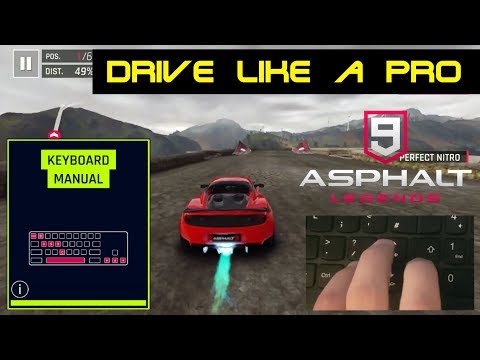
Playing Asphalt 9: Legends online on your PC is a thrilling experience, offering high-octane racing action against players worldwide. Getting started is straightforward, and this article will guide you through the process, ensuring you’re ready to hit the track in no time. Here’s a breakdown of how to get started and what you need to know for online multiplayer gaming.
Getting Started: Installing and Setting up Asphalt 9 on PC
The first step to playing Asphalt 9 online is, naturally, downloading and installing the game on your Windows PC. Here’s how:
Step 1: Locate Asphalt 9 in the Microsoft Store
The primary way to access Asphalt 9 on your PC is through the Microsoft Store. You can either launch the Microsoft Store application directly or search for “Asphalt 9” using your web browser (like Google, Bing, etc.). Both methods will take you to the game’s page on the Microsoft Store.
Step 2: Download and Install
Once you’re on the Asphalt 9 page, you’ll find a “Get” button. Click on this button to begin the download and installation process. The game will download automatically, and the installer will take care of the rest. Be patient, as the download size is substantial; keep in mind that the final size is about 1.5GB or more, so ensure you have sufficient space available on your hard drive.
Step 3: Launch the Game
After installation is complete, a shortcut will be created on your desktop or in your start menu. Simply click the icon to launch Asphalt 9. The first launch might involve some initial setup procedures and an update check. Follow the on-screen prompts to complete this process.
Step 4: Online Play and Connection
Once the game is fully loaded, you’ll be prompted to create a player account or sign in using an existing one. It is crucial to understand that Asphalt 9 requires a stable internet connection for gameplay. You will not be able to play without one. Therefore, it’s best to use a Wi-Fi network or a reliable 3G/4G connection. With your account set up, you are now ready to explore the various online multiplayer modes offered by Asphalt 9.
Essential Aspects of Playing Asphalt 9 Online
Here are some essential details to get the most out of your online experience with Asphalt 9.
System Requirements
Before diving in, make sure your PC meets the game’s minimum requirements to avoid performance issues. Here are the system specifications:
- OS: Windows 10 or later.
- Processor: Core i3-3110M | AMD Ryzen 3 3300U or better.
- Memory: 4 GB RAM.
- Graphics: Intel HD Graphics 4000
NVIDIA GeForce GT 520
Running the game on a PC that surpasses these specifications will naturally provide better performance and a smoother experience.
Controller Options and Key Bindings
Asphalt 9 provides both keyboard and controller support on PC. The default keyboard controls are:
- Drift button: S key (or X on a controller). A single press initiates a drift, no need to hold it down continuously. Double tapping the key performs a 360-degree spin.
- Boost button: Spacebar (or A on a controller). Press this to engage your car’s boost.
You may also customize these controls to your preference via the settings menu.
Cross-Platform Play Limitations
A key aspect of Asphalt 9 is its limitations on cross-platform play. Currently, players on one platform (Android, iOS, Windows) cannot race against players on a different platform. However, Windows and Xbox players can play together, and iOS and MacOS users can as well. This means you’ll need to ensure your friends are playing on the same platform as you.
Multiplayer Mode Access
To engage in multiplayer mode, access the in-game menu where you’ll find options to participate in various online racing events. You can also join or create clubs with your friends. To race against a friend, go to the “My Club” menu, open the tab to the left of the club screen, and you’ll see invitations from your friends to join their race.
Frequently Asked Questions (FAQs)
Here are some commonly asked questions that players often have about Asphalt 9 online on PC:
1. Is Asphalt 9 an online-only game on PC?
Yes, Asphalt 9 requires a constant internet connection to play, even for single-player modes. It’s primarily designed to be an online experience, keeping you connected to the community and offering real-time interactions.
2. Can I play Asphalt 9 offline on my PC?
No, offline play is not available. Unlike some previous versions of the Asphalt series, Asphalt 9 relies entirely on an active internet connection.
3. Why can’t I connect to multiplayer in Asphalt 9?
Several factors might cause this issue. Firstly, check your internet connection and ensure it’s stable. Also, make sure your device storage is not full, as this can cause connectivity issues. Try using an alternate connection method (Wi-Fi, 3G, or 4G) to see if it resolves the issue.
4. Is Asphalt 9 cross-platform?
While Asphalt 9 allows cross-play between Windows and Xbox users, or between iOS and MacOS users, it does not support cross-play between those ecosystems and Android players.
5. How do I add friends to play with in Asphalt 9 on PC?
You can add friends within the game through your in-game account. You’ll often need to search for their usernames and send a friend request. Once they accept, you can see their availability for a race.
6. What are the minimum system requirements for Asphalt 9 on PC?
The minimum requirements include Windows 10 or later, a Core i3-3110M or AMD Ryzen 3 3300U processor, 4 GB of RAM, and a graphics card like Intel HD Graphics 4000, NVIDIA GeForce GT 520, or ATI Radeon HD 5450, or better.
7. How do I drift in Asphalt 9 on PC?
Press the ‘S’ key (or ‘X’ on a controller) to initiate a drift. You do not need to hold it down. Double tapping the drift key will perform a 360-degree spin.
8. How do I boost in Asphalt 9 on PC?
Press the Spacebar (or ‘A’ on a controller) to activate your vehicle’s boost.
9. Is Asphalt 9 a heavy game to run?
Asphalt 9 is a visually intensive game but is generally well-optimized, especially considering it’s also designed for mobile devices. The download size is around 1.5GB, but the game is not as demanding as some other PC racing games.
10. Can I get banned for cheating in Asphalt 9?
Yes, Gameloft actively monitors accounts, and any detected suspicious activity can lead to account blocks. Avoid using hacks or cheats to prevent being banned.
11. Is Asphalt 9 free to play?
Yes, Asphalt 9 is free to download and play. However, the game includes in-app purchases, which can speed up your progression if you choose to use them.
12. Why is Asphalt 9 so addictive?
The game employs various psychological tricks, like unlocks, progression bars, energy timers, random card packs, and daily tasks, designed to keep you playing. This dopamine-driven loop can become habit-forming.
13. Is Asphalt 9 better than Asphalt 8?
While opinions vary, Asphalt 9 generally features better graphics than Asphalt 8. However, Asphalt 8 allows offline play, which is not possible in Asphalt 9. Also, Asphalt 8 makes it simpler to farm credits in career mode using cars that don’t need tuning.
14. What is the hardest car to get in Asphalt 9?
Some of the rarest cars include the Lamborghini Huracán Evo Spyder, McLaren Senna, Lamborghini Terzo Millennio, and W Motors Lykan Hypersport. These often require considerable time, effort, or in-game resources to acquire.
15. Why are the graphics of Asphalt 9 so good?
Asphalt 9 uses advanced rendering techniques, including simulated HDR rendering and pixel shaders. These techniques are visible in the sky and in the reflections on road surfaces, contributing to the game’s visually stunning presentation.
By following this comprehensive guide, you should be fully prepared to enjoy the thrilling online racing experience of Asphalt 9 on your PC. Remember to maintain a stable internet connection and enjoy the adrenaline-fueled races.