How to Remove .DS_Store Files from Your Mac: A Comprehensive Guide
Fast answer first. Then use the tabs or video for more detail.
- Watch the video explanation below for a faster overview.
- Game mechanics may change with updates or patches.
- Use this block to get the short answer without scrolling the whole page.
- Read the FAQ section if the article has one.
- Use the table of contents to jump straight to the detailed section you need.
- Watch the video first, then skim the article for specifics.
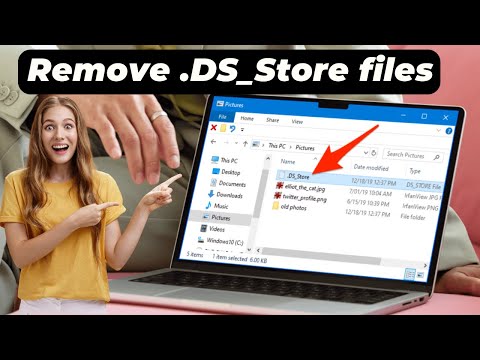
The .DS_Store file, a ubiquitous yet often misunderstood component of macOS, can sometimes become a nuisance, especially when sharing files or managing version control. While generally harmless, understanding its purpose and how to manage it is essential for any Mac user. This article provides a detailed guide on how to remove these files and answers frequently asked questions.
Understanding .DS_Store Files
Before diving into the removal process, let’s clarify what .DS_Store files are. The acronym stands for Desktop Services Store, and these files are automatically created by Finder in every folder you open on your Mac. They store custom attributes of the folder, such as icon positions, view options (icon size, list view settings), and window geometry. Essentially, they help Finder remember how you like to view each folder.
Removing .DS_Store Files: The Methods
There are several ways to remove .DS_Store files, each with its own pros and cons. Here are the most effective methods:
1. Using Terminal (Command Line): A Powerful Approach
This method is the most effective for removing .DS_Store files across your entire system or within a specific directory. The Terminal offers precise control and can automate the process.
-
Open Terminal: Navigate to Applications > Utilities > Terminal.
-
Command for Removing .DS_Store Files:
To remove .DS_Store files from your entire hard drive, use the following command:
sudo find / -name ".DS_Store" -depth -exec rm {} ;Explanation:
sudo: This command requires administrator privileges because it’s searching and deleting files system-wide. You’ll be prompted for your password.find /: This tells thefindcommand to start searching from the root directory (/) of your hard drive.-name ".DS_Store": This specifies that we’re looking for files named “.DS_Store”.-depth: This tellsfindto process the contents of each directory before the directory itself. This is important when deleting files.-exec rm {} ;: This executes therm(remove) command on each file found.{}is a placeholder that represents the file name, and;signals the end of the command.
-
Important Notes:
- Be extremely careful when using
sudoandrmin the Terminal. Incorrect commands can lead to accidental data loss. - This command will remove ALL .DS_Store files. If you only want to remove them from a specific folder, replace
/with the path to that folder (e.g.,/Users/yourusername/Documents/MyFolder). - After running the command, you will need to enter your Mac OS X Administrator password.
- Be extremely careful when using
2. Removing .DS_Store Files from a Specific Folder (Terminal)
To target a specific folder instead of the entire system, modify the command:
find /path/to/your/folder -name ".DS_Store" -depth -exec rm {} ; Replace /path/to/your/folder with the actual path to the folder. You can find the path by dragging the folder icon from Finder into the Terminal window.
3. Using a Third-Party Application
Several third-party applications can automate the removal of .DSStore files. These apps often provide a graphical interface, making the process more user-friendly. Search the Mac App Store for “.DSStore cleaner” to find suitable options. Be sure to research the app thoroughly before installing to ensure its safety and reliability.
4. Preventing .DS_Store File Creation (Not Recommended for General Use)
While you can prevent the creation of .DS_Store files, doing so is generally not recommended for everyday use. These files are an integral part of how Finder functions, and disabling their creation can lead to unexpected behavior and loss of customized folder views. However, in specific circumstances, such as creating disk images for distribution, it might be desirable.
To prevent .DS_Store creation, use the following Terminal command:
defaults write com.apple.desktopservices DSDontWriteNetworkStores true defaults write com.apple.desktopservices DSDontWriteUSBStores true killall Finder This disables .DS_Store creation for network volumes and USB drives. The killall Finder command restarts Finder to apply the changes.
To revert this change and re-enable .DS_Store creation:
defaults delete com.apple.desktopservices DSDontWriteNetworkStores defaults delete com.apple.desktopservices DSDontWriteUSBStores killall Finder 5. Cleaning .DS_Store Files Before Zipping
Before sharing folders by zipping them, it’s good practice to eliminate the .DS_Store files. This helps the receiver receive a clean folder with only the intended files. Use the command with the targeted folder.
Frequently Asked Questions (FAQs)
Here are some frequently asked questions about .DS_Store files:
1. Can I delete .DS_Store files?
Yes, you can delete .DS_Store files. They are not essential for the operating system’s core functionality. However, deleting them will reset the view options for the folder they are in, and Finder will recreate them the next time you open that folder.
2. What happens when you delete .DS_Store files?
Deleting .DS_Store files resets the Finder view options for the folder they are in. This includes icon positions, window size, and view settings (e.g., list view, icon view). Finder will recreate the file the next time you open the folder, restoring the default view settings. No actual data from any other file gets deleted.
3. Are .DS_Store files hidden?
Yes, .DS_Store files are hidden by default in Finder. They are considered system files and are not typically displayed to the user.
4. How do I see hidden files on a Mac, including .DS_Store files?
To reveal hidden files, including .DSStore files, use the keyboard shortcut Command + Shift + . (period). This toggles the visibility of hidden files in Finder. However, .DSStore files may still not be visible even with this shortcut, as they are intended for internal use by Finder.
5. Do .DS_Store files contain private information?
Yes, .DS_Store files can contain the names of subfolders and other potentially sensitive metadata about the folder structure. This could be considered private information in some contexts, especially if sharing folders with external parties.
6. Should I delete .DS_Store files before sharing a folder?
It’s good practice to delete .DS_Store files before sharing a folder, especially if sharing with users on other operating systems (like Windows) or if you’re concerned about privacy. This prevents the recipient from seeing any potentially sensitive metadata.
7. How do I prevent .DS_Store files from being created on network drives?
Use the Terminal command mentioned earlier:
defaults write com.apple.desktopservices DSDontWriteNetworkStores true killall Finder Remember that this will prevent .DS_Store files from being created on all network drives.
8. Are .DS_Store files specific to macOS?
Yes, .DS_Store files are specific to macOS. Other operating systems do not use this file format. Windows, for instance, uses desktop.ini files for a similar purpose, but they are handled differently.
9. What are the best practices for managing .DS_Store files in a version control system (e.g., Git)?
The best practice is to add .DS_Store to your .gitignore file. This prevents Git from tracking these files and ensures they are not included in your commits.
10. Do .DS_Store files affect the performance of my Mac?
In general, .DSStore files have minimal impact on the performance of your Mac. The size of individual .DSStore files is typically very small. However, a large number of .DS_Store files across your entire system could theoretically contribute to a slight performance overhead, especially on older machines.
11. Why can’t I delete a .DS_Store file in the Trash?
Sometimes, a .DS_Store file may be locked or have incorrect permissions, preventing it from being deleted from the Trash. Try emptying the Trash securely (Finder > Secure Empty Trash) or using the Terminal command sudo rm -rf ~/.Trash/* to force the deletion.
12. Will deleting .DS_Store files cause any damage to my macOS installation?
No, deleting .DS_Store files will not cause any damage to your macOS installation. They are not critical system files.
13. Is there a way to automatically delete .DS_Store files on a regular basis?
You could create an Automator service or a cron job to automatically delete .DS_Store files on a schedule. However, this is generally not necessary and might be overkill for most users. Use caution when automating file deletion.
14. How do I know if a .DS_Store file is corrupted?
Corrupted .DSStore files can sometimes cause Finder to behave erratically, such as displaying incorrect icon positions or failing to remember view settings. If you suspect a corrupted .DSStore file, deleting it is a good first step to troubleshooting the issue.
15. Where can I learn more about macOS system files and file management?
Apple’s official documentation and support resources are excellent sources of information. Additionally, online forums and communities dedicated to macOS can provide valuable insights and troubleshooting tips. For example, developers who would like to know more about Games Learning Society may check out the website on GamesLearningSociety.org or https://www.gameslearningsociety.org/.
Conclusion
.DS_Store files are a minor but often-discussed aspect of the macOS experience. By understanding their purpose and how to manage them, you can maintain a cleaner, more organized file system and avoid potential issues when sharing files. While deleting them isn’t essential for most users, knowing how to do so is a valuable skill for any Mac owner.