Is It Easy to Transfer PS4 to PS5? A Comprehensive Guide
Fast answer first. Then use the tabs or video for more detail.
- Watch the video explanation below for a faster overview.
- Game mechanics may change with updates or patches.
- Use this block to get the short answer without scrolling the whole page.
- Read the FAQ section if the article has one.
- Use the table of contents to jump straight to the detailed section you need.
- Watch the video first, then skim the article for specifics.
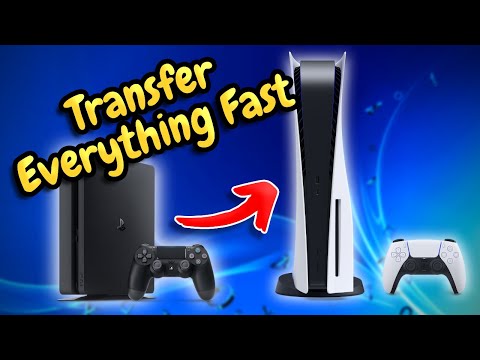
The short answer? Yes, transferring your data from a PS4 to a PS5 is generally quite easy, especially with the multiple methods Sony provides. While the process can take some time depending on the amount of data being transferred, the steps themselves are straightforward and user-friendly. Let’s delve into the details of how to make the transition from your old PS4 to your shiny new PS5 as smooth as possible. This includes a breakdown of the transfer methods, potential roadblocks, and frequently asked questions.
Transfer Methods: Choose Your Path
Sony offers a few methods to transfer your precious game saves, settings, and even entire games from your PS4 to your PS5. Each method caters to different user preferences and situations.
Wi-Fi or LAN Transfer: The Easiest Route
The most convenient method for many is transferring data via your Wi-Fi network or a local area network (LAN) cable. This process is initiated directly from your PS5 and involves these steps:
- Power on both consoles and connect them to the same network. Ensure that both the PS4 and PS5 are connected to the internet. Connecting via LAN cable is recommended as it often provides a faster and more stable connection than Wi-Fi.
- On your PS5, navigate to Settings > System > System Software > Data Transfer > Continue.
- Your PS5 will then scan your network for available PS4 consoles. Select the PS4 you’re transferring from.
- Follow the on-screen prompts to select what you wish to transfer, including games, game saves, and user profiles.
- The transfer process will then begin and the duration depends on the volume of data. This can range from several minutes to several hours.
This method is the most recommended because it is the most convenient and typically requires minimal user intervention.
External USB Drive: A Portable Solution
If you are having connectivity issues or prefer a physical method, transferring via a USB drive is a solid option for save data. Here’s how:
- On your PS4, copy your saved data to the USB drive by going to Settings > Application Saved Data Management > Saved Data in System Storage > Copy to USB Storage Device.
- Once complete, safely remove the USB drive from your PS4.
- On your PS5, navigate to Settings > Saved Data and Game/App Settings > Saved Data (PS4) > USB Drive.
- Select Copy to Console Storage to transfer the data to your PS5.
This method is ideal for transferring game saves, especially if you have a slow internet connection or want to avoid network-related issues during the transfer. Remember, this method does not transfer full games, only save data.
External Hard Drive: Games and Saves Combined
If your PS4 games are stored on an external hard drive, you can move these directly to your PS5. To do this, simply:
- Safely unplug the external hard drive from your PS4.
- Plug it into your PS5.
Your PS5 will automatically recognize the drive and allow you to access your games. This method is incredibly efficient for moving large game files, saving you time and bandwidth. You can even play your PS4 games directly from the external hard drive on your PS5.
Potential Issues and How to Tackle Them
While the data transfer is generally smooth, there are a few things to keep an eye out for:
- Transfer Time: Data transfer can take a significant amount of time, depending on the amount of data being transferred and the connection type. Be patient. A wired connection is better than Wi-Fi, so use that where possible.
- Interrupted Transfers: While you can cancel a data transfer, it’s not recommended. It’s best to avoid interrupting a data transfer because it might cause issues or incomplete files. Instead, try to ensure that both consoles are connected securely and are not being used for other tasks.
- Storage Space: Ensure you have enough storage space on your PS5 to accommodate all the data being transferred. The PS5 does not have a large storage to begin with. If your PS5 is running out of storage space it might block a transfer.
- Network Issues: If you’re transferring via Wi-Fi or LAN, make sure your connection is stable. Network interruptions can lead to transfer failures.
- Controller Compatibility: While you can use your PS4 controller to play PS4 games on PS5, you need to use the Dualsense controller for PS5 games. PS3 controllers are not compatible with the PS5.
Making the Decision: Is it Worth it?
Yes, it is absolutely worth it to transfer your data. Unless you want to start fresh on your PS5, there is little reason not to. You can:
- Pick up where you left off in all your favorite games.
- Avoid losing any precious gameplay progress
- Enjoy an enhanced gaming experience on your PS5
Frequently Asked Questions (FAQs)
1. Do I need to re-buy PS4 games for PS5?
No, you don’t necessarily need to re-buy them. Many PS4 games are playable on PS5. Some may even offer a free upgrade to the PS5 version, while others might require a small fee. Keep an eye out for upgrade options when you insert the PS4 disc or visit the PlayStation store.
2. Will all PS4 games work on my PS5?
The vast majority of PS4 games (over 4,000!) are compatible with PS5. Some PS4 games will even benefit from the PS5’s Game Boost, running with a higher or smoother frame rate.
3. How long does it take to transfer PS4 data to PS5?
Transfer times vary based on the amount of data and your network connection speed. It can range from a few minutes to several hours. Using a LAN cable can significantly speed up the process compared to Wi-Fi.
4. Can I use a USB drive to transfer PS4 game saves to PS5?
Yes, you can absolutely use a USB drive to transfer your PS4 game saves. This is a good option if you want to avoid transferring over the network or if you have a slow internet connection. Just remember to copy from your PS4 system to the drive first, then from the drive to your PS5 system storage.
5. Does the PS5 automatically save to the cloud?
For PS5 games, both your console and cloud storage sync automatically. For PS4 games, the data is automatically uploaded to your cloud storage, but will need to be manually downloaded to the PS5 console.
6. What happens if I don’t transfer data from my PS4 to PS5?
If you don’t transfer data, your PS5 will start as a clean slate. You’ll need to download any games you want, and your save files will need to be downloaded from the cloud or transferred using a USB drive (assuming you have PS Plus).
7. Can I use my PS4 controller on PS5?
Yes, you can use your PS4 controller to play PS4 games on your PS5. However, you will need a Dualsense controller to play any PS5 games.
8. Why won’t my PS4 controller connect to PS5?
You can use a PS4 controller for PS4 games on PS5, but not for PS5 games. Make sure the controller is not paired to another device and try using a different USB cable to establish a connection. If all else fails, you may need to reset the controller.
9. How do I transfer my PS4 games to my PS5 if they are on a external hard drive?
If your PS4 games are on an external hard drive, simply unplug the drive from your PS4 and plug it into your PS5. Your games will then be directly available and playable from the drive.
10. How much is the PS5?
The new PS5 “Slim” model is priced at $499.99 with the disc drive included and the Digital Edition is $449.99.
11. How much does it cost to upgrade PS4 games to PS5?
The cost to upgrade games can vary. Some upgrades are free, while others may require a $10 digital upgrade fee. Some publishers may offer limited time upgrade periods.
12. Why is the PS5 copy process so slow?
The copy process, or as it is more commonly referred to, the “copying” element, takes time. This is because data on the drive must be organized and placed for fast access.
13. Does PS5 automatically transfer data?
PS5 will not automatically transfer data, but it can automatically sync to the cloud. If you are a PS Plus subscriber, your save data should be automatically synced up. But if you can select each game file but the console is still blocking the transfer, it is because the PS5 is running out of storage space.
14. What to do with PS4 after transfer is complete?
After successfully transferring data, you can keep your PS4 as a backup console, trade it in, or sell it. It’s your choice! However, ensure you have completely wiped your data off of the PS4 if you choose to give it away.
15. How do I fix stick drift on my PS5 controller?
You can attempt to fix stick drift on your PS5 controller by adjusting the input threshold, resetting the controller, cleaning the analog stick, and ensuring the software is up-to-date.
By following this guide, you should find that transferring your data from PS4 to PS5 is not only easy, but also a worthwhile endeavor. Enjoy your new console and happy gaming!