Is It Safe to Remove a USB Drive Without Ejecting? The Definitive Guide
Fast answer first. Then use the tabs or video for more detail.
- Watch the video explanation below for a faster overview.
- Game mechanics may change with updates or patches.
- Use this block to get the short answer without scrolling the whole page.
- Read the FAQ section if the article has one.
- Use the table of contents to jump straight to the detailed section you need.
- Watch the video first, then skim the article for specifics.
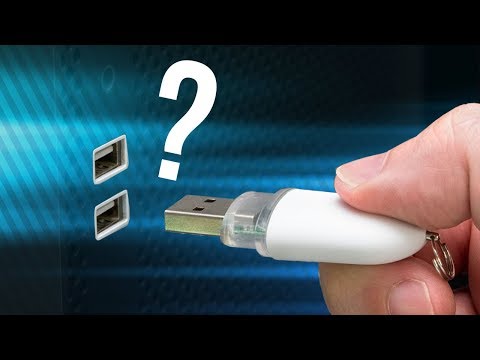
Simply put: no, it’s generally not safe to remove a USB drive without ejecting it properly. While modern operating systems have gotten better at handling sudden removals, pulling a USB drive without following the correct procedure can still lead to data corruption, file system errors, and potentially even damage to the drive itself.
Here’s a deeper dive into why this is the case, and what you need to know to keep your data safe.
The Why Behind the Eject Button
When you plug in a USB drive, your computer’s operating system mounts the drive and makes it available for use. During operation, the OS may use a write cache to improve performance. A write cache means that data you think you’ve saved to the USB drive is actually stored in a temporary memory location on your computer. The OS then writes this data to the USB drive in the background. This speeds up the writing process, but it also creates a vulnerability.
If you yank the USB drive out mid-write, the data in the write cache never makes it to the drive. This can result in:
- Data Loss: Files you thought you saved might be missing or incomplete.
- File Corruption: Partially written files can become corrupted, rendering them unusable.
- File System Errors: The USB drive’s file system can become corrupted, leading to more widespread data loss and potential drive unreliability.
While rare, the older articles and advice about potentially frying the USB ports are less of a concern these days with modern USB standards (although shorting out the pins with something conductive could always cause problems). However, data loss is a very real risk.
The Evolution of “Safe Removal”
The urgency of safely removing USB drives has fluctuated with advancements in technology. Early operating systems were much more sensitive to abrupt removals, making proper ejection absolutely crucial. Modern operating systems, especially Windows 10 and 11 and newer versions of macOS, have implemented features like “Quick Removal” which is often the default setting for USB drives.
Quick Removal vs. Better Performance
“Quick Removal” disables write caching, meaning data is written directly to the USB drive as soon as possible. This reduces the risk of data loss if you unplug the drive without ejecting. However, it also means slightly slower write speeds.
The alternative setting, “Better Performance,” enables write caching for faster performance but increases the risk of data loss if the drive is removed improperly. If “Better Performance” is enabled, you absolutely need to eject the drive safely.
You can check and change this setting in Windows Device Manager. Right-click on the USB drive, select “Properties,” go to the “Policies” tab, and you’ll see the two options.
How to Safely Eject a USB Drive
Regardless of your operating system or the “Quick Removal” setting, it’s always best practice to eject the drive safely. The process is simple:
Windows
- Locate the USB icon: In the system tray (bottom right corner of your screen), look for the “Safely Remove Hardware and Eject Media” icon (it looks like a USB drive). If you don’t see it, click the up arrow to show hidden icons.
- Select your drive: Click the USB icon and select the USB drive you want to eject.
- Wait for the notification: You’ll see a notification that says “Safe to Remove Hardware.” You can now safely unplug the drive.
macOS
- Locate the drive on your desktop: You’ll see the USB drive icon on your desktop.
- Drag it to the Trash (or Eject icon): Drag the USB drive icon to the Trash icon in your Dock (it will change to an Eject icon).
- Wait for the icon to disappear: Once the icon disappears from your desktop, it’s safe to unplug the drive.
Alternative Methods
You can also right-click the drive in File Explorer (Windows) or Finder (macOS) and select “Eject.”
Exceptions to the Rule
There are some limited situations where it might be considered safer to remove a USB drive without ejecting:
- The drive is completely idle: If you’re absolutely certain that no data is being written to or read from the drive (no file transfers are in progress, no programs are accessing the drive), the risk is lower. However, it’s still not recommended.
- Read-only devices: If the USB drive is configured as read-only (meaning you can only read data from it, not write to it), the risk of data corruption is minimal. However, even in this case, it’s still a good habit to eject the drive safely.
Bottom Line
While modern operating systems have reduced the risk, it’s still best practice to always eject your USB drive before unplugging it. It only takes a few seconds, and it can save you from the headache of data loss or file corruption. Treat your data with respect, and your USB drives will thank you. If you are interested in learning more about hardware and software, check out Games Learning Society at GamesLearningSociety.org for more resources.
Frequently Asked Questions (FAQs)
1. What’s the worst that can happen if I don’t eject a USB drive?
The worst-case scenario is complete data loss on the USB drive. This could happen if a critical file is being written to the drive when you unplug it, corrupting the file system beyond repair. You might also experience individual file corruption or damage to the drive.
2. Does it matter if it’s a USB flash drive or an external hard drive?
Yes, it can matter. While the principle is the same, external hard drives often have larger write caches and are more likely to be actively writing data in the background. Therefore, ejecting an external hard drive is even more crucial.
3. Will removing a USB drive without ejecting damage the USB port on my computer?
It is highly unlikely to damage the USB port on your computer with modern technology. It was a higher risk with older computers and older USB standards. However, data loss is a bigger concern.
4. Is it safer to remove a USB drive if I’m not actively using it?
While the risk is lower if the drive is idle, it’s still not completely safe. The operating system might be performing background tasks that you’re not aware of. Always eject to be sure.
5. How can I tell if my USB drive is currently being used?
Look for the activity light on the USB drive. If it’s blinking, it means data is being written to or read from the drive. You can also check the Task Manager (Windows) or Activity Monitor (macOS) to see if any processes are accessing the drive.
6. What is the “Safely Remove Hardware and Eject Media” icon for?
This icon provides a quick and easy way to eject your USB drive and other removable media. It ensures that the operating system has finished all writing operations and that it’s safe to unplug the drive.
7. What if I can’t find the “Safely Remove Hardware and Eject Media” icon?
If you can’t find the icon, try clicking the up arrow in the system tray to show hidden icons. If it’s still not there, you can eject the drive through File Explorer (Windows) or Finder (macOS) by right-clicking on the drive and selecting “Eject.”
8. What does “ejecting” a USB drive actually do?
Ejecting a USB drive tells the operating system to finish any pending write operations, close any open files, and unmount the drive. This ensures that all data is safely written to the drive and that the file system is in a consistent state before you unplug it.
9. Is there a way to force eject a USB drive if it’s not responding?
If a USB drive is not responding and you can’t eject it normally, you can try shutting down your computer. When the computer is turned off, it’s safe to unplug the drive. However, be aware that this might still result in data loss if the drive was in the middle of a write operation. As a last resort, you can also try using the Disk Management tool in Windows to force unmount the drive, but only do this if you know what you are doing.
10. Does the type of file system on the USB drive matter (e.g., FAT32, NTFS, exFAT)?
The type of file system doesn’t significantly change the need to eject safely. Regardless of the file system, the operating system uses a write cache, and there’s always a risk of data loss if you unplug the drive without ejecting.
11. What happens if I accidentally remove a USB drive without ejecting it?
If you accidentally remove a USB drive without ejecting it, immediately plug it back in. Run a disk check utility (like chkdsk in Windows or Disk Utility in macOS) to scan for and repair any file system errors. Hopefully, this will recover any lost or corrupted data.
12. Are SSD external drives safer to unplug without ejecting compared to older mechanical USB drives?
While SSDs are more robust in some ways than traditional mechanical hard drives (HDDs), they are still susceptible to data corruption if abruptly disconnected during a write operation. The principles around ejecting are the same. The main differences are the technologies used and the speed.
13. Can I leave my external SSD plugged in all the time?
Yes, it is generally okay to leave an external SSD plugged in all the time, provided it’s not exposed to excessive heat or direct sunlight. Check your operating system to ensure auto defragmentation is turned off for that drive to prolong its lifespan.
14. Do I need to eject a USB drive if I’m just reading data from it, not writing to it?
Even if you’re only reading data, it’s still a good idea to eject the drive safely. The operating system might be accessing the drive in the background for other purposes, such as caching or indexing.
15. Does ejecting a USB drive erase any data from it?
No, ejecting a USB drive does not erase any data. It simply ensures that all data has been safely written to the drive and that it’s safe to unplug it. Your data will remain intact unless you intentionally delete it.