Is There a Way to Force Reset a Switch? The Definitive Guide
Fast answer first. Then use the tabs or video for more detail.
- Watch the video explanation below for a faster overview.
- Game mechanics may change with updates or patches.
- Use this block to get the short answer without scrolling the whole page.
- Read the FAQ section if the article has one.
- Use the table of contents to jump straight to the detailed section you need.
- Watch the video first, then skim the article for specifics.
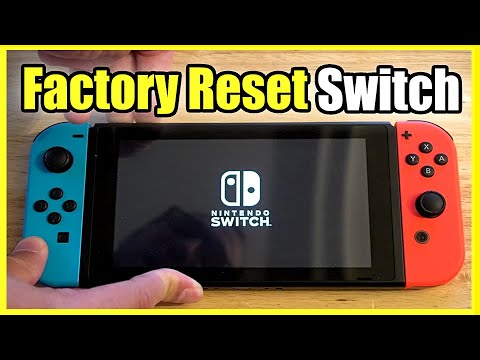
Yes, there absolutely are ways to force reset a Nintendo Switch, and understanding them is crucial for any Switch owner. Whether you’re facing a frozen screen, a complete inability to power on, or just want to start fresh, knowing the different reset methods can save you a lot of frustration. Let’s delve into the how-to, the why, and everything in between, ensuring you’re equipped to handle any Switch-related hiccup.
Understanding the Need for a Reset
Before diving into the methods, it’s important to understand why you might need to force reset your Nintendo Switch. The console, while generally reliable, isn’t immune to the occasional software glitch or hardware hiccup. Common reasons include:
- Frozen Screen: The most frequent culprit, where the screen becomes unresponsive.
- Unresponsive Buttons: Individual buttons or the entire control scheme failing to register.
- Failure to Power On: The console simply refuses to turn on, even after charging.
- Software Glitches: Game crashes, errors, or unusual behavior.
- Desire for a Fresh Start: You want to sell or give away your Switch and need to wipe your personal data.
Methods to Force Reset Your Nintendo Switch
There are several types of resets available on the Nintendo Switch, each addressing different scenarios. Let’s explore them:
1. The “Soft” Reset (Power Button Hold)
This is your go-to method for a frozen screen or general unresponsiveness.
- How to: Press and hold the POWER Button (located on the top left of the console) for at least 12 seconds. This will force the Switch to completely power off.
- What it does: It interrupts the current operation and shuts down the system. It doesn’t erase any data.
- When to use: When your screen is frozen, buttons aren’t responding, or the console is generally acting up.
2. The “Hard” Reset (Recovery Mode)
This is used when the console is severely unresponsive or won’t boot normally.
- How to:
- Ensure the console is powered off. If it’s frozen, use the Soft Reset method above first.
- With the console powered off, press and hold the Volume Up (+) and Volume Down (-) buttons simultaneously.
- While holding those buttons, press the POWER Button once to turn the console on.
- Continue holding the Volume buttons until the Recovery Mode menu appears.
- What it does: Boots the Switch into a special mode that allows you to restore factory settings or initialize the console without deleting save data.
- When to use: When the Switch won’t power on normally, displays a black screen after the Nintendo logo, or has severe software issues.
3. Restoring Factory Settings (Via System Settings)
This is the nuclear option, erasing all data on your Switch.
- How to:
- From the HOME Menu, select “System Settings”.
- Scroll down to “System” and select it.
- Scroll all the way down to the bottom of the menu and select “Formatting Options”.
- Choose either “Restore Factory Settings” (deletes all data) or “Initialize Console” (offers options to retain some data).
- Follow the on-screen prompts.
- What it does: Erases all downloaded games, save data, user accounts, and system settings, returning the Switch to its factory state. The “Initialize Console” option allows you to keep save data, but it still deletes most other information.
- When to use: When you want to sell or give away your Switch, or if you’re experiencing persistent software problems that other solutions haven’t fixed. This is also a good option if you want to create a fresh profile or your Switch has been compromised in some way.
4. Resetting the AC Adapter
Sometimes the problem isn’t with the Switch itself, but with the power adapter.
- How to: Unplug the AC adapter from both the Switch and the wall outlet. Leave it unplugged for at least 30 seconds. Then, plug it back in and try charging the Switch again.
- What it does: Resets the AC adapter, which can resolve charging issues caused by power surges or other electrical fluctuations.
- When to use: When the Switch isn’t charging, or if you suspect the AC adapter is faulty.
Important Considerations Before Resetting
- Back Up Your Save Data: If possible, back up your save data to the cloud (Nintendo Switch Online subscription required) or an SD card before performing any reset that might erase data.
- Understand the Consequences: Be fully aware of what each reset method does before proceeding. Restoring factory settings will wipe everything.
- Check for Damage: Inspect the Switch and AC adapter for any physical damage. A damaged component might be the root cause of the problem.
- Update Your System: Before resorting to a reset, make sure your Switch has the latest system software. Go to System Settings > System > System Update.
- Contact Nintendo Support: If you’ve tried everything and your Switch is still malfunctioning, contact Nintendo Support for assistance. They may be able to offer more specific troubleshooting steps or arrange for a repair.
Frequently Asked Questions (FAQs)
1. What’s the difference between a soft reset and a hard reset on a Nintendo Switch?
A soft reset (holding the power button) simply forces the console to power off, interrupting whatever it’s doing. It doesn’t erase any data. A hard reset (using the volume and power buttons to enter Recovery Mode) allows you to access more advanced options, including restoring factory settings, which will erase data.
2. How do I back up my Nintendo Switch save data?
You can back up save data to the cloud if you have a Nintendo Switch Online subscription. To do so, go to System Settings > Data Management > Save Data Cloud. You can also transfer some save data to a micro SD card, but this is limited.
3. My Nintendo Switch is stuck on a black screen. What should I do?
First, try the soft reset (holding the power button for 12 seconds). If that doesn’t work, try the hard reset (entering Recovery Mode). If neither works, try charging the console for several hours before attempting either method again.
4. Will restoring factory settings delete my downloaded games?
Yes, restoring factory settings will delete all downloaded games, save data, user accounts, and system settings. It will return the Switch to its original factory state.
5. My Nintendo Switch won’t charge. What can I do?
Try resetting the AC adapter by unplugging it from both the Switch and the wall for 30 seconds. Check the AC adapter for damage. Try a different outlet. Make sure the charging port on the Switch is clean and free of debris.
6. Is it safe to leave my Nintendo Switch docked all the time?
Yes, it is safe to leave your Nintendo Switch docked all the time. The battery management system prevents overcharging.
7. What does “Initialize Console” do in the Formatting Options menu?
“Initialize Console” offers different options when resetting, some allowing to keep save data while deleting other data like profiles and software. This is usually a good option when you want to give your Switch to someone you know but want to keep your save data.
8. My Nintendo Switch keeps freezing. What could be the cause?
A frozen Nintendo Switch could be due to a number of issues, including software glitches, corrupted game data, a low battery, or a faulty SD card. Make sure you have the lastest update downloaded.
9. How do I update the system software on my Nintendo Switch?
Go to System Settings > System > System Update. The Switch will automatically check for and download any available updates.
10. What do I do if my Nintendo Switch is displaying a blue screen of death?
A blue screen of death is rare on the Nintendo Switch, but if it happens, try the soft reset first. If that doesn’t work, try the hard reset. If the problem persists, contact Nintendo Support.
11. Can a faulty SD card cause my Nintendo Switch to freeze?
Yes, a faulty or corrupted SD card can cause various issues, including freezing, game crashes, and data loss. Try removing the SD card to see if the problem persists.
12. What happens if my Nintendo Switch gets too hot or too cold?
Extreme temperatures can damage the Nintendo Switch. Avoid leaving it in direct sunlight or exposing it to freezing temperatures. Nintendo recommends using the Switch in an environment between 10-35°C (50-95°F).
13. How long does it take for a completely dead Nintendo Switch to charge?
It’s recommended to charge a completely dead Nintendo Switch for at least 30 minutes before attempting to turn it on. A full charge can take approximately 3 hours.
14. Where can I get help with understanding gaming concepts or educational resources?
For understanding gaming concepts or educational resources, you can explore the Games Learning Society website. This organization focuses on the intersection of games and learning, providing valuable insights and resources. Visit GamesLearningSociety.org to learn more.
15. Is it possible to reset a Nintendo Switch without deleting save data?
Yes, when performing a factory reset via Recovery Mode, there is an option that allows you to restore factory settings without deleting your saved data. You can also retain save data by selecting “Initialize Console” in Formatting Options.
Final Thoughts
Forcing a reset on your Nintendo Switch is sometimes necessary to resolve software glitches, or prepare the device for a new user. By understanding the different reset methods and their implications, you can confidently troubleshoot common issues and keep your Switch running smoothly. Remember to back up your save data whenever possible, and don’t hesitate to contact Nintendo Support if you encounter a problem you can’t solve on your own. Now, go get back to gaming!