Is There Any Way to Game Share on PC? A Comprehensive Guide
Fast answer first. Then use the tabs or video for more detail.
- Watch the video explanation below for a faster overview.
- Game mechanics may change with updates or patches.
- Use this block to get the short answer without scrolling the whole page.
- Read the FAQ section if the article has one.
- Use the table of contents to jump straight to the detailed section you need.
- Watch the video first, then skim the article for specifics.
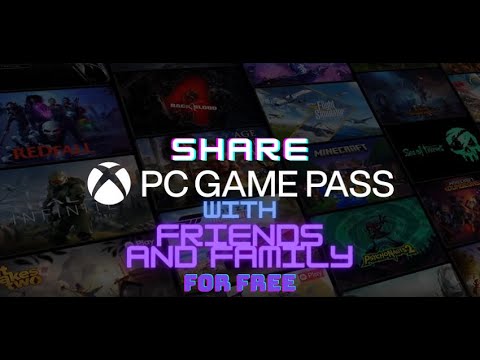
The short answer is: yes, there are ways to game share on PC, but the process isn’t as straightforward or universally supported as it is on consoles like Xbox and PlayStation. While official mechanisms exist on platforms like Steam and, to a lesser extent, Xbox PC Game Pass, the term “game sharing” takes on different meanings depending on the platform and the method used. Let’s dive deep into the nuances of PC game sharing and explore the available options.
Understanding Game Sharing on PC
Unlike console game sharing, where you often designate a “home console” that can access your library regardless of the user logged in, PC game sharing typically involves sharing accounts or utilizing platform-specific features that have limitations. This means you have to be extremely careful and responsible with the information and access you provide.
Steam Family Sharing: A Popular, But Limited, Option
Steam Family Sharing is the most well-known and widely used method for game sharing on PC. It allows you to authorize up to five accounts on a maximum of ten devices to access your game library. However, there are some crucial limitations:
- Only One Person Can Play at a Time: If you are playing a game from your library, the other person will be given a few minutes to either purchase the game themselves or quit playing. This is the biggest restriction.
- Not All Games Are Shareable: Some games, particularly those requiring a third-party key, may not be eligible for Family Sharing.
- VAC Bans Affect Shared Libraries: If a user in your family sharing group cheats and receives a Valve Anti-Cheat (VAC) ban, it can affect your account as well, potentially resulting in a ban from certain games.
- Account Access Required for Initial Setup: To enable Family Sharing, you’ll need to physically log into your Steam account on the other person’s computer.
How to Set Up Steam Family Sharing:
- Enable Steam Guard on your account via Steam > Settings > Account.
- Go to Settings > Family (or Big Picture mode: Settings > Family Library Sharing).
- Authorize the specific computer and user accounts you wish to share with.
Xbox PC Game Pass: Play Anywhere and Limited Sharing
Xbox PC Game Pass offers a more limited form of game sharing. Games that are part of the Xbox Play Anywhere program allow you to play them on both your Xbox console and your PC with a single purchase. Your progress is saved on Xbox Live, so you can seamlessly switch between devices.
While not direct game sharing in the traditional sense, the ability to play a game on both platforms with one purchase allows you and another person (using a different Microsoft account) to enjoy the same game simultaneously – one on PC, one on Xbox. However, you cannot play the same game on two PCs using one Game Pass subscription.
Important Considerations:
- Both individuals need separate Microsoft accounts.
- This primarily applies to Play Anywhere titles.
- You need an active Xbox PC Game Pass or Xbox Game Pass Ultimate subscription.
Manual Game Transfer: Technically Possible, But Often Impractical
It’s technically possible to manually transfer game files from one PC to another via an external hard drive. However, this method is generally not recommended for several reasons:
- License Verification Issues: Most games require license verification through the respective platform (Steam, Epic Games, etc.). Simply copying the files won’t bypass this requirement.
- Missing Dependencies: Games rely on numerous system files, drivers, and runtimes. Transferring only the game files might result in errors and instability.
- Tedious and Time-Consuming: The process can be lengthy, especially for large games.
- Violation of Terms of Service: Distributing game files without authorization may violate the terms of service of the platform and the game developer.
Account Sharing: A Risky Practice
Sharing your username and password with someone else is the simplest way to “game share,” but it’s also the most dangerous. This method violates the Terms of Service of virtually all gaming platforms and could result in a permanent ban on your account. In addition, it has the potential to create many security threats for your account and payment information.
Why Account Sharing is Discouraged:
- Violation of Terms of Service: Almost universally prohibited.
- Security Risks: Exposes your account to potential compromise and unauthorized purchases.
- Loss of Control: You lose control over who has access to your account.
- Potential for Permanent Ban: Platforms actively monitor for and penalize account sharing.
Cloud Gaming Services: An Alternative for Shared Experiences
Cloud gaming services like Nvidia GeForce Now and Xbox Cloud Gaming offer a different approach. While you don’t technically “share” the game files, these services allow you to stream games from a remote server to your device. This means you can potentially play multiplayer games with friends even if they don’t own the game themselves, provided they have a compatible device and a stable internet connection.
Frequently Asked Questions (FAQs)
Here are some common questions about game sharing on PC:
1. Can you game share on Epic Games Store?
No, Epic Games Store does not offer an official game sharing feature similar to Steam Family Sharing. Account sharing is against their Terms of Service.
2. Can you game share on PC with Xbox Game Pass Ultimate?
You can play Xbox Play Anywhere titles on both your Xbox console and your PC using a single Xbox Game Pass Ultimate subscription. However, you can’t share access to the same game on two different PCs using one subscription.
3. Can you share games on PC with friends on different networks?
Steam Family Sharing works regardless of network location, as long as both users have the feature enabled and the lending account has authorized the borrowing account. Other methods, like account sharing (not recommended), also work across networks.
4. How many people can you game share with on Steam?
You can authorize up to five accounts on a maximum of ten devices using Steam Family Sharing.
5. What games can’t be shared on Steam?
Games requiring a third-party key or subscription may not be shareable. Additionally, games with specific technical limitations might be excluded from Family Sharing.
6. Can I play the same Steam game simultaneously with someone I’m sharing with?
No. Only one person can play a game from the shared library at a time. If the owner of the library starts playing a game, the other person will be given a short time to either purchase the game or quit playing.
7. What happens if someone cheats while using my shared Steam library?
If a user receives a VAC ban while using your shared library, your account may also be banned.
8. Is it safe to share my Steam account information with a friend for game sharing?
No. Sharing your account information is highly discouraged due to security risks and violation of Steam’s Terms of Service. This could lead to your account being compromised or permanently banned.
9. Can I transfer a game from my PC to another PC without re-downloading it?
Technically, yes, by manually copying the game files. However, this is not recommended due to license verification issues and missing dependencies. It’s always best to download the game directly through the respective platform.
10. Does Xbox game sharing work on PC?
Not in the same way as console game sharing. Xbox Game Pass Ultimate allows you to play Play Anywhere titles on both Xbox and PC with a single purchase, but you can’t share access to the same game on two PCs simultaneously.
11. Can I use Steam Link to play games on another PC remotely?
Yes, Steam Link allows you to stream games from your PC to another device, including another PC, either on a local network or over the internet.
12. What are the risks of account sharing on PC gaming platforms?
The risks include violation of Terms of Service, security breaches, loss of account control, unauthorized purchases, and potential permanent ban.
13. Are there any legal ways to share PC games besides Steam Family Sharing?
Xbox Play Anywhere and cloud gaming services offer alternatives, but they are not direct game sharing in the traditional sense. These options provide access to games across multiple devices or through streaming.
14. Can you game share on Battle.net (Blizzard)?
No, Battle.net does not allow game sharing. You cannot move a game account from one Battle.net account to another or merge two game accounts into a single account.
15. Where can I find more information about the ethical implications of digital game ownership and sharing?
You can find more information about the ethical implications of digital game ownership and sharing at the Games Learning Society website: https://www.gameslearningsociety.org/. Understanding the nuances of digital ownership is increasingly important in the gaming world.
Conclusion
While PC game sharing is possible through various methods, it’s essential to understand the limitations and risks involved. Steam Family Sharing remains the most popular and safest option, but it’s not without its restrictions. Account sharing is strongly discouraged due to the potential security risks and violation of Terms of Service. Always prioritize the security of your account and respect the terms set by the gaming platforms.