Should You Upgrade Your PS5 Storage? A Comprehensive Guide
Fast answer first. Then use the tabs or video for more detail.
- Watch the video explanation below for a faster overview.
- Game mechanics may change with updates or patches.
- Use this block to get the short answer without scrolling the whole page.
- Read the FAQ section if the article has one.
- Use the table of contents to jump straight to the detailed section you need.
- Watch the video first, then skim the article for specifics.
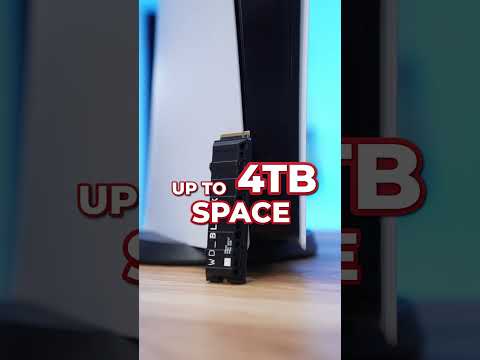
Should you upgrade your PS5 storage? The short answer is: almost certainly, yes. The console’s relatively small usable internal storage fills up quickly with modern, large game installations, making an upgrade a worthwhile investment for most gamers who plan to play more than a handful of titles regularly.
The PS5 Storage Situation: A Breakdown
The PlayStation 5 boasts a powerful custom solid-state drive (SSD) that’s integral to its blazing-fast loading times and seamless gaming experience. However, the usable storage space on the standard PS5 model is only about 667GB. While that might sound like a decent amount, consider that games like Call of Duty: Modern Warfare III, Marvel’s Spider-Man 2, and Final Fantasy XVI can take up over 100GB of storage each. This quickly leaves you with little room for other games, apps, save files, and captured gameplay footage.
The Growing Size of Games
The trend of ever-increasing game install sizes isn’t slowing down. As game developers continue to push graphical fidelity and create larger, more complex worlds, the space required to store these games on your console will only continue to grow. This makes a storage upgrade less of a luxury and more of a necessity for serious gamers. Constantly deleting and redownloading games becomes tedious and time-consuming, detracting from the overall gaming experience.
Understanding Your Options: Internal vs. External Storage
There are two primary ways to expand your PS5’s storage:
- Internal SSD Expansion: Adding a compatible NVMe SSD into the designated expansion slot inside the PS5. This is the preferred method for storing and playing PS5 games, as it offers the same high speeds as the console’s internal drive.
- External USB Drive: Connecting an external hard drive (HDD) or SSD via USB. This method is suitable for storing and playing PS4 games and archiving PS5 games. PS5 games stored on an external drive cannot be directly played from there; they must be transferred back to the internal or expanded internal storage before playing.
The Benefits of Upgrading
- More Game Storage: The most obvious benefit is the ability to store more games on your console, eliminating the need to constantly delete and redownload titles.
- Faster Loading Times (Internal SSD): An internal SSD expansion ensures consistent loading times across all your installed PS5 games.
- Convenience: Having more storage space allows you to keep your favorite games readily available without having to manage storage space constantly.
- Future-Proofing: As game sizes continue to increase, upgrading your storage now will help future-proof your console and ensure you can play the latest games without any issues.
Choosing the Right Storage Upgrade
If you’ve decided to upgrade, here’s what to consider:
Internal SSD Considerations
- Compatibility: The SSD must meet Sony’s specifications:
- Form Factor: M.2 Type 2280
- Interface: PCIe Gen4 x4 NVMe SSD
- Capacity: 250GB – 4TB
- Sequential Read Speed: 5,500MB/s or faster is recommended
- Heatsink: A heatsink is required to dissipate heat and prevent performance throttling.
- Performance: While 5,500MB/s is the minimum, consider an SSD with a higher read speed for potentially even faster loading times.
- Brand and Reliability: Choose a reputable brand known for producing high-quality SSDs.
- Price: SSD prices can vary significantly depending on capacity and performance. Balance your needs with your budget.
External Drive Considerations
- Type: An external SSD will offer significantly faster transfer speeds compared to an HDD.
- Interface: USB 3.0 or higher is recommended for faster data transfer.
- Capacity: Choose a capacity that meets your storage needs for PS4 games and PS5 game archives.
Installing an Internal SSD: A Step-by-Step Guide
Disclaimer: Always exercise caution when working with electronic devices. Power down your PS5 and unplug all cables before starting the installation process.
- Power Down and Unplug: Completely shut down your PS5 and disconnect all cables.
- Remove the Side Panel: Place the PS5 on a soft surface and carefully remove the side panel as instructed in the PS5 manual.
- Locate the Expansion Slot: The SSD expansion slot is located inside the console, covered by a metal plate secured with a screw.
- Remove the Screw and Plate: Unscrew and remove the metal plate covering the expansion slot.
- Insert the SSD: Align the SSD with the slot and gently insert it at a slight angle.
- Secure the SSD: Push the SSD down and secure it with the screw.
- Reattach the Metal Plate: Replace the metal plate and tighten the screw.
- Reattach the Side Panel: Carefully reattach the side panel.
- Reconnect and Power On: Reconnect all cables and power on your PS5.
- Format the SSD: The PS5 will prompt you to format the new SSD. Follow the on-screen instructions.
Frequently Asked Questions (FAQs)
1. Will upgrading my PS5 storage void my warranty?
No, upgrading the storage on your PS5 using a compatible SSD will not void your warranty. Sony has explicitly stated that users are free to upgrade their storage without fear of voiding the warranty, provided the SSD meets their specifications and the installation is done correctly.
2. What is the maximum storage capacity I can add to my PS5?
The PS5 supports internal NVMe SSDs with capacities ranging from 250GB to 4TB. For external USB drives, the maximum supported capacity is 8TB.
3. Can I play PS5 games directly from an external USB drive?
No, you cannot play PS5 games directly from an external USB drive. PS5 games must be installed on the internal SSD or the expanded internal SSD to be playable. You can, however, store PS5 games on an external drive for archival purposes and transfer them back to the internal storage when you want to play them.
4. What happens if I install an incompatible SSD?
Installing an incompatible SSD may result in the PS5 not recognizing the drive, performance issues, or even system instability. It’s crucial to ensure the SSD meets Sony’s specified requirements before installation.
5. How do I transfer games from the internal storage to the expanded storage?
You can transfer games between the internal storage and the expanded internal SSD through the Storage settings in the PS5’s system menu. Simply select the games you want to move and choose the destination drive.
6. How long does it take to transfer a game from the external drive to the internal storage?
The transfer time depends on the size of the game and the speed of the external drive. Transferring a large game (e.g., 100GB) from an external HDD can take significantly longer than from an external SSD.
7. Is it better to buy a pre-built SSD with a heatsink or buy them separately?
Both options are viable. Pre-built SSDs with heatsinks offer convenience and guaranteed compatibility. However, buying the SSD and heatsink separately can sometimes be more cost-effective or allow you to choose a specific heatsink design.
8. Do I need any special tools to install an internal SSD?
You will need a Phillips head screwdriver to remove the side panel and secure the SSD. A small screwdriver is generally recommended.
9. What happens if I run out of storage on the expanded internal SSD?
If you run out of storage on the expanded internal SSD, you can either delete games you no longer play or transfer games to an external USB drive for archival purposes.
10. Will an upgraded SSD improve the PS5’s performance beyond loading times?
While the primary benefit of an upgraded SSD is faster loading times, it can also contribute to smoother streaming of textures and assets in open-world games, potentially reducing pop-in.
11. Can I use an external HDD to store PS5 save data?
Yes, you can use an external HDD to back up your PS5 save data. This is a good practice to protect your progress in case of data loss on the internal drive.
12. What are some recommended brands for PS5 compatible SSDs?
Some recommended brands for PS5-compatible SSDs include Samsung, Western Digital (WD), Seagate, Crucial, and Sabrent.
13. How can I check the read/write speeds of my SSD after installation?
The PS5 doesn’t have a built-in speed test for the installed SSD. However, you can look up the specifications of your SSD model online to verify its rated read/write speeds. You can also observe the loading times in games to get a sense of its performance.
14. Is it possible to use two internal SSDs at the same time?
No, the PS5 only has one internal expansion slot for NVMe SSDs.
15. Should I upgrade my PS5 storage even if I mostly play digital games?
Absolutely. Even if you primarily play digital games, the space required to download and install them will still quickly fill up the console’s internal storage, making an upgrade a worthwhile investment.