Was Fortnite Split-Screen? A Comprehensive Guide to Local Co-op in Epic’s Battle Royale
Fast answer first. Then use the tabs or video for more detail.
- Watch the video explanation below for a faster overview.
- Game mechanics may change with updates or patches.
- Use this block to get the short answer without scrolling the whole page.
- Read the FAQ section if the article has one.
- Use the table of contents to jump straight to the detailed section you need.
- Watch the video first, then skim the article for specifics.
Yes, Fortnite did indeed have split-screen functionality! It wasn’t always a constant feature, experiencing periods of availability and temporary removal. However, split-screen has been re-enabled and continues to be a viable option for players on certain platforms to enjoy the game with friends locally. Let’s delve into the specifics of Fortnite’s split-screen, including which platforms support it, how to set it up, and some common troubleshooting tips. This article aims to provide a comprehensive overview, perfect for both veterans and newcomers to the world of local Fortnite co-op.
A Brief History of Fortnite Split-Screen
The introduction of split-screen in Fortnite was a significant moment for players who enjoy local multiplayer experiences. Drawing parallels with classic games like GoldenEye and Halo, which were instrumental in popularizing couch co-op, Fortnite’s split-screen allowed friends and family to share the thrill of the Battle Royale on a single screen.
However, the feature hasn’t been without its challenges. There were periods where split-screen was temporarily disabled, often due to technical issues or performance concerns. This was particularly noticeable as the game evolved and added more complex features. Despite these setbacks, Epic Games has consistently worked to reintroduce and optimize the split-screen experience. For example, it was temporarily disabled for a while but since the v19. 01 update in Chapter 3 Season 1, the ability to play in split-screen mode was re-enabled by Epic Games.
How to Enable Split-Screen on Supported Platforms
The process for setting up split-screen in Fortnite is relatively straightforward, but it varies depending on the platform you’re using. Let’s break down the steps for the most common consoles:
PlayStation 4 & PlayStation 5
- Connect two controllers: Ensure that two controllers are connected and powered on.
- Log in: The first player should log in with their Epic Games account.
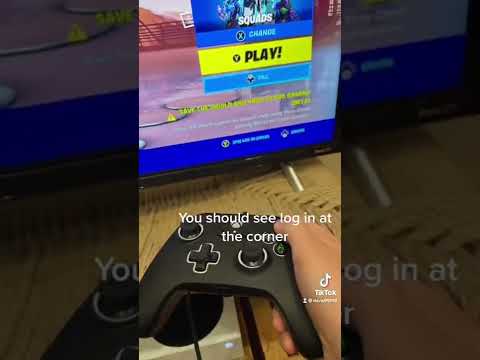
- Second Player Login: Press the triangle button and hold it until the loading circle in the bottom-right corner completes. A window overlay with the PLAYER 2 tag will pop up to log the second account in.
- Start Playing: Once the second player logs in with their account, they will appear in the lobby, and split-screen mode will automatically activate when you start a game in Duos or Squads.
Xbox One & Xbox Series X/S
- Connect two controllers: Make sure that two Xbox controllers are connected to your console.
- Log in: The first player should log in with their Epic Games account.
- Second Player Login: The second player needs to sign in with their Xbox account.
- Start Playing: Once both players are logged in, split-screen mode will automatically enable when you start a game in Duos or Squads.
Important Considerations
- Game Modes: Split-screen is typically limited to Duos and Squads modes in Battle Royale. It is not available in Creative, Limited Time Modes (LTMs), Save the World, or Solos.
- Account Requirements: Both players must have their own Epic Games accounts. Guest accounts are not supported.
- Internet Connection: A stable internet connection is crucial for a smooth split-screen experience.
- Performance: Keep in mind that running split-screen can be more demanding on the console’s hardware. This may result in slightly reduced performance compared to playing solo.
Troubleshooting Common Split-Screen Issues
Despite its convenience, split-screen in Fortnite can sometimes encounter problems. Here are some common issues and their potential solutions:
- Split-screen not activating: Ensure that both players are logged in with their own Epic Games accounts and that you are in a supported game mode (Duos or Squads).
- Performance issues: Try closing any unnecessary applications running in the background to free up system resources.
- Connection problems: Verify that your internet connection is stable and that both players are connected to the same network.
- Controller issues: Make sure that both controllers are properly connected and functioning correctly. Try restarting the console to resolve any controller-related problems.
- One player disconnecting: If one player disconnects during a split-screen session, the mode will end, and you will need to restart the game.
The Importance of Local Multiplayer
While online multiplayer dominates the gaming landscape, local co-op, including split-screen, remains an important and valuable experience. It fosters social interaction, encourages teamwork, and allows friends and family to share the excitement of gaming in the same room. The Games Learning Society recognizes the importance of games in social and educational contexts. Their research explores how games promote collaboration, problem-solving, and critical thinking skills. To learn more about their work, visit GamesLearningSociety.org.
For many, the nostalgic charm of playing together on a single screen brings back fond memories of classic gaming sessions. Fortnite’s split-screen helps to revive this tradition, offering a fun and engaging way to enjoy one of the world’s most popular games with those closest to you.
FAQ: Fortnite Split-Screen
Here are 15 frequently asked questions about Fortnite split-screen, designed to address any remaining queries you may have:
1. On what platforms can I play Fortnite in split-screen mode?
Split-screen is primarily available on PlayStation 4, PlayStation 5, Xbox One, and Xbox Series X/S consoles. It is not supported on PC, Nintendo Switch, or mobile devices.
2. What game modes support split-screen in Fortnite?
Split-screen is typically limited to Duos and Squads modes in Battle Royale. It is not available in Creative, Limited Time Modes (LTMs), Save the World, or Solos.
3. Do both players need their own Epic Games accounts to play split-screen?
Yes, both players must have their own Epic Games accounts. Guest accounts are not supported.
4. Can I use a combination of a controller and a mouse & keyboard in split-screen?
No, split-screen mode requires two controllers to be connected to the console. A combination of a controller and a mouse & keyboard is not supported.
5. How do I enable split-screen on my PlayStation or Xbox console?
Connect two controllers, ensure both players are logged in with their respective accounts, and start a game in Duos or Squads. The split-screen mode should automatically activate.
6. What if split-screen isn’t working for me?
Check your internet connection, ensure both players are logged in, and verify that you are in a supported game mode. Restart your console if necessary.
7. Does split-screen affect the performance of the game?
Yes, running split-screen can be more demanding on the console’s hardware, potentially leading to slightly reduced performance compared to solo play.
8. Can I change the orientation of the split-screen display (vertical or horizontal)?
No, the split-screen option will only show feeds in horizontal orientations, and you can’t switch it back to vertical.
9. What happens if one player disconnects during a split-screen session?
If one player disconnects or exits the match, then the split-screen session will end, and you will need to restart the game.
10. Can I play split-screen on the Nintendo Switch?
No, the Nintendo Switch platform does not support the split-screen feature in Fortnite.
11. Is split-screen available in Fortnite Creative mode?
No, split-screen is not available in Fortnite Creative mode. It’s limited to the Duos and Squads modes of the Battle Royale.
12. Does having a better internet connection improve the split-screen experience?
Yes, a stable and strong internet connection is crucial for a smooth split-screen experience, as it helps to reduce lag and disconnection issues.
13. Why was split-screen temporarily disabled in Fortnite at one point?
Split-screen was temporarily disabled due to technical issues and performance concerns as the game evolved and added more complex features.
14. Is it possible to play split-screen in Fortnite Chapter 4 or beyond?
As long as Epic Games continues to support the feature on PlayStation and Xbox consoles, split-screen will remain available in future chapters of Fortnite.
15. Can I use split-screen in tournaments or competitive Fortnite matches?
No, split-screen is not allowed or supported in tournaments or competitive Fortnite matches. These events require each player to have their own console and screen.
Conclusion
Fortnite’s split-screen feature offers a fantastic opportunity for local multiplayer gaming on consoles. While it may have had its ups and downs, the continued support from Epic Games indicates its importance to a segment of the player base. By understanding the requirements, setup process, and common issues, you can make the most of this feature and enjoy countless hours of fun with friends and family in the world of Fortnite. Remember to always check for the latest updates and announcements from Epic Games for any changes or improvements to the split-screen experience.