What Cable Connects a PS5 Controller to a PC?
Fast answer first. Then use the tabs or video for more detail.
- Watch the video explanation below for a faster overview.
- Game mechanics may change with updates or patches.
- Use this block to get the short answer without scrolling the whole page.
- Read the FAQ section if the article has one.
- Use the table of contents to jump straight to the detailed section you need.
- Watch the video first, then skim the article for specifics.
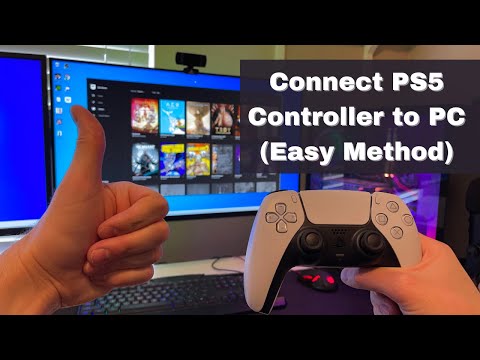
The definitive answer to the question “What cable connects a PS5 controller to a PC?” is a USB-C cable. More specifically, it needs to be a USB-C cable that supports data transfer, not just power delivery. This means not all USB-C cables will work. You’ll need a cable that allows the controller to communicate with your computer, enabling you to play games. There are two common variations you can use, depending on your PC’s ports:
-
USB-C to USB-C: If your PC has a USB-C port, you can use a USB-C to USB-C cable. This is the most direct connection and may offer the best performance in some cases.
-
USB-C to USB-A: If your PC only has standard, rectangular USB-A ports, you’ll need a USB-C to USB-A cable. This is a common connection method, and readily available.
It’s important to understand why data transfer capability is crucial. Many cheaper USB-C cables are designed solely for charging devices. They may provide power to your PS5 controller, making it seem like they’re working, but they won’t allow the controller to communicate with your PC, rendering it unusable for gaming.
Choosing the Right Cable
Identifying Data-Capable Cables
The key is to look for cables explicitly labeled as supporting data transfer. If a cable only specifies “charging” or doesn’t mention data transfer at all, it’s best to avoid it. If you’re unsure, test the cable with another device that requires data transfer, like a smartphone, to confirm its capabilities before connecting your PS5 controller.
USB-C to USB-C vs. USB-C to USB-A
The choice between these two cable types primarily depends on your computer’s ports. Functionally, there’s usually no significant performance difference when it comes to connecting a PS5 controller. However, the USB-C port might allow for faster charging in some scenarios.
The USB Type-C connector is recognizable by its oval shape and is designed to be plugged in either way (flippable). This eliminates the annoyance of trying to figure out which way is up. This design, which is more modern than USB-A, is a factor in why the PS5 controller uses it.
The Official PS5 Cable
The PlayStation 5 package includes a standard type C USB cable, which is ideal for connecting the DualSense controller to a PC. It’s guaranteed to be a data-capable cable. Therefore, if you still have it, this should be the first cable you try.
Connecting Your PS5 Controller to Your PC
Once you have the right cable, connecting your controller to your PC is straightforward:
- Plug the USB-C end of the cable into the port on your PS5 DualSense controller.
- Plug the other end of the cable (either USB-C or USB-A) into a USB port on your PC.
- Windows should automatically detect the controller and install the necessary drivers.
- You may need to configure the controller in your game settings.
After the initial connection, your PS5 controller should work seamlessly with most PC games that support gamepad input.
Troubleshooting Connection Issues
Sometimes, even with the correct cable, you might encounter issues. Here are a few troubleshooting tips:
- Try a different USB port. Some ports may not provide enough power or data transfer capability.
- Use a different data-capable USB-C cable. Sometimes the cable is the problem, even if you thought it was.
- Check for driver updates. Ensure that your Windows operating system and your game client have the most recent drivers installed.
- Restart your computer. It’s sometimes surprising how effective this solution is.
- Verify cable functionality on another device. Try the same cable with another device, like a smartphone, to confirm whether it works properly.
Frequently Asked Questions (FAQs)
Here are 15 frequently asked questions about connecting a PS5 controller to a PC with a cable:
1. Can I use any USB-C cable to connect my PS5 controller to my PC?
No, not any USB-C cable will work. You need a USB-C cable that supports data transfer, not just power delivery. Many cheaper cables only provide power, so be sure to choose one that can transfer data as well.
2. Does it matter if I use a USB-C to USB-C or USB-C to USB-A cable?
The choice depends on your PC’s available ports. Functionally, both will work for connecting your controller to your PC. There’s no real performance difference between the two types of cables when connecting a controller.
3. Why isn’t my PS5 controller working even though it’s charging when plugged into my PC?
This likely means you are using a cable that only provides power, not data transfer. Ensure your cable is specifically designed for both power and data transmission. Try a different cable to confirm the issue.
4. What if Windows doesn’t automatically detect my controller?
If Windows doesn’t detect the controller, try another USB port, or restarting your PC. You may also need to update your drivers, and your game client to make sure they’re running the latest version.
5. Is the PS5 controller cable USB-C?
Yes, the PS5 controller uses a USB-C port for charging and data transfer. The cable that comes with the PS5 console is also a standard Type-C USB cable.
6. Can I connect my PS5 controller to my PC via Bluetooth?
Yes, you can also connect your PS5 controller to your PC via Bluetooth. You can initiate the pairing mode by holding the PS and Share buttons until the controller light flashes.
7. How do I turn off my PS5 controller when connected to my PC?
To turn off your PS5 controller while connected to your PC, hold down the PlayStation button for 15 seconds. The LED indicator will power down, indicating that the process is complete.
8. Can I use a phone charger to charge my PS5 controller?
Yes, you can use a phone charger with a USB-C connection to charge your PS5 controller.
9. Can I charge my PS5 controller on the wall?
Yes, you can use a wall charger with a USB cable to charge your DualSense controller.
10. Is it safe to leave my PS5 controller plugged in all the time?
Yes, it is generally safe to leave your PS5 controller plugged in. The charging circuitry automatically stops charging once the controller is fully charged.
11. Can I use a third-party USB-C cable for my PS5 controller?
Yes, but make sure it’s a data-capable USB-C cable and is from a reputable brand. Not all third-party cables offer the same performance or quality.
12. How do I connect my PS5 controller to Steam?
To connect your PS5 controller to Steam, launch Steam in Big Picture Mode. Then, navigate to Controller settings, find your controller listed, and click register. Choose your preferences and click submit.
13. Can I use the PS5 controller to play all PC games?
Most modern PC games support controller input, so a PS5 controller can be used with most games. However, you may need to configure the controller in game settings.
14. Can I connect my controller without a USB cable?
Yes, you can connect the controller without a cable by using Bluetooth. However, for an initial pairing, a cable is often required.
15. Why does the PS5 controller have a USB-C port?
The USB-C port is used for standard charging and for third-party charging docks/stands. USB-C is supposed to have the advantage of faster charging speeds and a longer battery life.