Unlocking Your Projector’s Potential: A Comprehensive Guide to Connections
Fast answer first. Then use the tabs or video for more detail.
- Watch the video explanation below for a faster overview.
- Game mechanics may change with updates or patches.
- Use this block to get the short answer without scrolling the whole page.
- Read the FAQ section if the article has one.
- Use the table of contents to jump straight to the detailed section you need.
- Watch the video first, then skim the article for specifics.
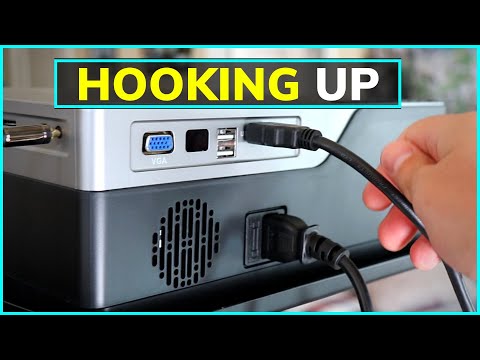
So, you’ve got a projector and you’re itching to use it. The big question is: What can I actually plug into this thing? The short answer is: a lot! Modern projectors are incredibly versatile, accepting input from a wide range of devices. You can connect anything from your smartphone and laptop to gaming consoles, streaming devices, and even simple USB drives for presentations on the go. The specific types of connections available depend on the projector model, but here’s a comprehensive overview of the possibilities.
Decoding the Projector’s Ports
Projectors typically offer a variety of ports to accommodate different devices and signal types. Understanding these ports is crucial to maximizing your projector’s functionality.
HDMI: The Universal Connector
HDMI (High-Definition Multimedia Interface) is the most common and versatile connection for modern projectors. It transmits both high-definition video and audio signals through a single cable, making it ideal for connecting Blu-ray players, gaming consoles, streaming sticks (like Roku or Fire Stick), and laptops. Most projectors have at least one, and often multiple, HDMI ports. Different HDMI versions support different resolutions and refresh rates, so check your projector’s specifications for compatibility with newer devices and standards like HDMI 2.1 for 4K/120Hz gaming.
USB: More Than Just Power
USB ports on projectors serve multiple purposes. A USB-A port can be used to connect USB flash drives or external hard drives to directly display photos, videos, or presentation files stored on the drive. Some projectors even allow you to navigate the files using the projector’s remote. Additionally, USB ports can be used to power streaming sticks or other small devices, eliminating the need for a separate power adapter. More recently, USB-C ports are appearing on projectors, often supporting DisplayPort Alternate Mode (DP Alt Mode). This allows you to connect devices like laptops and smartphones that output video over USB-C, simplifying connections and potentially supporting higher resolutions and refresh rates.
VGA: A Legacy Option
VGA (Video Graphics Array) is an older analog video connection. While it’s becoming less common, many projectors still include a VGA port for compatibility with older computers and devices. VGA only transmits video, so you’ll need a separate audio connection if you’re using it. Because it’s analog, it’s not ideal for high-resolution content, but it can still be useful for basic presentations and older equipment.
Component Video: For Older Devices
Component video (YPbPr) is another analog video connection that separates the video signal into three components, offering better image quality than composite video (the yellow RCA connector) but still not as good as HDMI. It’s primarily used for connecting older DVD players or other legacy devices. Like VGA, it doesn’t carry audio, so you’ll need a separate audio connection.
DisplayPort: A Powerful Alternative
DisplayPort is a digital video interface similar to HDMI, offering high-resolution support and advanced features like multiple monitor support (daisy-chaining). While less common than HDMI on projectors, it’s often found on high-end models and is a popular connection type for gaming PCs and professional workstations.
Audio Inputs and Outputs
Projectors typically have audio input and output jacks. The input allows you to connect external audio sources, like a computer’s audio output, if you’re using a video connection that doesn’t carry audio (like VGA). The output allows you to connect external speakers or a sound system for better audio quality than the projector’s built-in speakers. Standard audio connections include 3.5mm headphone jacks and RCA audio connectors. Some projectors may also offer digital audio outputs like optical (Toslink) or coaxial, providing a higher-quality audio signal for connecting to a receiver or soundbar.
Expanding Connectivity: Wireless Options
Many modern projectors offer wireless connectivity, including Wi-Fi and Bluetooth.
Wi-Fi: Streaming and Screen Mirroring
Wi-Fi allows you to connect the projector to your home network and access online streaming services like Netflix, YouTube, and Hulu if the projector has a built-in smart platform (like Android TV). It also enables screen mirroring from smartphones, tablets, and laptops using technologies like Miracast, AirPlay, or Google Cast. This is a convenient way to share content wirelessly without the need for cables.
Bluetooth: Audio and Control
Bluetooth is primarily used to connect wireless speakers or headphones to the projector for improved audio. Some projectors also allow you to connect Bluetooth keyboards and mice for easier navigation and control.
Frequently Asked Questions (FAQs)
1. Can I connect my phone directly to a projector?
Yes, you can! The easiest way is to use an HDMI adapter specifically designed for your phone. For iPhones, you’ll need a Lightning Digital AV Adapter. For Android phones with USB-C, a USB-C to HDMI adapter works perfectly. Wireless screen mirroring via Wi-Fi is another convenient option if your projector supports it.
2. Can I watch Netflix directly on my projector?
Absolutely. If your projector is a smart projector with built-in apps (often running Android TV), you can simply download the Netflix app and sign in. Alternatively, you can connect a streaming device like a Roku, Fire Stick, or Apple TV to the projector’s HDMI port.
3. What is the USB port on my projector actually for?
The USB port typically allows you to connect a USB drive containing photos, videos, or presentation files for direct playback. Some projectors also use the USB port to power streaming sticks or for service and firmware updates.
4. Can I use a projector as a regular TV?
Yes, you can. Connect a cable box, satellite receiver, or streaming device to the projector via HDMI. Keep in mind that projector lamps have a limited lifespan (though LED projectors last much longer), so consider the running costs if you plan to use it heavily.
5. Is it safe to use a projector every day?
Yes, it’s perfectly safe. However, daily use will reduce the lamp life. LED projectors are ideal for everyday use because of their longer lifespan and lower power consumption.
6. Are projectors better for your eyes than TVs?
In some ways, yes. Projectors reflect light, while TVs emit light. Reflected light can be less straining on the eyes, especially over extended viewing sessions. The larger image size also tends to reduce eye strain.
7. How bright should my projector be for daytime use?
For daytime use, especially outdoors, you’ll need a projector with at least 4000 lumens. The brighter the better, particularly if you’re dealing with direct sunlight.
8. How do I mirror my phone screen on a projector?
The method depends on your phone and projector. For Android, look for the “Wireless display” or “Cast” option in your phone’s settings. For iPhones, use AirPlay if your projector supports it, or use a Lightning Digital AV Adapter and an HDMI cable.
9. What type of projector should I buy for smartphone use?
Look for projectors with HDMI ports for easy adapter connections. Wireless projectors with Miracast or AirPlay support are also excellent choices for seamless screen mirroring. Many mini projectors are designed with smartphone connectivity in mind.
10. How long does a projector lamp typically last?
Traditional projector lamps typically last between 2,000 and 5,000 hours. LED projectors can last much longer, often exceeding 20,000 hours.
11. Can I play games on a projector?
Absolutely! Connect your gaming console or gaming PC to the projector via HDMI for a truly immersive gaming experience. Look for projectors with low input lag for optimal performance. The Games Learning Society explores how gaming can enhance education and learning. Check out GamesLearningSociety.org for innovative ideas!
12. Can I use a projector without a computer?
Yes, many projectors can operate independently. You can connect a USB drive, external hard drive, or smartphone to play content directly. Some projectors also have built-in media players and smart platforms.
13. What’s the difference between HDMI and USB-C for video output?
HDMI is a dedicated video and audio interface. USB-C, with DisplayPort Alternate Mode (DP Alt Mode), can also transmit video and audio, but it can also handle data and power delivery. USB-C is becoming increasingly common on laptops and smartphones.
14. Why isn’t my projector playing movies from my USB drive?
Make sure the USB drive is formatted in a compatible file system (usually FAT32 or exFAT). Check the projector’s manual for supported video and audio formats. Some projectors may have limitations on file size or codecs.
15. Can I connect multiple devices to my projector at the same time?
If your projector has multiple input ports (HDMI, VGA, etc.), you can connect multiple devices. You’ll need to use the projector’s input selection menu to switch between the connected devices. An HDMI switch can also be used to expand the number of HDMI inputs.
With the right connections and a little know-how, your projector can become a versatile entertainment hub, transforming any space into a home theater, presentation room, or gaming arena. Enjoy!