Decoding the PS4 Light of Death: What That Blue Hue Really Means
Fast answer first. Then use the tabs or video for more detail.
- Watch the video explanation below for a faster overview.
- Game mechanics may change with updates or patches.
- Use this block to get the short answer without scrolling the whole page.
- Read the FAQ section if the article has one.
- Use the table of contents to jump straight to the detailed section you need.
- Watch the video first, then skim the article for specifics.
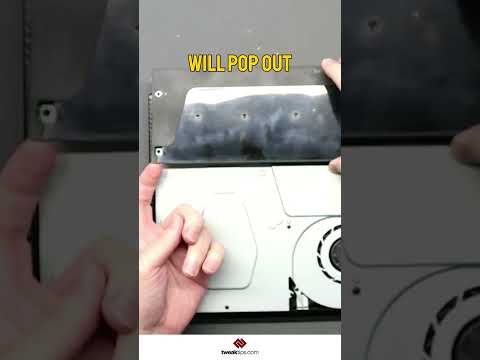
The dreaded “Blue Light of Death” (BLOD) on your PlayStation 4 (PS4) signals a critical malfunction. This doesn’t always mean your console is bricked beyond repair, but it definitely warrants immediate attention. So, to answer the core question: the “light of death” on a PS4 is blue. More specifically, it’s a blinking blue light that appears after you power on the console, and then, instead of transitioning to white (indicating normal operation) or another color, it remains blinking blue, often followed by the console powering down.
Understanding the Blue Light of Death
The BLOD isn’t a single, universally defined problem. It’s a symptom, a signal that something has gone seriously wrong during the PS4’s boot-up sequence. Think of it like a check engine light on a car; it tells you there’s a problem, but you need to diagnose the specific cause to fix it.
Potential Causes of the Blue Light of Death
Several issues can trigger the BLOD, ranging from relatively simple fixes to more complex hardware failures:
- Power Supply Issues: A faulty or inadequate power supply is a common culprit. The PS4 needs a stable and sufficient power source to operate correctly. If the power supply is failing or not providing enough power, the system can’t complete its boot sequence.
- HDMI Problems: A malfunctioning HDMI port or cable can also trigger the BLOD. The console might be running, but if it can’t establish a connection with your TV, it may display the blinking blue light and then shut down.
- Software Glitches: Corrupted or outdated system software can interfere with the PS4’s startup process. This could be due to incomplete updates, file corruption, or other software-related errors.
- Hard Drive Failures: A failing hard drive (HDD) can prevent the console from loading the operating system. If the HDD is damaged or corrupted, the PS4 won’t be able to boot properly.
- APU (Accelerated Processing Unit) Issues: The APU, which combines the CPU and GPU, is the heart of the PS4. If the APU is failing or has a bad connection with the motherboard, it can lead to the BLOD. This is a more serious hardware issue that often requires professional repair.
Troubleshooting Steps
Before you panic, try these troubleshooting steps:
-
Power Cycle: Disconnect the power cord from the back of the PS4 and wait for at least 30 seconds (some experts recommend several minutes). Then, reconnect the power cord and try turning on the console. This can sometimes resolve minor software glitches.
-
Check HDMI Connection: Ensure the HDMI cable is securely connected to both the PS4 and your TV. Try a different HDMI cable and a different HDMI port on your TV.
-
Safe Mode: Boot the PS4 into Safe Mode by pressing and holding the power button until you hear two beeps. From Safe Mode, you can try various options, such as:
- Restart PS4: This performs a basic restart, which might resolve minor issues.
- Update System Software: Download and install the latest system software update.
- Restore Default Settings: This resets the PS4’s settings to their factory defaults.
- Rebuild Database: This rebuilds the database on the hard drive, which can fix file corruption issues.
- Initialize PS4: This performs a full factory reset, erasing all data on the hard drive. Use this as a last resort, as it will delete all your games, saves, and settings.
-
Check the Hard Drive: If you suspect a hard drive issue, you can try removing and reinstalling the hard drive. If you have a spare hard drive, you can try installing it to see if the PS4 boots up.
-
Professional Repair: If none of the above steps work, it’s likely a hardware issue that requires professional repair. Contact Sony support or a reputable console repair shop.
FAQs: Diving Deeper into PS4 Light Colors
Here are some frequently asked questions to further clarify the various light indicators on your PS4:
FAQ 1: What color is the PS4 light when it’s off?
When powered off completely, the PS4 has no light illuminated. The console lights may briefly pulse white during the power-down sequence before extinguishing.
FAQ 2: What do the different light colors on the PS4 controller mean?
The color of the PS4 controller light bar indicates the player number:
- Blue: Player 1
- Red: Player 2
- Green: Player 3
- Pink (or Purple): Player 4
FAQ 3: What does the orange light on the PS4 indicate?
A solid orange light on the PS4 means the console is in rest mode or is turned off but charging a controller. A blinking orange light typically indicates the controller is only charging.
FAQ 4: What does the white light on the PS4 signify?
A solid white light on the PS4 indicates that the console is powered on and functioning normally. A blinking white light (sometimes referred to as the “White Light of Death”) suggests a problem with the HDMI connection or another system error.
FAQ 5: Can I change the color of the light bar on the PS4 controller?
No, you cannot manually change the color of the light bar on the PS4 controller. The color is automatically assigned based on the player number or game events.
FAQ 6: Why is my PS4 controller light blue and flashing?
A flashing blue light on the PS4 controller indicates that it is attempting to connect to the console. It should turn solid blue once the connection is established.
FAQ 7: What should I do if my PS4 is overheating, and the light turns red?
If the PS4 light turns red, it indicates overheating. Immediately shut down the console, allow it to cool down in a well-ventilated area, and ensure the vents are not blocked by dust or other obstructions.
FAQ 8: How do I prevent the PS4 Blue Light of Death?
While there’s no guaranteed way to prevent it, regular maintenance can help:
- Keep your PS4 clean and dust-free.
- Ensure proper ventilation.
- Use a surge protector to protect against power fluctuations.
- Keep your system software up-to-date.
FAQ 9: How much does it cost to fix the PS4 Blue Light of Death?
Repair costs can vary, but typically range from $169 to $200 or more, depending on the specific issue and the repair shop. More complex hardware failures, like APU issues, will be more expensive to fix.
FAQ 10: Is there any data recovery possible after the PS4 Blue Light of Death?
Data recovery is possible in some cases, especially if the hard drive is not physically damaged. However, it can be expensive and complex. If you have PlayStation Plus, your game saves are likely backed up to the cloud.
FAQ 11: What is Safe Mode on the PS4, and how do I access it?
Safe Mode is a special boot mode that allows you to perform maintenance tasks on your PS4. To access Safe Mode, press and hold the power button until you hear two beeps.
FAQ 12: My PS4 turns on, but there’s no display. Is this the Blue Light of Death?
Not necessarily. A black screen could indicate an HDMI issue rather than a full system failure like the BLOD. Check your HDMI connections and try a different cable.
FAQ 13: Can a faulty power strip cause the Blue Light of Death?
Yes, a faulty power strip or surge protector can cause power fluctuations that damage the PS4 and lead to the BLOD.
FAQ 14: Does the PS4 Pro also suffer from the Blue Light of Death?
Yes, the PS4 Pro is also susceptible to the Blue Light of Death, as it shares similar hardware and software components with the original PS4.
FAQ 15: Where can I learn more about game consoles and their technical aspects?
You can explore resources like the Games Learning Society and GamesLearningSociety.org for research and educational materials related to game technology and the broader implications of gaming. These resources often provide valuable insights into the technology powering your gaming consoles.
Final Thoughts
The Blue Light of Death on your PS4 is a frustrating experience, but understanding the potential causes and troubleshooting steps can help you resolve the issue. If you’re not comfortable performing repairs yourself, it’s always best to seek professional assistance to avoid further damage to your console. With a little patience and the right approach, you can hopefully get your PS4 back up and running and get back to gaming!