Connecting Your Nintendo Wii: A Cord Compendium
Fast answer first. Then use the tabs or video for more detail.
- Watch the video explanation below for a faster overview.
- Game mechanics may change with updates or patches.
- Use this block to get the short answer without scrolling the whole page.
- Read the FAQ section if the article has one.
- Use the table of contents to jump straight to the detailed section you need.
- Watch the video first, then skim the article for specifics.
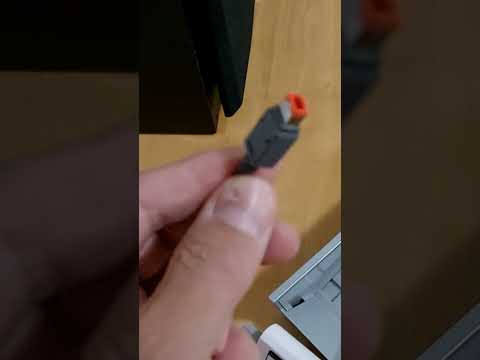
The Nintendo Wii, a revolutionary console that brought motion gaming to the masses, relies on a specific set of cords to function. You’ll need to plug in an A/V cable (or component cable), an AC power cord, and the sensor bar to the console itself. The A/V cable then connects to your TV. Simple, right? Let’s dive deeper.
Essential Wii Connections: A Detailed Look
The Wii, while not exactly cutting-edge in its connectivity, is still relatively straightforward to set up. Understanding the purpose of each cord and where it plugs in is crucial to getting your game on.
A/V Cable (or Component Cable Alternative)
The primary method for connecting the Wii to your TV is through the A/V cable, also known as a composite video cable. This cable has three color-coded plugs: yellow (video), red (right audio channel), and white (left audio channel).
-
Where it plugs in: One end of the A/V cable connects to the A/V Output port on the back of the Wii. The other end connects to the corresponding yellow, red, and white composite input jacks on your TV.
-
Important note: If your TV lacks composite inputs, you might need an adapter or consider using a Wii component cable (sold separately), which offers a slightly better picture quality. Alternatively, you might use VGA adapter, a SCART converter, or an S-Video Cable.
AC Power Cord
This cable provides the Wii with the electrical power it needs to operate.
- Where it plugs in: One end of the AC power cord connects to the DC Input connector on the back of the Wii. The other end plugs into a standard wall outlet (preferably directly, not through a surge protector, initially, for troubleshooting purposes).
Sensor Bar
The sensor bar is vital for the Wii’s motion-sensing capabilities. It emits infrared light that the Wii Remote uses to determine its position.
-
Where it plugs in: The sensor bar plugs into the sensor bar port on the back of the Wii. It is a thin, rectangular port.
-
Placement is key: The sensor bar should be placed either directly above or below your TV screen, centered. Use the included stand to position it securely.
Troubleshooting Connection Issues
Sometimes, things don’t go as smoothly as planned. If you’re having trouble getting your Wii to display on your TV, here are a few things to check:
- Correct Input: Make sure your TV is set to the correct input channel. Use your TV remote’s input or source button to cycle through the available options until you find the one connected to your Wii.
- Cable Integrity: Ensure that all cables are securely plugged into both the Wii and the TV. Damaged or loose cables can cause signal loss.
- Power Cycle: Unplug the AC adapter from both the Wii and the wall outlet, wait a few minutes, and then plug it back in. This can sometimes resolve power-related issues.
- Adapter Compatibility: If using adapters, confirm compatibility with your Wii and TV. Incompatible adapters may lead to connectivity or display problems.
Frequently Asked Questions (FAQs)
Here are some frequently asked questions about Wii connections to help you further understand the ins and outs of the console:
1. Does the Wii support HDMI?
No, the original Wii does not have an HDMI output. It primarily uses the A/V (composite) cable. There are Wii to HDMI adapters available, but they are not native HDMI connections.
2. Can I use a Wii to HDMI adapter?
Yes, you can use a Wii to HDMI adapter to connect your Wii to a TV with only HDMI inputs. These adapters typically upscale the Wii’s 480i/480p output to a higher resolution, but the image quality may not be significantly improved.
3. What is a Wii component cable, and is it better than the A/V cable?
A Wii component cable is an alternative to the standard A/V cable. It uses five connectors (red, blue, green for video; red, white for audio) and provides a slightly better picture quality, especially on TVs that support progressive scan (480p).
4. My TV doesn’t have the right inputs for the Wii. What should I do?
If your TV lacks composite or component inputs, you can use a Wii to HDMI adapter. Another option might be a composite-to-HDMI converter box.
5. Where do I plug in the sensor bar?
The sensor bar plugs into the sensor bar port on the back of the Wii console. It’s a thin, rectangular port.
6. Does the placement of the sensor bar matter?
Yes, the placement of the sensor bar is crucial. It should be placed either directly above or below your TV screen, centered.
7. Why is my Wii not showing up on my TV screen?
Make sure your TV is set to the correct input channel, that all cables are securely connected, and that the Wii is powered on. If the issue persists, try power cycling the console.
8. Do I need an internet connection to play Wii games?
No, you don’t need an internet connection to play Wii games from discs. However, an internet connection is required for online features, such as downloading games from the Wii Shop Channel (which is now discontinued) or playing online multiplayer games (for games that still support it).
9. Can I use a USB drive with my Wii?
Yes, the Wii has two USB ports on the back. You can use them to connect USB drives, but primarily for loading homebrew software and running backups of your games (which requires installing the Homebrew Channel).
10. What voltage does the Wii use?
The Wii uses the voltage standard for your region. In North America, it uses 120V, while in Europe and other regions, it uses 220-240V. Make sure you’re using the correct AC adapter for your region.
11. Why won’t my Wii Remote connect to the console?
Ensure that the batteries in the Wii Remote are fresh and properly inserted. Also, try syncing the Wii Remote with the console by pressing the red sync button on the Wii and the sync button on the back of the Wii Remote.
12. Can I connect a Wii to a computer monitor?
Yes, you can connect a Wii to a computer monitor that has composite or component video inputs. You might need an adapter to convert the Wii’s output to a format that your monitor supports. Alternatively, you can use VGA adapter.
13. Is the Wii U better than the Wii?
The Wii U is a successor to the Wii and offers several improvements, including HD graphics, a touchscreen GamePad controller, and backward compatibility with Wii games and accessories.
14. Where can I find more information about video games and learning?
You can explore the world of games and their educational applications by visiting the GamesLearningSociety.org website. The Games Learning Society explores ways to harness the power of games for educational purposes.
15. My Wii is old. Should I upgrade?
That depends on your needs! If you’re happy with the games available and don’t require HD graphics, the Wii is still a perfectly functional console. However, if you’re looking for a more modern gaming experience with better graphics and a wider range of games, upgrading to a newer console like the Nintendo Switch might be a good option.
Connecting your Nintendo Wii is relatively simple, but understanding the function of each cord and how to troubleshoot potential issues will ensure a smooth and enjoyable gaming experience. Happy gaming!