Decoding Minecraft’s Secrets: Unleashing the Power of F3 + T
Fast answer first. Then use the tabs or video for more detail.
- Watch the video explanation below for a faster overview.
- Game mechanics may change with updates or patches.
- Use this block to get the short answer without scrolling the whole page.
- Read the FAQ section if the article has one.
- Use the table of contents to jump straight to the detailed section you need.
- Watch the video first, then skim the article for specifics.
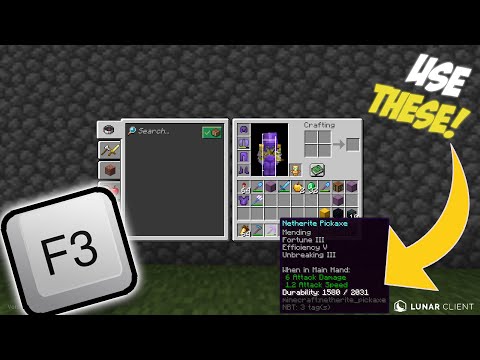
The magical combination of F3 + T in Minecraft is a developer shortcut that reloads all textures, sounds, and web-loaded client resources without requiring you to restart the entire game. This is especially helpful for texture pack creators, modders, and anyone tweaking the visual and auditory aspects of their Minecraft experience. It allows for immediate, in-game testing of resource pack changes.
Unveiling the Mysteries of the F3 Debug Screen
Before diving deeper into F3 + T, it’s essential to understand the broader functionality of the F3 key itself. Pressing F3 (or Fn + F3 on some laptops) brings up the debug screen, a treasure trove of information crucial for understanding your Minecraft world.
What Information Does the Debug Screen Provide?
The debug screen displays a wealth of data, including:
- Coordinates: Your exact X, Y, and Z coordinates within the world. Crucial for navigation and pinpointing locations.
- Chunk Data: Information about the chunk your player is currently residing in, which are 16×16 blocks.
- Memory Usage: A real-time graph of the game’s memory consumption, useful for identifying performance bottlenecks.
- Frame Rate (FPS): A graph measuring the game’s current frame rate, which impacts visual smoothness.
- Facing Direction: Shows the direction your character is facing (e.g., South, North, East, West).
- Biome: Indicates the biome the player is currently in, which determines the environment and mob spawns.
- Minecraft Version: Specifies the Minecraft version, which can be helpful for identifying the game versions for mods and resource packs.
- System Information: Shows the system information about the GPU, CPU, and operating system which can be helpful for performance.
- Light Level: Indicates the light level of the current block your player is standing on.
Understanding this information can empower you to troubleshoot issues, optimize performance, and gain a deeper appreciation for the intricate workings of Minecraft.
F3 + T: A Power-User’s Tool
The F3 + T combination stands out for its specific function: reloading resources. This is particularly vital for texture pack developers. Imagine you’re meticulously crafting a new texture for a block. Without F3 + T, you’d have to close and reopen the entire game every time you made a change to see the result. This is incredibly time-consuming. By pressing F3 + T, you can instantly refresh the game’s textures and sounds to see how the modifications appear within the world.
Why is Resource Reloading Important?
- Efficient Iteration: Faster development cycles for texture packs, sounds, and other client-side assets.
- Immediate Feedback: Instantaneous visual confirmation of changes, allowing for quick adjustments and refinements.
- Reduces Downtime: Eliminates the need to restart the game repeatedly, saving valuable time and minimizing disruption.
- Modding Support: Enables developers to dynamically update client-side resources during development, streamlining the modding workflow.
Troubleshooting F3 and Function Key Issues
Sometimes, pressing F3 (or F3 + T) doesn’t work as expected, especially on laptops. This is often due to the function keys being configured for other actions, such as volume control or screen brightness. Many laptops use the Fn key (function key) to toggle between the standard F1-F12 functions and the special functions printed on the keys.
How to Fix Function Key Problems
-
Fn Lock Key: Look for an Fn Lock (F Lock) key on your keyboard. Pressing this key toggles the function key behavior.
-
BIOS Settings: In some cases, you might need to adjust the function key behavior in your computer’s BIOS settings. This usually involves restarting your computer and pressing a specific key (often Delete, F2, or F12) during startup to access the BIOS menu.
-
Keyboard Settings: Operating systems sometimes have keyboard settings where you can change the function key behaviour to default to standard F1-F12, rather than the media or quick action keys.
Important Considerations and Limitations
While F3 + T is a valuable tool, it’s essential to be aware of its limitations:
-
Client-Side Only: This command only affects the client-side resources. It does not modify server-side data.
-
Not Always Perfect: In some cases, especially with complex resource packs or mods, F3 + T might not reload all resources correctly. A full game restart might still be necessary.
-
Hypixel Restrictions: On some multiplayer servers, such as Hypixel, specific F3 + commands, including F3 + T, are sometimes disallowed because they can be exploited or cause performance issues. Always check the server rules before using these commands.
Minecraft: A Platform for Learning and Creativity
Minecraft is more than just a game; it’s a platform that fosters creativity, problem-solving, and collaboration. Educational organizations such as the Games Learning Society are discovering the power of the game. The Games Learning Society uses games to advance learning and research. Learn more at GamesLearningSociety.org. Understanding the intricacies of Minecraft, including the nuances of F3 and F3 + T, empowers players to explore the game’s potential and unlock new levels of creativity and control.
Frequently Asked Questions (FAQs)
-
What exactly does F3 + T do in Minecraft?
F3 + T reloads all textures, sounds, and web-loaded client resources, allowing you to test changes without restarting the game.
-
Why is F3 not working on my laptop?
Many laptops require you to press the Fn key along with F3. You might also need to toggle the Fn Lock key or change your BIOS settings.
-
Is F3 + T allowed on all Minecraft servers?
No, some servers, like Hypixel, disallow certain F3 commands, including F3 + T, due to potential exploits or performance issues.
-
How do I find my coordinates in Minecraft?
Press the F3 key to bring up the debug screen. Your X, Y, and Z coordinates will be displayed. On Bedrock edition, coordinates must be enabled in the settings.
-
What is the debug screen?
The debug screen is activated by pressing F3 and displays various information about the game, including coordinates, memory usage, and frame rate.
-
What does F2 do in Minecraft?
F2 takes a screenshot and saves it to your Minecraft screenshots folder.
-
How do I find my biome using the debug screen?
Press F3, and the biome you are currently in will be listed on the right side of the screen.
-
Can I see the world seed in the debug screen?
Yes, in singleplayer, pressing F3 will show the world seed.
-
What does F3 + C do?
F3 + C copies your current coordinates as a
/tpcommand into your clipboard. Holding it for 10 seconds will force a debug crash. -
What does Ctrl + F3 + C do?
Ctrl + F3 + C forces a Java crash instead of a regular Minecraft crash, and should only be used for debugging or troubleshooting purposes.
-
What does F4 do in Minecraft?
Pressing F4 while holding F3 brings up a menu to quickly switch between game modes.
-
What does F5 do in Minecraft?
F5 changes the camera perspective, switching between first-person, third-person front, and third-person back views.
-
What does F7 do in Minecraft?
F7 toggles light level overlay, showing where mobs can spawn (areas with light level 7 or lower).
-
Can I copy and paste in Minecraft?
Yes, you can use Ctrl + V (Windows) or ⌘ Cmd + V (Mac) to paste text into chat or command blocks.
-
If F3+T won’t work, what else should I try?
Make sure the resource pack is correctly formatted and placed in the resourcepacks folder. If you recently added a new mod, it can sometimes conflict with the keys, so you may need to remove the mod to troubleshoot.