Understanding RAM Usage: What’s Eating Up Your Memory?
Fast answer first. Then use the tabs or video for more detail.
- Watch the video explanation below for a faster overview.
- Game mechanics may change with updates or patches.
- Use this block to get the short answer without scrolling the whole page.
- Read the FAQ section if the article has one.
- Use the table of contents to jump straight to the detailed section you need.
- Watch the video first, then skim the article for specifics.
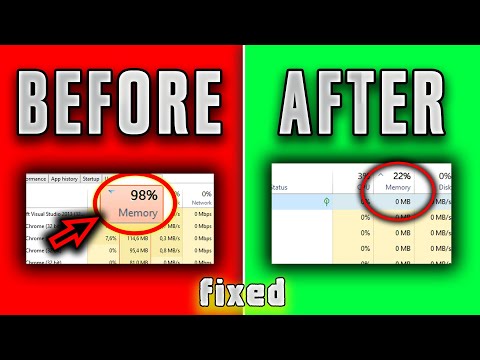
What eats up RAM? In short, anything that needs to be quickly accessible to your computer’s processor. RAM (Random Access Memory) is your computer’s short-term memory. It holds the data and instructions that the CPU needs to execute in real-time. The more programs and processes running simultaneously, the more RAM is consumed. Complex software, background applications, and even web browser tabs can all contribute to high RAM usage, potentially slowing down your system. Understanding how RAM works and what consumes it is crucial for optimizing your computer’s performance.
Decoding RAM Consumption: A Deep Dive
To truly understand what’s impacting your RAM, we need to delve into specific culprits and scenarios. It’s not just about what uses RAM, but how it’s being used. Let’s break it down:
-
Operating System: Your operating system (Windows, macOS, Linux) is the foundation. It constantly uses RAM for core functions, managing files, and running essential services.
-
Applications: Every application you open, from Microsoft Word to Adobe Photoshop, consumes RAM. The more complex the application, the more RAM it needs. Games, video editing software, and graphic design programs are notorious RAM hogs.
-
Web Browsers: Modern web browsers, especially Chrome, are infamous for their RAM consumption. Each tab you open, each extension you install, and each plugin you use adds to the RAM footprint. This is because browsers treat each tab and extension as a separate process for stability.
-
Background Processes: Many applications run silently in the background, constantly consuming RAM. These can include update services, cloud storage sync programs, antivirus software, and more. While they may seem small individually, they can collectively drain significant RAM resources.
-
Virtual Machines: Running virtual machines (VMs) like VMware or VirtualBox requires dedicating a significant portion of your RAM to the guest operating system. The amount of RAM allocated to the VM directly impacts its performance and the performance of your host system.
-
Malware: Malicious software can secretly consume RAM for nefarious purposes, such as cryptocurrency mining or data theft. This can lead to sluggish performance and security risks.
-
Files and Data: When you open large files, such as high-resolution images or videos, the data is loaded into RAM for faster access. The larger the file, the more RAM is required.
-
Caching: The OS and some applications use caching to store frequently accessed data in RAM for quicker retrieval. While this improves performance in the short term, excessive caching can lead to RAM exhaustion.
-
Driver Issues: Outdated or faulty drivers can sometimes cause memory leaks, where RAM is allocated but not properly released, leading to a gradual increase in RAM usage.
Monitoring and Managing RAM Usage
The first step to managing RAM consumption is to monitor it. Both Windows and macOS offer built-in tools for this:
-
Windows Task Manager: Press
Ctrl + Shift + Escto open the Task Manager. Go to the “Processes” tab to see a list of running processes and their RAM usage. You can sort by “Memory” to identify the biggest RAM consumers. The “Performance” tab gives you an overview of your RAM utilization and available memory. -
macOS Activity Monitor: Open Activity Monitor from the “Utilities” folder within “Applications.” Click on the “Memory” tab to see which applications and processes are using the most RAM.
Once you’ve identified the culprits, you can take steps to reduce RAM usage.
-
Close Unnecessary Applications: The simplest solution is often the most effective. Close any applications you’re not actively using.
-
Disable Startup Programs: Prevent unnecessary applications from launching automatically when you start your computer. Use Task Manager (Windows) or System Preferences (macOS) to manage startup items.
-
Uninstall Unused Programs: Remove any programs you no longer use to free up system resources, including RAM.
-
Manage Browser Tabs and Extensions: Limit the number of open browser tabs and disable or uninstall unnecessary extensions. Consider using a browser extension that suspends inactive tabs to conserve RAM.
-
Adjust Visual Effects: Reducing visual effects in Windows can free up RAM. Go to “System Properties,” “Advanced,” and then “Settings” under “Performance.” Choose “Adjust for best performance” or customize individual settings.
-
Increase Virtual Memory: Virtual memory (also known as a swap file or page file) allows your computer to use hard drive space as an extension of RAM. While slower than RAM, it can help prevent crashes when RAM is full. You can adjust the size of the virtual memory file in Windows settings.
-
Update Drivers: Keep your device drivers up to date to resolve potential memory leak issues.
-
Scan for Malware: Run a full system scan with your antivirus software to detect and remove any malicious software that may be consuming RAM.
-
Consider a RAM Upgrade: If you consistently find yourself running out of RAM, upgrading to a larger amount may be the best solution. 16GB is generally sufficient for most users, but power users and gamers may benefit from 32GB or more. You might find similar benefits in the Games Learning Society community.
Frequently Asked Questions (FAQs) About RAM
1. Is it bad if my RAM usage is high?
High RAM usage isn’t inherently bad. It means your computer is actively utilizing its resources. However, consistently high RAM usage (80% or more) can indicate a problem, such as memory leaks, excessive background processes, or insufficient RAM for your workload. If you’re experiencing slowdowns or crashes, high RAM usage could be a contributing factor.
2. What is considered normal RAM usage?
Normal RAM usage varies depending on your system configuration and workload. With 8GB of RAM, idle usage of 30-50% is typical. With 16GB, you might see idle usage around 10-30%. The key is to monitor your RAM usage while performing typical tasks and see if it consistently reaches high levels.
3. Does having more RAM make my computer faster?
Yes, having more RAM can make your computer faster, especially if you frequently run multiple applications or work with large files. More RAM allows your computer to store more data in memory, reducing the need to access the slower hard drive or SSD.
4. Is 8GB of RAM enough in 2024?
For basic tasks like web browsing, email, and word processing, 8GB of RAM may still be sufficient. However, for more demanding tasks like gaming, video editing, or running multiple applications simultaneously, 16GB or more is recommended.
5. Is 16GB of RAM overkill?
For most average users, 16GB of RAM is a sweet spot that provides ample headroom for everyday tasks and moderate multitasking. It’s not necessarily overkill, but it provides a comfortable buffer for future needs.
6. Can a virus cause high RAM usage?
Yes, viruses and other malware can consume significant RAM resources, often running hidden processes in the background. This can lead to sluggish performance and system instability.
7. How do I find out which program is using the most RAM?
Use the Task Manager (Windows) or Activity Monitor (macOS) to view a list of running processes and their RAM usage. Sort by “Memory” to identify the biggest RAM consumers.
8. Should I close background apps to free up RAM?
Yes, closing unnecessary background apps can significantly free up RAM and improve system performance. Disable or uninstall any background apps that you don’t need.
9. What is virtual memory?
Virtual memory is a technique that allows your computer to use hard drive space as an extension of RAM. When RAM is full, the operating system moves less frequently used data to the hard drive, freeing up RAM for active processes. Virtual memory is slower than RAM, but it can prevent crashes when RAM is exhausted.
10. How do I clear my RAM cache?
Clearing the RAM cache is generally handled automatically by the operating system. However, you can restart your computer to clear the RAM and start fresh. There are also third-party RAM cleaner tools available, but be cautious about using them, as they may not always be effective or safe.
11. Does Chrome really use that much RAM?
Yes, Chrome is notorious for its RAM consumption. Each tab, extension, and plugin runs as a separate process, which can quickly add up. Consider using a browser extension that suspends inactive tabs or switching to a more RAM-efficient browser.
12. Is it safe to use RAM cleaner software?
Some RAM cleaner software may be effective, but others can be ineffective or even harmful. Be cautious about using them, and only download them from reputable sources. Many modern operating systems are designed to manage RAM efficiently, so third-party RAM cleaners may not be necessary.
13. What is a memory leak?
A memory leak occurs when a program allocates RAM but fails to release it properly. This can lead to a gradual increase in RAM usage over time, eventually causing performance problems or crashes.
14. Can bad RAM cause my computer to crash?
Yes, faulty RAM can cause a variety of problems, including system crashes, blue screen errors, and data corruption. If you suspect your RAM is bad, you can run a memory diagnostic tool to test it.
15. How do I test my RAM for errors?
Windows includes a built-in Memory Diagnostic Tool. Search for “Windows Memory Diagnostic” in the Start menu and run the tool. It will restart your computer and perform a memory test.
Understanding how RAM works and how to manage its usage is key to maintaining a smooth and efficient computing experience. By monitoring your RAM usage, closing unnecessary applications, and optimizing your system settings, you can ensure that your computer performs at its best. For more on improving your digital experience, consider exploring the resources at GamesLearningSociety.org.