What Headphones Work with PS4 and PS5? The Ultimate Guide
Fast answer first. Then use the tabs or video for more detail.
- Watch the video explanation below for a faster overview.
- Game mechanics may change with updates or patches.
- Use this block to get the short answer without scrolling the whole page.
- Read the FAQ section if the article has one.
- Use the table of contents to jump straight to the detailed section you need.
- Watch the video first, then skim the article for specifics.
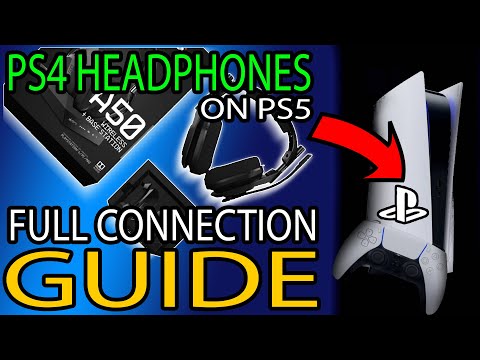
The short answer: Most headphones will work with either the PS4 or PS5, but the level of compatibility and functionality varies. For the best experience, look for headphones specifically designed for PlayStation, which offer features like 3D audio, low-latency wireless connectivity, and seamless integration.
Understanding Headphone Compatibility
Choosing the right headset for your PlayStation console can significantly enhance your gaming experience. Whether you’re playing a fast-paced shooter on the PS5 or exploring vast open worlds on the PS4, having clear audio and reliable communication is crucial. However, the landscape of headphone compatibility can be confusing. Let’s break down what works and why.
Wired Headphones: A Safe Bet
Generally, wired headphones with a 3.5mm audio jack are universally compatible with both the PS4 and PS5. You can simply plug them directly into the DualShock 4 controller (PS4) or the DualSense controller (PS5). This offers a straightforward and reliable connection, often without the need for any additional setup or drivers.
However, the sound quality you experience with wired headphones can be influenced by the quality of the controller’s audio processing. While the PS5’s DualSense controller has improved audio capabilities compared to the PS4’s DualShock 4, investing in a dedicated external DAC (Digital-to-Analog Converter) can further enhance audio fidelity.
Wireless Headphones: More Nuanced Compatibility
Wireless headphones offer greater freedom of movement, but compatibility becomes more complex.
-
PlayStation-Specific Wireless Headsets: The best and most reliable option is to choose a headset specifically designed for PlayStation. These headsets typically connect via a USB dongle that provides a low-latency, lossless connection, crucial for gaming. They often offer features like PlayStation-exclusive 3D audio, game/chat balance controls, and optimized microphone performance. Look for branding like “Officially Licensed Product” or explicit mention of PS4/PS5 compatibility in the product description. Popular brands include Sony, SteelSeries, and Turtle Beach.
-
Bluetooth Headphones: While the PS4 does not natively support Bluetooth audio for headsets, the PS5 does. However, connecting headphones via Bluetooth isn’t always ideal for gaming due to potential latency (delay) issues. Latency can cause a noticeable lag between the action on screen and the sound you hear, which can be detrimental to gameplay.
-
USB Wireless Headsets (non-PlayStation specific): Some wireless headsets that connect via a USB dongle may work with the PS4 and PS5, even if they’re not specifically marketed for PlayStation. The key is whether the dongle is recognized as an audio device by the console. Compatibility is not guaranteed, so it’s best to research specific models or check user reviews.
Microphone Considerations
Regardless of whether you choose wired or wireless headphones, ensure the microphone is compatible with your chosen platform. Most headsets marketed for gaming include a built-in microphone. If you opt for standard headphones, you might need to purchase a separate microphone, such as a USB microphone or a clip-on microphone, to communicate with other players.
Optimizing Your Audio Settings
Once you’ve connected your headphones, it’s essential to adjust your console’s audio settings for the best experience. Both the PS4 and PS5 allow you to customize audio output, volume levels, and microphone settings.
-
PS4: Go to Settings > Devices > Audio Devices to configure your input and output devices, adjust volume levels, and enable features like Sidetone (hearing your own voice in the headset).
-
PS5: Go to Settings > Sound > Audio Output to configure your output device, adjust volume levels, and enable 3D Audio for Headphones. The PS5’s 3D Audio is a significant upgrade and greatly enhances the sense of immersion.
Frequently Asked Questions (FAQs)
Here are 15 frequently asked questions to help you navigate the world of headphone compatibility with your PS4 and PS5:
- Can I use any Bluetooth headphones with my PS5? While the PS5 supports Bluetooth audio, using Bluetooth headphones for gaming may result in noticeable audio latency. For the best experience, consider using a headset specifically designed for PlayStation or one that connects via a USB dongle.
- Why doesn’t my Bluetooth headset connect to my PS4? The PS4 doesn’t natively support Bluetooth audio for headsets. You’ll need to use a wired connection or a USB wireless headset with a compatible dongle.
- What’s the best way to connect headphones to my PS4 controller? The simplest way is to use headphones with a 3.5mm audio jack and plug it directly into the controller.
- Do I need a special headset for PS5 3D audio? While any headphones can technically output the 3D audio signal, headsets specifically designed for PlayStation are often optimized to take full advantage of the feature, providing a more immersive experience.
- Are all USB wireless headsets compatible with PS4 and PS5? Not all USB wireless headsets are guaranteed to work. Compatibility depends on whether the console recognizes the USB dongle as an audio device. Check product descriptions and user reviews for compatibility information.
- How do I adjust the game/chat balance on my headset? Many PlayStation-specific headsets have dedicated controls on the earcup or inline remote for adjusting the balance between game audio and chat audio. Check your headset’s manual for instructions.
- What is “Sidetone” and should I use it? Sidetone allows you to hear your own voice in the headset. It can help prevent you from shouting into the microphone and provides a more natural communication experience. You can enable or disable Sidetone in the console’s audio settings.
- My headset sounds muffled. What should I do? Check the audio settings on your console and headset. Ensure the volume levels are appropriate and that any audio processing effects are disabled or adjusted to your preference. Also, make sure the headset is properly seated on your ears.
- Can I use my old PS4 headset on my PS5? Generally, yes. Most headsets that work with the PS4 will also work with the PS5, either via a wired connection or a USB dongle.
- Is there a difference in audio quality between wired and wireless headsets? In general, wired headsets provide slightly better audio quality due to the direct connection and lack of compression. However, high-quality wireless headsets can offer comparable performance, especially those designed for gaming.
- How do I update my headset’s firmware? Some wireless headsets require firmware updates for optimal performance and compatibility. Check the manufacturer’s website or companion software for instructions on how to update your headset’s firmware.
- What does “low-latency” mean and why is it important for gaming? Low-latency refers to the minimal delay between the audio being generated by the game and being heard through your headset. Low latency is crucial for gaming to ensure that the sound effects and dialogue are synchronized with the on-screen action. High latency can lead to a disorienting and frustrating gaming experience.
- Are open-back or closed-back headphones better for gaming? It depends on your preference and environment. Open-back headphones provide a wider soundstage and more natural sound but leak sound and offer less isolation. Closed-back headphones offer better isolation and bass response but can sound more confined.
- My microphone isn’t working. What should I check? First, ensure the microphone is properly connected and enabled in the console’s audio settings. Check the microphone’s volume level and ensure it’s not muted. If you’re using a wireless headset, make sure it’s properly paired with the console.
- Can I use headphones designed for Xbox on my PlayStation? While some headphones designed for Xbox might work with PlayStation, it’s not guaranteed. Xbox headsets often use a proprietary wireless protocol that isn’t compatible with PlayStation. It’s best to choose a headset specifically designed for PlayStation or one that offers universal compatibility.
By understanding these compatibility factors and considering your specific needs and preferences, you can choose the perfect headphones to elevate your PlayStation gaming experience. Happy gaming!