Decoding the Switch’s Secrets: A Comprehensive Guide to Hard Resets
Fast answer first. Then use the tabs or video for more detail.
- Watch the video explanation below for a faster overview.
- Game mechanics may change with updates or patches.
- Use this block to get the short answer without scrolling the whole page.
- Read the FAQ section if the article has one.
- Use the table of contents to jump straight to the detailed section you need.
- Watch the video first, then skim the article for specifics.
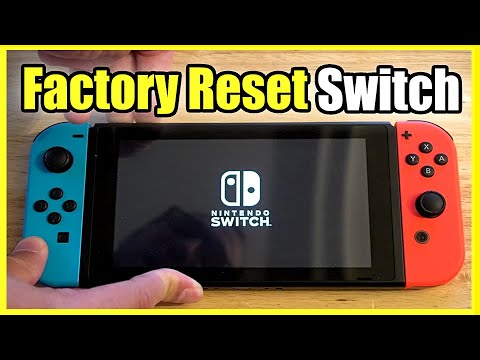
So, your Nintendo Switch is acting up, throwing you curveballs like a rogue Boo in Luigi’s Mansion 3? Maybe it’s freezing, glitching, or refusing to cooperate. Before you chuck it at a wall (please don’t!), you’ve likely heard whispers of a “hard reset“. But what exactly is a hard reset on the Nintendo Switch, and is it the right solution for your woes? Let’s dive in.
A hard reset (sometimes called a forced restart or power cycle) on a Nintendo Switch is essentially a forceful shutdown and restart of the console. Unlike a soft reset or a simple power off/on cycle through the system menu, a hard reset completely cuts power to the system, forcing it to reboot from scratch. Think of it as giving your Switch a swift, digital kick to the pants when it’s stubbornly refusing to cooperate. It’s a more drastic measure than a standard restart and should be reserved for situations where the Switch is unresponsive or experiencing severe glitches. It’s designed to clear temporary errors and restore the system to a more stable state. This can often fix freezes, crashes, and other software-related problems that a normal restart wouldn’t resolve.
When Should You Consider a Hard Reset?
The hard reset should be your go-to move when your Switch throws a tantrum you can’t calm down through the regular methods. Typically, you would resort to this technique when:
- The Switch is completely frozen and unresponsive to button presses.
- The system is glitching excessively, causing graphical errors or audio distortions.
- The touchscreen is unresponsive, preventing you from navigating the menu.
- The Switch is failing to boot up properly, getting stuck on a loading screen or displaying an error message repeatedly.
- As a final attempt to fix persistent software issues before considering more drastic measures like a factory reset.
Important Note: A hard reset is not a factory reset. It will not erase your game data, user profiles, or downloaded games. However, it’s always a good idea to back up your save data to the cloud (if you have a Nintendo Switch Online subscription) or an SD card before attempting any troubleshooting steps.
How to Perform a Hard Reset on Your Nintendo Switch
The process is surprisingly straightforward, regardless of whether you have the original Switch, the Switch Lite, or the OLED model:
- Hold down the Power Button: Locate the power button on the top left of your Nintendo Switch console (it’s the small, round button).
- Maintain Pressure: Press and hold the power button for approximately 12 seconds. This is crucial; a shorter press will simply put the console to sleep or bring up the power menu.
- Wait for Shutdown: Keep holding the button until the screen goes completely black. This indicates that the system is shutting down.
- Release the Power Button: Once the screen is black, release the power button.
- Power On Again: After a few seconds, press the power button again to turn the console back on. The Nintendo Switch logo should appear, indicating that the system is booting up.
That’s it! You’ve successfully performed a hard reset on your Nintendo Switch. Hopefully, this has resolved the issue you were experiencing. If not, keep reading for further troubleshooting options.
Common Problems After Hard Reset and their Solutions
While a hard reset typically solves most of the temporary issues, sometimes the problems might linger. Here are a few common issues and their quick fixes.
- SD Card Issues: After a hard reset, your Switch might have problems reading your SD card. Turn off the console, remove, and reinsert the SD card.
- Wi-Fi Connectivity Issues: If your Switch refuses to connect to Wi-Fi, restart your router and ensure your console is within range.
- Controller Pairing Issues: If your Joy-Cons or Pro Controller are not connecting, try re-syncing them.
- System Update Required: Post hard reset, the Switch might prompt you to update the system software. Ensure to proceed with the update for optimal performance.
- Battery Drain: Although rare, if you notice a faster battery drain, calibrate your battery by fully charging and then fully discharging the console.
FAQs: Your Burning Nintendo Switch Hard Reset Questions Answered
Alright, now for the frequently asked questions that keep popping up. Consider this your definitive guide to all things hard reset.
1. Will a hard reset delete my game data?
No, a hard reset will not delete your game data, user profiles, or downloaded games. It simply restarts the system in a more forceful manner.
2. How is a hard reset different from a factory reset?
A hard reset simply restarts the console. A factory reset erases all data on the console, restoring it to its original factory settings. Use a factory reset only as a last resort.
3. Can I perform a hard reset on the Nintendo Switch Lite?
Yes, the process is exactly the same for the Nintendo Switch Lite. Just hold down the power button for 12 seconds until the screen goes black.
4. What if the hard reset doesn’t fix my problem?
If a hard reset doesn’t resolve the issue, you may need to consider other troubleshooting steps, such as updating the system software, checking your SD card, or contacting Nintendo support.
5. How often should I perform a hard reset?
You should only perform a hard reset when your Switch is experiencing problems. There’s no need to do it regularly as part of routine maintenance.
6. Is it safe to perform a hard reset while a game is running?
It’s generally not recommended to perform a hard reset while a game is running, as it could potentially lead to data corruption. Try to close the game gracefully first, if possible.
7. Will a hard reset fix joy-con drift?
No, joy-con drift is a hardware issue that a hard reset won’t fix. You may need to clean the joy-cons, calibrate them, or send them in for repair.
8. Can a hard reset damage my Nintendo Switch?
While generally safe, performing a hard reset too frequently or unnecessarily could potentially strain the system’s components over time. Use it only when needed.
9. What does it mean if my Nintendo Switch won’t turn on after a hard reset?
If your Switch won’t turn on after a hard reset, try charging it for at least 30 minutes. If it still doesn’t turn on, there may be a hardware issue, and you should contact Nintendo support.
10. Will a hard reset fix my Nintendo Switch’s battery issues?
In some cases, a hard reset can help recalibrate the battery and improve its performance. However, if the battery is old or damaged, it may need to be replaced.
11. Can I perform a hard reset if my power button is broken?
If your power button is broken, you may not be able to perform a hard reset. Contact Nintendo support for repair options.
12. What if the screen is completely black and unresponsive even after holding the power button?
Try plugging the Switch into the dock or directly into a power outlet and then attempt the hard reset process again. This could help if the battery is completely drained.
13. Is there another way to restart the console if the hard reset doesn’t work?
If the hard reset isn’t working, you can try removing the SD card (if one is inserted) and then attempting the hard reset again. This can sometimes resolve issues caused by a corrupted SD card.
14. Where can I find more information about troubleshooting my Nintendo Switch?
Nintendo’s official website provides a wealth of information about troubleshooting various issues with the Nintendo Switch. You can also find helpful forums and communities online dedicated to Nintendo Switch support. Exploring resources such as the Games Learning Society offers insights into how games work and can help you understand system behaviors, visit GamesLearningSociety.org.
15. Should I try a hard reset before contacting Nintendo support?
Yes, a hard reset is a good first step to try before contacting Nintendo support, as it can often resolve minor software glitches. If the problem persists after the hard reset, then it’s time to reach out to the professionals.
Final Thoughts: Mastering the Art of the Switch Reboot
Mastering the hard reset is a handy trick for any Nintendo Switch owner. It’s a simple yet effective way to tackle common software hiccups and keep your gaming experience smooth. Remember, use it wisely, and always back up your data when possible. With these tips in hand, you’ll be well-equipped to handle whatever digital curveballs your Switch throws your way. Now get back to saving Hyrule!