Decoding the Soft Reset on Your Xbox One: A Comprehensive Guide
Fast answer first. Then use the tabs or video for more detail.
- Watch the video explanation below for a faster overview.
- Game mechanics may change with updates or patches.
- Use this block to get the short answer without scrolling the whole page.
- Read the FAQ section if the article has one.
- Use the table of contents to jump straight to the detailed section you need.
- Watch the video first, then skim the article for specifics.
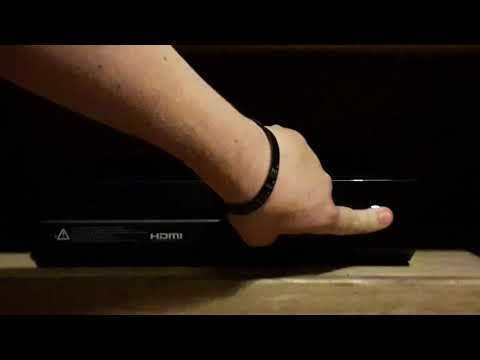
A soft reset on the Xbox One is essentially a restart of the console’s operating system. Think of it as giving your Xbox a quick nap. It closes all running applications, clears temporary data from the RAM, and restarts the system. Importantly, unlike a hard reset or factory reset, a soft reset does not erase your games, apps, saved data, or account information. It’s a safe and quick way to resolve minor glitches and performance issues.
Why Would You Need a Soft Reset?
Your Xbox One, like any complex piece of technology, can sometimes experience hiccups. These can manifest as:
- Game freezing or crashing: When a game abruptly stops responding.
- Slow performance: Menus become sluggish and loading times increase.
- App issues: Apps fail to launch or function correctly.
- Minor connectivity problems: Difficulty connecting to Xbox Live.
- General unresponsiveness: The console feels generally slow and buggy.
A soft reset is often the first and simplest troubleshooting step to take when encountering these types of issues. It’s akin to restarting your computer – it often clears up temporary problems without causing any data loss.
How to Perform a Soft Reset on Xbox One
There are a couple of easy ways to perform a soft reset on your Xbox One:
-
Using the Controller:
- Press and hold the Xbox button in the center of your controller to open the guide menu.
- Navigate to Profile & system (the icon representing your gamerpic).
- Select Settings.
- Go to General then Power mode & startup.
- Select Restart. The console will power down and then automatically restart.
-
Using the Console:
- Press and hold the power button on the front of the Xbox One console for approximately 10 seconds.
- The console will power down completely.
- Wait a few seconds and then press the power button again to turn the console back on.
Both methods achieve the same result: a clean restart of the Xbox One’s operating system.
Soft Reset vs. Hard Reset vs. Factory Reset: Understanding the Differences
It’s crucial to understand the differences between these three types of resets:
-
Soft Reset: As explained above, a simple restart of the operating system without data loss.
-
Hard Reset (Power Cycle): This involves completely powering down the console and unplugging it from the power outlet for a short period (usually 30 seconds to a minute). This drains any residual power and can resolve more persistent issues than a soft reset. Like a soft reset, it does not erase your data.
-
Factory Reset: This is the most drastic option. It restores the Xbox One to its original factory settings, erasing all user data, including games, apps, accounts, saved games, and settings. You should only perform a factory reset as a last resort when troubleshooting severe problems or when you intend to sell or give away your console.
When to Consider Other Troubleshooting Steps
While a soft reset is a good starting point, it might not always solve the problem. If you continue to experience issues after performing a soft reset, consider these additional troubleshooting steps:
- Check your network connection: Ensure your Xbox One is properly connected to the internet.
- Update your console: Outdated software can cause various problems. Check for and install any available system updates.
- Update your game/app: Make sure the game or app is updated to the latest version.
- Clear the cache: Over time, the Xbox One’s cache can become cluttered, leading to performance issues. Clearing the cache can help.
- Hard reset (power cycle): As mentioned earlier, unplugging the console can sometimes resolve stubborn problems.
- Uninstall and reinstall the game/app: If a specific game or app is causing issues, try uninstalling and reinstalling it.
- Contact Xbox Support: If none of the above steps resolve the problem, contact Xbox Support for further assistance.
The Broader Impact of Gaming and Learning
Understanding the technical aspects of gaming consoles, like performing soft resets, can seem disconnected from broader educational goals. However, the skills involved – problem-solving, critical thinking, and troubleshooting – are highly transferable and valuable in various fields. Moreover, gaming itself can be a powerful learning tool. Organizations like the Games Learning Society are dedicated to exploring and promoting the educational potential of games. You can find more information at GamesLearningSociety.org. Exploring the connection between gaming and education can provide a richer understanding of the benefits and possibilities of interactive entertainment.
Frequently Asked Questions (FAQs) About Soft Resets on Xbox One
1. Will a soft reset delete my game progress?
No. A soft reset only restarts the console’s operating system. Your game progress, saved data, and account information are not affected.
2. How often should I perform a soft reset?
There’s no set rule. Perform a soft reset whenever you encounter minor glitches or performance issues. Some users do it weekly as preventative maintenance.
3. Does a soft reset improve game performance?
It can. By clearing the RAM and restarting the operating system, a soft reset can free up resources and potentially improve performance, especially if the console has been running for a long time.
4. What if a soft reset doesn’t fix my problem?
If a soft reset doesn’t work, try other troubleshooting steps, such as checking your network connection, updating your console, or performing a hard reset.
5. Is a soft reset the same as a reboot?
Yes, a soft reset and a reboot are essentially the same thing – a restart of the console’s operating system.
6. Can a soft reset damage my Xbox One?
No. A soft reset is a safe and routine procedure that will not harm your console.
7. How long does a soft reset take?
A soft reset typically takes only a few seconds to a minute to complete.
8. Will I lose my Xbox Live Gold subscription after a soft reset?
No. Your Xbox Live Gold subscription is tied to your Microsoft account and will not be affected by a soft reset.
9. Can I perform a soft reset while a game is running?
It’s generally not recommended. It’s best to close the game before performing a soft reset to avoid potential data corruption.
10. What’s the difference between “Restart console” and “Turn off console” in the power options?
“Restart console” performs a soft reset, while “Turn off console” simply shuts down the console without restarting the operating system.
11. Does a soft reset affect my installed games and apps?
No, your installed games and apps remain untouched during a soft reset.
12. Can a soft reset fix controller connection issues?
In some cases, yes. A soft reset can sometimes resolve minor Bluetooth or wireless connection problems.
13. What if my Xbox One is completely frozen and I can’t access the menus?
If your console is completely frozen, try holding down the power button on the console for 10 seconds to force a hard shutdown. Then, turn it back on.
14. Is it okay to unplug my Xbox One while it’s performing a soft reset?
No, never unplug your Xbox One while it’s performing any type of reset. This can lead to data corruption and other problems.
15. How do I know if the soft reset was successful?
After the soft reset, your Xbox One will restart, and you’ll be back at the dashboard. If the issue you were experiencing is resolved, then the soft reset was successful.