Decoding AssistiveTouch: Your Comprehensive Guide to Accessibility on iOS and Android
Fast answer first. Then use the tabs or video for more detail.
- Watch the video explanation below for a faster overview.
- Game mechanics may change with updates or patches.
- Use this block to get the short answer without scrolling the whole page.
- Read the FAQ section if the article has one.
- Use the table of contents to jump straight to the detailed section you need.
- Watch the video first, then skim the article for specifics.
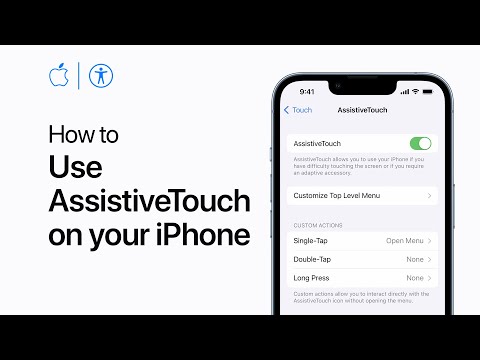
AssistiveTouch is an accessibility feature available on both iOS (Apple) and Android devices designed to make using smartphones and tablets easier for individuals with motor skill difficulties, physical impairments, or those who simply prefer a more streamlined control method. It essentially creates a virtual button on your screen that allows you to perform various actions and gestures that would otherwise require physical button presses or complex screen manipulations. Think of it as a personalized shortcut menu, customizable to your specific needs and preferences.
Understanding the Core Functionality
At its heart, AssistiveTouch aims to bridge the gap between the physical limitations some users face and the increasingly touch-centric design of modern mobile devices. It replaces the need to physically press the Home button, Volume buttons, or perform intricate multi-finger gestures. This is achieved through an on-screen menu that can be accessed with a single tap, providing a range of options like:
-
Simulating physical buttons: Volume Up/Down, Lock Screen, Rotate Screen, Mute, and even accessing the Control Center or Notification Center.
-
Custom Gestures: Creating custom gestures to mimic pinch-to-zoom, multi-finger swipes, or other complex actions. This is incredibly useful for users who have difficulty performing these gestures directly on the screen.
-
Device Control: Restarting, taking screenshots, accessing Siri, and other system-level functions.
-
Accessibility Shortcuts: Quickly accessing other accessibility features like VoiceOver, Zoom, or Color Filters.
The beauty of AssistiveTouch lies in its customization. Users can tailor the menu to include only the actions they need, minimizing clutter and maximizing efficiency. The button itself can be repositioned anywhere on the screen and its opacity adjusted to minimize distraction.
AssistiveTouch on iOS vs. Android
While the core functionality is similar, there are some differences between the implementations of AssistiveTouch on iOS and Android.
-
iOS (Apple): On iOS, AssistiveTouch is primarily found under Settings > Accessibility > Touch > AssistiveTouch. Apple’s implementation is deeply integrated into the operating system and offers a wide range of customization options, including creating entirely custom menus and gestures.
-
Android: On Android, the feature is typically called the “Accessibility Menu” and is located under Settings > Accessibility > Accessibility Menu. While it offers similar features, the level of customization may vary depending on the specific Android device manufacturer. Some Android devices may offer more limited options compared to iOS.
Who Benefits from AssistiveTouch?
AssistiveTouch is a versatile tool that can benefit a wide range of users, including:
- Individuals with motor skill impairments, such as those with arthritis, tremors, or cerebral palsy.
- Users who have difficulty pressing physical buttons due to physical disabilities or device limitations (e.g., a broken button).
- Gamers who need quick access to specific actions during gameplay. The Games Learning Society highlights the importance of accessible gaming and assistive technologies. Check out GamesLearningSociety.org for more information.
- Anyone who wants a more streamlined and personalized control method for their device.
Frequently Asked Questions (FAQs) About AssistiveTouch
1. How do I turn on AssistiveTouch?
- iOS: Go to Settings > Accessibility > Touch > AssistiveTouch and toggle the switch to the “On” position.
- Android: Go to Settings > Accessibility > Accessibility Menu and turn on the Accessibility Menu shortcut. You may need to grant permissions.
2. Does AssistiveTouch drain the battery?
While AssistiveTouch itself doesn’t inherently drain the battery, having the feature constantly active can contribute to battery consumption, especially if it’s used frequently. However, the impact is generally minimal. To further optimize battery life, adjust the opacity of the AssistiveTouch button to make it less visually prominent when not in use.
3. How do I customize the AssistiveTouch menu?
- iOS: In Settings > Accessibility > Touch > AssistiveTouch, tap “Customize Top Level Menu…” to add, remove, or rearrange icons. You can also assign custom actions to single-tap, double-tap, long press, or 3D Touch (on supported devices) of the AssistiveTouch button.
- Android: The customization options for the Accessibility Menu are usually found within the Accessibility Menu settings itself. The available options will vary depending on the Android device manufacturer.
4. How do I turn off AssistiveTouch?
- iOS: Go to Settings > Accessibility > Touch > AssistiveTouch and toggle the switch to the “Off” position.
- Android: Go to Settings > Accessibility > Accessibility Menu and turn off the Accessibility Menu shortcut.
5. Why does AssistiveTouch keep appearing even when I turn it off?
This could be due to Back Tap settings on iOS. Go to Settings > Accessibility > Touch > Back Tap. If “AssistiveTouch” is selected for either Double Tap or Triple Tap, tapping the back of your iPhone will activate AssistiveTouch. Set these to “None” to prevent accidental activation.
6. Can I create custom gestures with AssistiveTouch?
Yes! On iOS, you can create custom gestures within the AssistiveTouch settings. This allows you to mimic complex gestures that you may find difficult to perform directly on the screen. These gestures can then be assigned to the AssistiveTouch menu.
7. How do I change the color of the AssistiveTouch button?
You can’t directly change the color of the AssistiveTouch button on iOS. However, you can adjust its opacity to make it more or less visible. On some Android devices, you might find options to customize the appearance of the Accessibility Menu.
8. Why does Apple Pay keep asking for AssistiveTouch?
If you’re using AssistiveTouch to supplement the physical button presses needed for Apple Pay authentication, you may need to double-tap the AssistiveTouch button to confirm the payment. To disable this, go to Settings > Accessibility > Touch > AssistiveTouch and turn off “Confirm with AssistiveTouch” at the bottom.
9. What if I can’t touch my iPhone screen at all?
If your iPhone screen is unresponsive, try restarting your device. If that doesn’t work, make sure the screen is clean and dry. Disconnect any accessories. If the problem persists, it could be a hardware issue and you should contact Apple Support.
10. What is the floating circle/button on my iPhone?
That’s likely the AssistiveTouch button. It’s an accessibility feature that provides a virtual button for performing various actions.
11. How do I turn off blue assistive touch?
There is no “blue assistive touch”. Maybe you refer to the visual signal that it’s on or active. To disable it: Go to Accessibility > AssistiveTouch > Hand Gestures > Activation Gesture.
12. Why can’t I use assistive touch?
Try toggling it off and then on again in Settings -> Accessibility -> Touch -> AssistiveTouch. If that doesn’t work, restart your device.
13. What happens if you restart your phone with assistive touch?
Restarting your phone with AssistiveTouch enabled will simply restart the device. AssistiveTouch will remain enabled after the restart unless you have configured it otherwise.
14. What is Assistive Access?
Assistive Access is a distinctive iOS experience that simplifies the iPhone interface for individuals with cognitive disabilities. It provides a customized and streamlined user experience, making it easier for them to use the device independently.
15. How do I turn off Assistive Access?
To exit Assistive Access, you’ll typically need to press the side button (or Home button on older devices) three times quickly and then enter the Assistive Access passcode. You can then choose to exit Assistive Access. The exact steps may vary slightly depending on your iOS version.
Final Thoughts
AssistiveTouch is more than just a feature; it’s a testament to the power of inclusive design. By providing customizable and accessible control options, it empowers individuals with diverse needs to fully utilize their mobile devices and participate more actively in the digital world. Whether you have a physical impairment or simply prefer a more streamlined experience, AssistiveTouch offers a valuable solution for enhancing your smartphone or tablet usage. Understanding its functionalities and customization options unlocks its full potential, making technology truly accessible to everyone.