Decoding the Dreaded E101 Error: A Deep Dive into Xbox System Failures
Fast answer first. Then use the tabs or video for more detail.
- Watch the video explanation below for a faster overview.
- Game mechanics may change with updates or patches.
- Use this block to get the short answer without scrolling the whole page.
- Read the FAQ section if the article has one.
- Use the table of contents to jump straight to the detailed section you need.
- Watch the video first, then skim the article for specifics.
So, your Xbox is flashing the dreaded E101 error code. Don’t panic! It’s a common issue, and while it indicates a hardware problem, there are steps you can take to troubleshoot and potentially resolve it. In essence, E101 points to a hardware issue preventing your Xbox from starting up properly. This often surfaces during system updates, signifying that the console is unable to read or write crucial data to its storage. The good news? While it might require professional repair, you’ve got options to try first. Let’s get started.
Understanding the E101 Error and Its Potential Causes
The E101 error on your Xbox essentially flags a failure to properly boot the operating system. This usually means something went wrong during a system update, leaving the console in a state where it can’t access the necessary files to start up.
While E101 is broadly defined as a hardware issue, pinpointing the exact cause can be tricky. Some common culprits include:
- Corrupted system files: This is the most frequent suspect. An interrupted update or unexpected shutdown during an update can corrupt the OS files needed for booting.
- Hard drive failure: Your Xbox’s hard drive might be failing or have bad sectors, preventing the system from reading or writing data required for the OS.
- Connectivity issues during updates: A spotty internet connection while downloading an update can lead to incomplete or corrupted files, triggering the E101 error.
- Power supply problems: An inconsistent or insufficient power supply can disrupt the update process and lead to system instability.
- Internal hardware malfunctions: In rare cases, the E101 error might point to deeper hardware problems within the console itself.
Troubleshooting Steps to Conquer the E101 Error
Before you resign yourself to a potentially costly repair, try these troubleshooting steps. They might just save the day!
Step 1: The Hard Reset
This is the first line of defense for many Xbox issues, and it’s surprisingly effective.
- Hold the power button on the front of the console for 10 seconds, or until the console shuts down completely.
- Unplug the power cord from the back of the console.
- Wait 30 seconds. This allows the console to fully discharge.
- Plug the power cord back in and press the power button to turn the console on.
This simple process can clear temporary glitches and sometimes resolve minor system errors.
Step 2: Disconnect External Devices
Sometimes, external devices can interfere with the boot process.
- Disconnect all USB devices connected to your Xbox, including external hard drives, controllers (if wired), and any other accessories.
- Disconnect the Ethernet cable if you’re using a wired internet connection.
- Try restarting the console to see if disconnecting the devices resolves the issue.
Step 3: The Offline System Update (OSU)
This method involves downloading the latest system update to a USB drive and installing it directly onto the console. It can bypass potential issues with the console’s internal update process.
- Grab a USB drive: You’ll need a USB drive with at least 8GB of storage, formatted as NTFS.
- Download the OSU file: Go to the official Xbox support website on a computer and search for the “Offline System Update” tool for your specific Xbox model (Xbox One, Xbox One S, Xbox One X, or Xbox Series X|S). Download the OSU1 file.
- Extract the OSU file: Extract the contents of the downloaded ZIP file to the root of your USB drive. You should end up with a folder named $SystemUpdate on the USB drive.
- Power off the console: Ensure your Xbox is completely powered off.
- Initiate the offline update:
- For Xbox One consoles: Press and hold the Bind button (located on the left side of the console) and the Eject button (if your console has one), then press the Power button. Continue holding the Bind and Eject buttons until you hear a second “power-up” chime.
- For Xbox Series X|S consoles: Power off the console, then press and hold the Pair button (located on the front of the console next to the USB port) and the Eject button (if your console has one), then press the Power button. Continue holding the Pair and Eject buttons until you hear a second “power-up” chime.
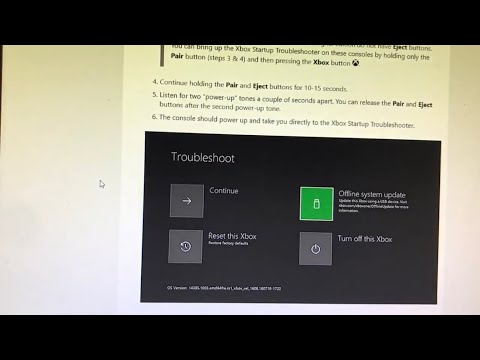
- Insert the USB drive into the Xbox. The console should automatically boot into the Xbox Startup Troubleshooter.
- Select “Offline System Update”.
- Follow the on-screen instructions. The console will install the update from the USB drive. This process can take some time.
- Restart the console once the update is complete.
Step 4: Factory Reset (Keep Games & Apps)
This option resets your console to its factory defaults but allows you to keep your installed games and apps. It’s less drastic than a full reset and can often resolve software-related issues.
- Access the Xbox Startup Troubleshooter. If the offline system update fails, you should still be in the Xbox Startup Troubleshooter. If not, repeat the steps in Step 3 to access it.
- Select “Reset this Xbox”.
- Choose “Keep games & apps”.
- Follow the on-screen instructions.
Step 5: Factory Reset (Remove Everything)
This is the most drastic step before seeking professional repair. It wipes everything from your console, including games, apps, settings, and profiles. Only use this as a last resort!
- Access the Xbox Startup Troubleshooter.
- Select “Reset this Xbox”.
- Choose “Remove everything”.
- Follow the on-screen instructions.
Important Note: You will need your account details to log back into your Xbox Live account after a factory reset.
Step 6: Seek Professional Repair
If none of the above steps work, the E101 error likely indicates a more significant hardware problem.
- Contact Xbox Support: They can provide additional troubleshooting steps or help you arrange a repair.
- Visit a reputable repair shop: Check for local electronics repair shops specializing in console repairs. Services such as Asurion and uBreakiFix can offer repair services for your Xbox.
FAQs: Conquering Your Xbox E101 Woes
Here are some frequently asked questions about the E101 error to further equip you in your troubleshooting journey:
1. What does the full E101 error code mean?
The E101 code is usually accompanied by a series of other numbers, such as E101 XXXXXXXX XXXXXXXX XXXXXXXX. These additional numbers are specific to the particular error instance and can help Xbox support technicians diagnose the underlying problem. However, for the average user, they don’t provide much actionable information beyond confirming the E101 error.
2. Can a faulty hard drive cause the E101 error?
Absolutely. A failing or corrupted hard drive is a common cause of the E101 error, as the console needs to access the hard drive to boot the operating system.
3. Is it possible to replace the hard drive in an Xbox One?
Yes, it is technically possible to replace the hard drive in an Xbox One. However, it’s not a simple process and requires some technical expertise. Additionally, replacing the hard drive might void your warranty. You’ll also need to properly format the new hard drive and reinstall the Xbox operating system.
4. Can a bad update cause the E101 error?
Yes, a corrupted or incomplete system update is a frequent culprit behind the E101 error. This is why the Offline System Update (OSU) method is often recommended as a troubleshooting step.
5. What if I don’t have a USB drive to perform the OSU?
Unfortunately, the Offline System Update requires a USB drive. You’ll need to borrow one from a friend, purchase one, or explore other troubleshooting options if you don’t have one readily available.
6. Will a factory reset delete my game saves?
Yes, a factory reset that removes everything will delete all your game saves stored on the console’s internal storage. If you have an Xbox Live Gold or Xbox Game Pass Ultimate subscription, your game saves are likely backed up to the cloud. You can verify your saves are backed up to the cloud via the settings on your Xbox.
7. How long does the Offline System Update take?
The Offline System Update can take anywhere from 15 to 60 minutes, depending on the size of the update and the speed of your USB drive.
8. What if the Offline System Update fails?
If the Offline System Update fails, try re-downloading the OSU file, formatting the USB drive again, and ensuring you’re following the instructions precisely. If it continues to fail, it might indicate a more severe hardware problem.
9. Is the E101 error more common on certain Xbox models?
The E101 error can occur on any Xbox One or Xbox Series X|S console. There’s no definitive evidence to suggest it’s more prevalent on specific models.
10. How can I prevent the E101 error?
While you can’t guarantee prevention, taking precautions like ensuring a stable internet connection during updates, avoiding abrupt power outages, and keeping your console clean and well-ventilated can minimize the risk.
11. Can overheating cause the E101 error?
While overheating itself might not directly cause the E101 error, it can contribute to system instability and potentially damage hardware components over time, which could eventually lead to the error.
12. Is there a way to check the health of my Xbox hard drive?
Unfortunately, there’s no built-in tool on the Xbox to directly check the health of the hard drive. If you suspect a hard drive issue, the best course of action is to try the troubleshooting steps outlined above and, if the problem persists, seek professional repair.
13. What does it mean if I see other error codes along with E101?
Additional error codes alongside E101 provide more specific information about the nature of the problem. Note these codes down as they will be valuable to Xbox Support or a repair technician.
14. Can a power surge cause the E101 error?
Yes, a power surge can definitely damage the console’s internal components and contribute to the E101 error. Using a surge protector is highly recommended to protect your Xbox from power surges.
15. Where can I learn more about gaming and technology?
There are many amazing resources available online. For example, you can check out the Games Learning Society, an excellent website with information about the intersection of games and education. You can find their website at https://www.gameslearningsociety.org/.
Conclusion
The E101 error can be a frustrating experience, but remember to stay calm and follow these troubleshooting steps methodically. The GamesLearningSociety.org knows that troubleshooting can be frustrating, and hopefully this article helps! With a bit of luck, you’ll be back to gaming in no time! If all else fails, don’t hesitate to contact Xbox support or a qualified repair technician. Good luck!