Decoding TV Color: A Deep Dive into Perfecting Your Picture
Fast answer first. Then use the tabs or video for more detail.
- Watch the video explanation below for a faster overview.
- Game mechanics may change with updates or patches.
- Use this block to get the short answer without scrolling the whole page.
- Read the FAQ section if the article has one.
- Use the table of contents to jump straight to the detailed section you need.
- Watch the video first, then skim the article for specifics.
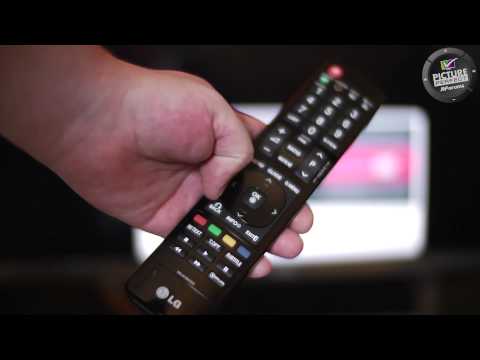
So, you’re staring at your TV, and something just isn’t right. The colors seem off, the reds are too harsh, or everything looks washed out. You’re asking yourself, “What should color be set to on TV?” The most direct answer is: it depends. Seriously, there’s no single magic number. The ideal color setting depends on your TV brand, the picture mode you’re using, your viewing environment, and even your personal preferences. However, a good starting point is generally around 50%, and adjusting from there based on calibration methods and observation. Let’s break down the process of achieving color perfection, and dispel some common myths.
Understanding the Basics: Picture Modes and Color
Before diving into specific numbers, it’s crucial to grasp the concept of picture modes. These pre-sets are designed to optimize your TV’s settings for different viewing scenarios.
- Movie/Cinema Mode: This mode is often the most accurate “out-of-the-box,” aiming for a natural, film-like look. It usually has the best color accuracy but might appear dimmer than other modes.
- Standard Mode: This is often the default mode, designed for general viewing. It tends to have moderate contrast, sharpness, and brightness, often with a slight “blue-ish” tint.
- Vivid/Dynamic Mode: Avoid these! They crank up the contrast, sharpness, and brightness to often unrealistic levels, resulting in an unnatural and tiring picture. These modes often distort colors.
- Game Mode: Reduces input lag for gaming but can sometimes sacrifice picture quality.
- Filmmaker Mode: Designed to display content as the director intended, disabling most post-processing effects.
The picture mode you choose significantly impacts the color settings that will look best. Movie mode is generally the best starting point for calibration.
The Art of Calibration: Fine-Tuning Your Color
While some TVs offer sophisticated calibration tools, most of us will rely on manual adjustments. Here’s a step-by-step approach:
- Choose the Right Picture Mode: Start with “Movie” or “Cinema” mode.
- Disable Enhancements: Turn off features like “Dynamic Contrast,” “Contrast Enhancer,” and “Auto Motion Plus.” These can interfere with accurate color representation.
- Brightness: Adjust this so that you can see detail in dark scenes without making the blacks appear grey. A brightness setting of 50% is a good starting point.
- Contrast: Set this to the highest level without washing out bright details. You should still be able to see subtle shades of white. A contrast setting of 100% is often recommended, but adjust as needed.
- Sharpness: Set this to 0%. Sharpness controls add artificial detail, which can lead to a grainy and unnatural image.
- Color: This is where the magic happens. Start with 50% and use a calibration pattern or real-world content you’re familiar with. Look for accurate skin tones and vibrant but not overly saturated colors. Adjust up or down in small increments.
- Tint/Hue: This setting controls the balance between green and red. Ideally, it should be set to 0% unless you notice a significant color cast.
- Color Temperature: Set this to “Warm.” This provides a more natural and accurate color temperature, reducing the blue tint often present in other modes.
- Use Calibration Tools: Online calibration patterns can help you fine-tune your settings. Search for “TV calibration patterns” to find suitable resources.
The Importance of Your Environment
Your viewing environment plays a significant role in how you perceive color. A bright room will require higher brightness and possibly a slightly cooler color temperature, while a dark room benefits from lower brightness and a warmer color temperature.
Remember, It’s Subjective
Ultimately, the “best” color settings are the ones that look best to you. Use the above guidelines as a starting point, but don’t be afraid to experiment and find what suits your preferences. Trust your eyes!
Frequently Asked Questions (FAQs) About TV Color Settings
1. Why does my TV look different from my friend’s TV, even when watching the same content?
TVs from different brands use different panel technologies and image processing algorithms, leading to variations in color accuracy and overall picture quality. Even two TVs of the same model can have slight differences in color reproduction due to panel variance.
2. What is “color gamut,” and how does it affect my TV’s picture?
Color gamut refers to the range of colors a TV can display. A wider color gamut means the TV can reproduce more vibrant and realistic colors. Look for TVs that support standards like DCI-P3 for a wider color gamut, especially for HDR content.
3. Should I use HDR mode for everything?
No. HDR (High Dynamic Range) is designed for content specifically mastered in HDR. Using it on standard content can result in an unnatural or overly bright picture. Only enable HDR when watching HDR content.
4. What does “color temperature” mean, and why is “Warm” recommended?
Color temperature refers to the warmth or coolness of the white point. A warmer color temperature (lower Kelvin value) has a more reddish hue, while a cooler color temperature (higher Kelvin value) has a more blueish hue. “Warm” is recommended because it’s closer to the color temperature of natural light and film, resulting in more accurate color reproduction.
5. How often should I recalibrate my TV?
Ideally, you should recalibrate your TV every few months or when you notice significant color shifts. New firmware updates or changes in your viewing environment can warrant recalibration.
6. Can I use professional calibration services?
Yes, professional calibration services use specialized equipment to accurately measure and adjust your TV’s color settings. This is the most accurate way to achieve optimal picture quality, but it can be expensive.
7. What’s the difference between “color” and “saturation”?
“Color” and “saturation” are often used interchangeably, but “saturation” specifically refers to the intensity or purity of colors. A higher saturation setting will make colors appear more vibrant, while a lower setting will make them appear more muted.
8. What if my TV doesn’t have a “Movie” or “Cinema” mode?
Look for modes with names like “Expert” or “Calibrated.” These modes usually offer the most customization and aim for accurate picture quality.
9. Is it okay to copy color settings from online forums?
While you can try it, copying settings from online forums is generally not recommended. Every TV is different, and what works for one person’s TV may not work for yours.
10. How does ambient lighting affect perceived color?
Ambient lighting significantly affects how you perceive color. Bright sunlight can wash out colors, while dim lighting can make colors appear more saturated. Adjust your TV’s settings accordingly to compensate for changes in ambient lighting.
11. What are the best color settings for Samsung TV?
We recommend choosing the ‘Movie’ picture mode, as it’s the most accurate one out of the box, and allows for the most customization. From the Expert Settings menu, we recommend leaving the Contrast at ’45,’ Brightness at ‘0,’ and Sharpness at ‘0. ‘ We also left Color at the default value of ’25,’ and Tint (G/R) at ‘0.
12. What is the standard picture mode?
Standard. This picture mode is often the mode manufacturer’s set their televisions to. If you haven’t messed with the settings on your TV since you bought it, you’re most likely watching television in standard mode. What it looks like: Moderate contrast, sharpness and brightness with a “blue-ish” hue.
13. Which is the best picture mode on LG TV?
Vivid: Sharpens the image by increasing the contrast, brightness and sharpness. Standard: Displays the picture with normal contrast, brightness and sharpness levels. APS: (Auto Power Saving) This mode reduces power consumption by using dimming control. Cinema: Optimizes the screen for movies.
14. Why is the color not good on my LG TV?
If colors are not displaying correctly on your LG TV, it typically indicates that your Dolby Vision display is set to Vivid mode. To resolve this issue, change your display mode to either Movie Dark for dim viewing environments or Movie Bright for brighter rooms.
15. What is the best picture mode for Samsung TV?
Dynamic: Makes the picture appear brighter and clearer in bright viewing environments. Standard: This is the default mode that is suitable for most viewing environments. Eco: This mode will focus on saving energy. Movie: Suitable for watching TV programs or movies in a dark room.
Hopefully, this detailed guide will help you unlock the full potential of your TV and enjoy a truly immersive and accurate viewing experience. Remember that perfect color settings are a journey, not a destination. Be patient, experiment, and trust your eyes.
Speaking of immersive experiences, consider how thoughtfully designed games can enhance learning. You can learn more about the intersection of gaming and education at the Games Learning Society website: https://www.gameslearningsociety.org/.