What to Do When Your Xbox Game Refuses to Download: A Comprehensive Guide
Fast answer first. Then use the tabs or video for more detail.
- Watch the video explanation below for a faster overview.
- Game mechanics may change with updates or patches.
- Use this block to get the short answer without scrolling the whole page.
- Read the FAQ section if the article has one.
- Use the table of contents to jump straight to the detailed section you need.
- Watch the video first, then skim the article for specifics.
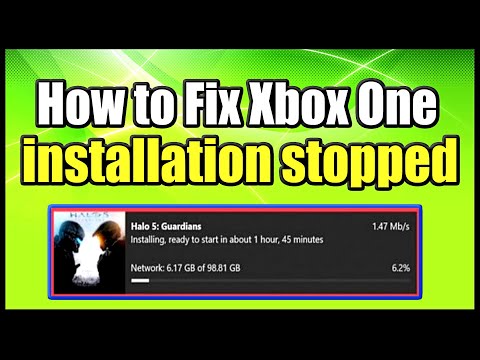
So, you’re hyped to jump into the latest blockbuster or revisit an old favorite, but your Xbox is throwing a wrench in the works and refusing to download your game. Frustrating, right? Don’t worry; we’ve all been there. This guide provides a comprehensive and practical approach to tackling Xbox download issues, ensuring you get back to gaming as quickly as possible.
At its core, fixing a failed Xbox game download involves systematically troubleshooting potential culprits. This could be anything from a simple network hiccup to a corrupted system file. Here’s the game plan:
- Check your network connection. This is the most common cause. Is your internet working? Try restarting your router and modem. You can also test your network connection directly through your Xbox settings (Settings > General > Network Settings > Test network connection).
- Restart your Xbox. A simple reboot can resolve many software glitches. Hold down the Xbox button on your console for about 10 seconds until it shuts down completely. Then, press the Xbox button again to restart.
- Clear the Xbox cache. Corrupted cache data can interfere with downloads. To do this, perform a power cycle (as described above) and then unplug the power cord from the back of the Xbox for at least 30 seconds. Plug it back in and restart.
- Ensure you have sufficient storage space. Games are big! Verify that you have enough free space on your hard drive. You can check this in Settings > System > Storage. If necessary, delete some games or apps to free up space.
- Pause and resume the download. Sometimes, simply pausing and then resuming the download can kickstart the process.
- Cancel and restart the download. If pausing doesn’t work, cancel the download completely and then try downloading the game again.
- Check for Xbox Live service outages. Xbox Live occasionally experiences outages. Check the Xbox Live status page on the Xbox website or through your Xbox settings.
- Update your Xbox console. Outdated system software can cause download issues. Go to Settings > System > Updates and ensure your console is up to date.
- Check the game disc (if applicable). If you’re installing from a disc, inspect it for scratches or damage. Clean the disc with a soft, damp cloth (as described in the FAQ section).
- Try an offline installation (for disc games). Disconnect your Xbox from the internet and try installing the game from the disc. This can sometimes bypass issues with online authentication or updates. Once the game is installed, reconnect to the internet to download updates.
- Clear local saved games. If you are reinstalling a game, clearing the local saved games can resolve potential conflicts. Go to Settings > System > Storage devices, select your storage device, select Games and Apps, find the game, and then select “Clear local saved games.”
- Check Xbox app updates on PC (for PC Game Pass users). If you’re having trouble downloading a game via PC Game Pass, ensure the Xbox app on your PC is up to date through the Microsoft Store.
- Change your DNS settings. In rare cases, using a different DNS server can improve download speeds or resolve connection issues. Try using Google’s public DNS servers (8.8.8.8 and 8.8.4.4). You can change your DNS settings in Settings > General > Network Settings > Advanced Settings > DNS settings.
- Hard Reset (Factory Reset) your Xbox As a last resort, consider doing a factory reset of your Xbox. This will erase all your data, so back up anything important first. Go to Settings > System > Console info > Reset console. Choose “Reset and keep my games & apps” if possible to minimize the hassle. If your Xbox is severely unstable, choose “Reset and remove everything.”
- Contact Xbox Support. If none of these steps work, it’s time to contact Xbox Support for assistance. They may be able to identify and resolve more complex issues.
Frequently Asked Questions (FAQs)
Why is my Xbox game not downloading?
The most common reasons include network connectivity problems, insufficient storage space, outdated system software, corrupted cache data, or Xbox Live service outages. Follow the troubleshooting steps outlined above to pinpoint the specific cause.
Why won’t my Xbox download any disc games?
Several factors can prevent disc games from downloading. A dirty or scratched disc is a frequent culprit. Connectivity issues can also interfere with the installation process. Outdated console software could also affect the installation. Lastly, make sure your disc drive isn’t failing and that it reads other discs successfully.
How do I fix error 0x87e0000f?
This error typically indicates that your Xbox App on PC is not fully up to date. Open the Microsoft Store app, select Library, and check for updates for the Xbox app.
How do I fix a dirty disc error on Xbox One?
If the disc is already loaded, see if it’s dirty or scratched. If needed, wipe the disc with a soft, clean, slightly damp cloth. Hold the disc by the edges without touching the top or bottom faces. Then re-insert it and try launching again.
Why aren’t my games downloading?
One common fix is to clear data and cache for the Play Store and Download Manager apps (if you’re trying to download a game on an Android phone for example). You can access these app settings through the Settings Menu on your device, and then Apps or App Manager. For each app, tap Clear Cache and Clear Data. Once you’ve done this, restart your device and try downloading the game again. This generally applies to mobile downloads. For consoles, the steps are different as described above in the main body of the text.
How do I clean my Xbox One disc?
Hold the disc by the edges without touching the top or bottom surfaces. Use a soft, clean, slightly damp cloth to lightly wipe from the center of the disc outward. Note: Use ONLY water to clean the disc. NEVER use a solvent to clean the disc.
Why do disc games have to install?
Optical disc drives can’t read data quickly enough to keep up with modern games, so you get the best gaming experience when you install the game from a disc on your Xbox console. It improves loading times and performance.
When I put a disc in Xbox nothing happens?
Perform a hard power cycle by holding down the Xbox button on the console for 10 seconds. Once the console has completely shut down, press the Xbox button on the console again to restart it. Try your disc again. Wait a few seconds to see if the console recognizes it. If the issue persists, you might have a faulty disc reader.
Is disc better than digital?
Each has its pros and cons. Discs provide a physical copy you own, while digital offers convenience and accessibility. Digital games can also be tied to accounts, which might be an advantage for some users.
Is Xbox digital better than disc?
The convenience is unmatched for digital. Once you go digital, it’s hard to go back. It’s just so convenient. You don’t have to store or swap physical discs.
How do you fix a dirty game disc?
Dampen a clean, soft, cotton cloth with water. Use straight strokes and wipe the disc (non-labeled side) from the inside rim to the outside rim. Using a dry part of the cloth, repeat the step to dry the disc.
Can you clean an Xbox disc with Windex?
Important: Do not use solvents such as benzine, window cleaner, paint thinner, anti-static aerosol spray, or abrasive cleaners to clean your disc. These can damage the disc’s surface.
Can you clean an Xbox One without taking it apart?
You can easily clean your Xbox One by using a dry microfiber cloth to remove dust, fingerprints, and smudges from the outside of your console. You can also carefully use compressed air to remove dust build-up in the vents and ports of your Xbox console.
How do I update the Microsoft Store on Xbox?
Press on the Xbox button on the controller to go back to the Home Screen. Choose the Microsoft Store app again and this time press on the Menu (3 lines Hamburger) button on the Xbox controller. Select Quit from the menu to close it. Wait for a few minutes until the Microsoft Store app actually updates.
Can I use a wipe to clean my Xbox?
Xbox Series X, Xbox Series S, Xbox One S, Xbox One X, Xbox One: Use a soft cloth dampened with an isopropyl alcohol (IPA) solution 70% or less. Do not use disinfectant wipes, as they can damage the console’s finish.
Remember, staying informed about gaming trends and technologies is crucial for a great gaming experience. Explore the Games Learning Society at GamesLearningSociety.org to learn more about the educational and social impacts of gaming.
Hopefully, this comprehensive guide has helped you resolve your Xbox download issues and get back to gaming! Good luck, and happy gaming!