Unveiling the Labyrinth: Where Are Java Files Stored in Windows?
Fast answer first. Then use the tabs or video for more detail.
- Watch the video explanation below for a faster overview.
- Game mechanics may change with updates or patches.
- Use this block to get the short answer without scrolling the whole page.
- Read the FAQ section if the article has one.
- Use the table of contents to jump straight to the detailed section you need.
- Watch the video first, then skim the article for specifics.
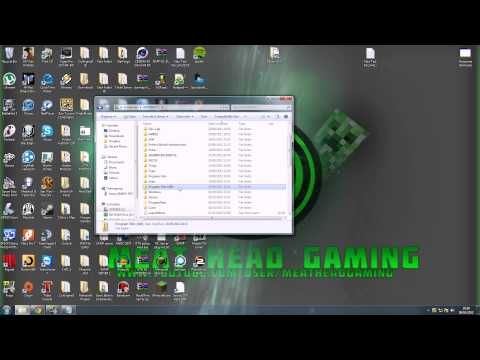
The Java Development Kit (JDK) and its related files are strategically placed within your Windows operating system to ensure the smooth execution of Java applications. Typically, the core Java installation resides within the C:Program FilesJava directory. Inside this directory, you’ll find subfolders corresponding to the specific JDK or Java Runtime Environment (JRE) versions installed on your system (e.g., jdk1.8.0_361, jre1.8.0_361, jdk-17.0.5). The exact path may vary slightly based on the Java version you’ve installed.
Diving Deeper: The Architecture of Java File Storage
To fully understand where your Java files are stored, we need to break down the different types of Java files and their respective locations.
Java Source Code Files (.java)
These files contain the human-readable Java code that you write. You have complete control over where you save these files. A common practice is to create a dedicated project directory (e.g., C:MyJavaProjectsMyFirstProject) to store all the .java files related to a specific application. It is crucial to remember that the filename should match the class name and end with .java extension. For example, a class called DateApp should be saved in a file named DateApp.java.
Compiled Java Class Files (.class)
After you compile your Java source code using the javac compiler, the compiler translates the source code into bytecode, which is stored in .class files. These files are platform-independent and can be executed by the Java Virtual Machine (JVM). By default, the .class files are generated in the same directory as the corresponding .java files. However, you can specify a different output directory using the -d option with the javac command (e.g., javac -d bin DateApp.java would place the compiled DateApp.class file in a bin directory).
Java Archive Files (.jar and .war)
.jar (Java Archive) files are used to package multiple .class files, along with resources like images, audio files, and configuration files, into a single archive. This makes it easier to distribute and deploy Java applications. .war (Web Application Archive) files are specifically used for packaging web applications and contain servlets, JSPs, and other web-related resources.
.jar and .war files can be located anywhere on your system, depending on where you choose to store them or where they are deployed by a build tool. Common locations include project directories, deployment directories (for web servers), and repository directories (if you’re using a dependency management tool like Maven or Gradle).
JDK and JRE Directories
The JDK (Java Development Kit) provides the tools needed to develop, compile, and debug Java applications, including the javac compiler, the java launcher, and various utilities. The JRE (Java Runtime Environment) provides the environment necessary to run Java applications.
Within the JDK directory (e.g., C:Program FilesJavajdk1.8.0_361), you’ll find several important subdirectories:
bin: Contains executable files, includingjavac.exe(the Java compiler) andjava.exe(the Java launcher). This directory is often added to the PATH environment variable to allow you to run these commands from any location in the command prompt or PowerShell.lib: Contains libraries and other support files used by the JDK.jre: Contains a complete JRE, which allows you to run Java applications.
The JRE directory (e.g., C:Program FilesJavajre1.8.0_361) also contains a bin directory with java.exe, which is used to run Java applications.
Java Executables (java.exe)
There might be two copies of java.exe executable file. One resides in the bin directory of your Java Runtime Environment (JRE). The other is typically placed in the C:WindowsSystem32 folder (or C:winntsystem32 on older systems).
Setting Environment Variables: JAVA_HOME, PATH, and CLASSPATH
Environment variables are system-wide settings that tell your operating system where to find certain files and programs. Setting these environment variables correctly is essential for developing and running Java applications.
JAVA_HOME: This variable points to the root directory of your JDK installation (e.g.,C:Program FilesJavajdk1.8.0_361). It’s used by many build tools and IDEs to locate the JDK.PATH: This variable contains a list of directories that the operating system searches when you execute a command. Adding the JDK’sbindirectory (%JAVA_HOME%bin) to thePATHallows you to runjavacandjavafrom any command prompt or PowerShell window.CLASSPATH: This variable specifies the locations where the JVM should look for.classfiles and.jarfiles when running a Java application. While it was more crucial in older versions of Java, modern Java development often relies on build tools to manage dependencies and theCLASSPATHautomatically.
The Games Learning Society explores how games can be used to enhance learning. For more information, visit GamesLearningSociety.org.
Frequently Asked Questions (FAQs)
1. How do I check if Java is installed on my Windows system?
Open a command prompt or PowerShell window and type java -version. If Java is installed and configured correctly, you’ll see the Java version information printed. Alternatively, you can check the list of installed programs in the Control Panel.
2. What’s the difference between JDK and JRE?
The JDK (Java Development Kit) is a complete development environment that includes the tools needed to develop, compile, and debug Java applications. The JRE (Java Runtime Environment) is a runtime environment that provides the necessary components to run Java applications. The JDK includes a JRE.
3. Where can I download the latest version of the JDK?
You can download the latest version of the JDK from the Oracle website or from other vendors like Adoptium (Eclipse Temurin).
4. How do I set the JAVA_HOME environment variable in Windows?
- Open the System Properties window (search for “environment variables” in the Start menu).
- Click the Environment Variables button.
- In the System variables section, click New.
- Enter
JAVA_HOMEas the variable name and the path to your JDK installation directory (e.g.,C:Program FilesJavajdk1.8.0_361) as the variable value. - Click OK to save the variable.
5. How do I add the JDK’s bin directory to the PATH environment variable?
- Open the System Properties window.
- Click the Environment Variables button.
- In the System variables section, find the Path variable and click Edit.
- Click New and add
%JAVA_HOME%binto the list of directories. - Click OK to save the changes.
6. How do I compile a Java source code file?
Open a command prompt or PowerShell window, navigate to the directory containing your .java file, and run the command javac YourFileName.java. This will compile the source code and generate a .class file in the same directory.
7. How do I run a compiled Java program?
Open a command prompt or PowerShell window, navigate to the directory containing your .class file, and run the command java YourClassName. This will execute the Java program. Note that you should use the class name, not the file name (e.g., java DateApp, not java DateApp.class).
8. What is a .jar file and how do I create one?
A .jar (Java Archive) file is a compressed archive that contains .class files, resources, and metadata. You can create a .jar file using the jar command-line tool that comes with the JDK. Modern build tools like Maven and Gradle also provide convenient ways to create .jar files.
9. What is the purpose of the CLASSPATH environment variable?
The CLASSPATH environment variable specifies the locations where the JVM should look for .class files and .jar files when running a Java application. While less critical than it once was, properly configuring CLASSPATH can be important for complex or legacy applications.
10. Where should I save my Java source code files?
You can save your Java source code files anywhere on your system. A common practice is to create a dedicated project directory for each application.
11. How do I open a .java file to view or edit its contents?
You can open a .java file using any text editor, such as Notepad, Notepad++, VS Code, or a dedicated Java IDE like Eclipse or IntelliJ IDEA.
12. How do I set the CLASSPATH environment variable?
You can set the CLASSPATH environment variable in the same way as the JAVA_HOME variable (see question 4). The value should be a list of directories and .jar files, separated by semicolons (;). Be mindful when setting this variable to avoid conflicting with other programs on your computer.
13. How to find the location of java.exe from command line?
You can use the where java command in the command prompt or PowerShell. It will give you the location of the java executable file.
14. What are IDEs and why should I use one for Java development?
IDEs (Integrated Development Environments) are software applications that provide a comprehensive set of tools for software development, including code editors, compilers, debuggers, and build automation tools. Using an IDE can significantly improve your productivity and make Java development much easier. Popular Java IDEs include Eclipse, IntelliJ IDEA, and NetBeans.
15. Can I have multiple versions of Java installed on the same Windows machine?
Yes, you can have multiple versions of Java installed on the same Windows machine. You can configure which version is used by setting the JAVA_HOME environment variable and the order of directories in the PATH variable.