Unlocking Your Network: Where to Find Your Router’s IP Address
Fast answer first. Then use the tabs or video for more detail.
- Watch the video explanation below for a faster overview.
- Game mechanics may change with updates or patches.
- Use this block to get the short answer without scrolling the whole page.
- Read the FAQ section if the article has one.
- Use the table of contents to jump straight to the detailed section you need.
- Watch the video first, then skim the article for specifics.
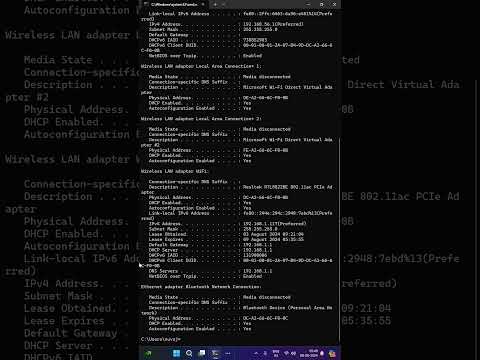
The router IP address, also known as the default gateway, is your key to accessing your router’s settings and configuring your network. It’s a crucial piece of information for everything from changing your Wi-Fi password to setting up parental controls. So, where exactly do you find this essential address? The most common and reliable way is through your computer’s command prompt or terminal. On Windows, you can find it by opening the Command Prompt (search for “cmd” in the Start menu, then type “ipconfig” and press Enter). The “Default Gateway” listed in the output is your router’s IP address. On macOS, open the Terminal (found in Applications/Utilities), type “netstat -nr | grep default” and press Enter. The address next to “default” is your router’s IP address.
Digging Deeper: Understanding the Router’s IP Address
While the simple instructions above will often suffice, understanding the context of the router’s IP address can be helpful. Your router is the central hub of your home network, managing traffic between your devices and the internet. It has two primary IP addresses: a public IP address, which is assigned by your Internet Service Provider (ISP) and is visible to the outside world, and a private IP address, which is used for internal communication within your home network. The IP address you’re typically looking for is the private IP address or default gateway, as it allows you to access your router’s configuration page. Common examples include 192.168.0.1, 192.168.1.1, and 10.0.0.1.
Common Methods to Find Your Router’s IP Address
Using the Command Prompt (Windows)
- Open the Start Menu and type “cmd” into the search bar.
- Select Command Prompt from the search results.
- In the Command Prompt window, type “ipconfig” and press Enter.
- Locate the line labeled “Default Gateway.” The address listed next to it is your router’s IP address.
Using the Terminal (macOS)
- Open Finder, go to Applications, then Utilities, and open Terminal.
- In the Terminal window, type “netstat -nr | grep default” and press Enter.
- The IP address displayed next to “default” is your router’s IP address.
Checking Your Network Settings (Windows)
- Open the Control Panel.
- Go to Network and Internet and then Network and Sharing Center.
- Click on your Wi-Fi network name.
- Click on the Details button.
- Look for the “Default Gateway” entry to find your router’s IP address.
Checking Your Network Settings (macOS)
- Click the Apple menu and choose System Preferences.
- Click on Network.
- Select your Wi-Fi network connection.
- Click on the Advanced button.
- Go to the TCP/IP tab.
- The “Router” address is your router’s IP address.
Checking Your Router Physically
In some cases, the router’s IP address is printed on a sticker located on the back or bottom of the router. Look for a label that says “Default Gateway,” “Router IP,” or similar. This is often the quickest method, but it’s not always reliable as the address might have been changed.
What to Do Once You Have Your Router’s IP Address
Once you have the router’s IP address, open a web browser and enter the address into the address bar (e.g., http://192.168.1.1). This should take you to the router’s login page. You’ll be prompted to enter a username and password. The default username and password are often printed on the router itself, or you can find them in your router’s manual or online. If you’ve changed the password and forgotten it, you might need to reset the router to its factory settings. This usually involves pressing and holding a small reset button on the back of the router for several seconds. Be aware that resetting your router will erase all custom settings.
Why You Might Need Your Router’s IP Address
Knowing your router’s IP address is crucial for several tasks:
- Changing your Wi-Fi password: Protect your network from unauthorized access.
- Setting up parental controls: Restrict access to specific websites or internet usage times.
- Configuring port forwarding: Allow specific applications or games to connect to the internet.
- Troubleshooting network problems: Diagnose and fix connectivity issues.
- Updating router firmware: Ensure your router has the latest security updates and features.
Frequently Asked Questions (FAQs)
1. Is my router’s IP address the same as my computer’s IP address?
No. Your router has its own IP address, which is the default gateway for devices on your network. Your computer also has its own IP address assigned by the router, which is different. The router’s IP address is used to access its configuration page.
2. What is the most common router IP address?
The most common router IP addresses are 192.168.0.1 and 192.168.1.1. Other common addresses include 10.0.0.1 and 192.168.2.1.
3. How do I access my router’s settings?
Open a web browser and enter your router’s IP address (e.g., http://192.168.1.1) into the address bar. You will then be prompted to enter your router’s username and password.
4. What if I forgot my router’s password?
If you’ve forgotten your router’s password, you may need to reset your router to its factory settings. This typically involves pressing and holding a reset button on the back of the router for several seconds. Be aware that this will erase all custom settings.
5. Why can’t I connect to my router’s IP address?
Possible reasons include an incorrect IP address, network connectivity issues, or a problem with your router’s configuration. Make sure you’re using the correct IP address and that your computer is connected to the same network as the router.
6. Is my router’s IP address the same as my public IP address?
No. Your router has a private IP address for internal network communication and a public IP address assigned by your ISP. The private IP address is what you use to access the router’s settings.
7. Do I need a router to have Wi-Fi?
Yes, a router is essential for creating a Wi-Fi network. It allows multiple devices to connect to the internet wirelessly.
8. What is the difference between a modem and a router?
A modem connects your home to your Internet Service Provider (ISP). A router distributes the internet connection to multiple devices within your home network and allows them to communicate with each other.
9. Can I change my router’s IP address?
Yes, you can usually change your router’s IP address in the router’s settings. However, it’s generally not recommended unless you have a specific reason to do so.
10. Why does my router have multiple IP addresses?
Your router has a public IP address assigned by your ISP, a private IP address for internal communication, and potentially additional IP addresses for each device connected to your network. Routers also have (at least) one IP for each LAN and usually one address attached to a “loopback interface” for management purposes.
11. What happens if two devices have the same IP address?
If two devices have the same IP address on a network, it creates an IP address conflict, which can prevent one or both devices from accessing the network correctly.
12. How do I find the physical location of my wireless router?
Physically tracing the Ethernet cable from your modem can help find the router, as can checking the basement and attic.
13. Can I have more than one router in my home?
Yes, you can have more than one router in your home, especially in larger homes or buildings to extend Wi-Fi coverage. However, configuring multiple routers can be complex.
14. What does a router look like?
Routers are typically flatter and smaller than modems, with multiple Ethernet ports.
15. Where can I learn more about networking and IP addresses?
There are many online resources and courses available to learn more about networking and IP addresses. Additionally, the Games Learning Society provides resources and educational opportunities exploring the intersection of games and learning. You can find them at GamesLearningSociety.org.
Finding your router’s IP address is a crucial first step in managing your home network. By following the steps outlined above, you can easily locate this essential address and access your router’s settings to customize your network to your needs.