Unveiling the Mysteries of the CurseForge Mod Folder: A Comprehensive Guide
Fast answer first. Then use the tabs or video for more detail.
- Watch the video explanation below for a faster overview.
- Game mechanics may change with updates or patches.
- Use this block to get the short answer without scrolling the whole page.
- Read the FAQ section if the article has one.
- Use the table of contents to jump straight to the detailed section you need.
- Watch the video first, then skim the article for specifics.
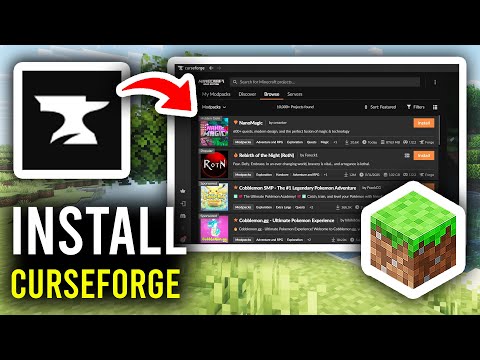
So, you’re diving into the wonderful world of Minecraft modding with CurseForge and are now asking the age-old question: Where exactly is the mod folder? Fear not, fellow adventurer! The location depends on whether you’re using a modpack or just want to find your individual mods.
For Modpacks: Open the CurseForge Launcher. Select the “Minecraft” tab. Navigate to the “My Modpacks” section. Find the specific modpack you’re interested in and click its icon (not the “Play” button). This will open the modpack’s page. Click the three vertical dots (the “…” menu) on the right side of the page. Select “Open Folder”. This will open a file explorer window, where you’ll find your “mods” folder nestled amongst other configuration files.
For Individual Mods: If you installed mods directly through the CurseForge launcher, they reside within your Minecraft instance folder. This folder’s location is managed by the Minecraft launcher. To find it, open the Minecraft Launcher, go to the “Installations” tab. Hover over the Forge installation you’re using and click the folder icon. From there, you’ll find the “mods” folder where all your downloaded modifications are stored.
In essence, the CurseForge mod folder exists within your Minecraft installation, whether it’s for a modpack or a customized game with individual modifications. Now, let’s dive into some common questions to further illuminate your understanding of this crucial element of Minecraft modding.
Frequently Asked Questions (FAQs)
Here are some frequently asked questions regarding the CurseForge mod folder, addressing a range of common issues and scenarios that modders encounter.
1. How do I manually add mods to a CurseForge modpack?
The easiest way is through the CurseForge app. First, you need to enable content management for the profile. Click the three dots on your modpack page, then select “Profile Options”. Check the box that says “Allow content management for this profile”, and click “Done”. Now you will see the “Add More Content” button appear. Click this, and you can browse for new mods, resource packs, or maps to add to the modpack. Another manual method would be to open the modpack’s folder via CurseForge and add the downloaded .jar files directly into the “mods” folder.
2. I can’t find a specific mod on CurseForge. Why?
There are several reasons:
- The mod is still pending review: New mods often require approval from CurseForge’s moderation team. This review process ensures the mod meets safety and quality standards. Check back later.
- The mod is not available on CurseForge: Some mod developers choose not to host their creations on CurseForge. In this case, you may need to find the mod on other platforms and install it manually.
- Incorrect search terms: Ensure you are using the correct name and version number of the mod.
- Version incompatibility: The mod may not be available for the version of Minecraft you are using.
3. How do I install a CurseForge modpack without using the CurseForge launcher?
It’s possible, but it requires a bit more manual effort. You’ll need:
- A Minecraft account and launcher.
- A compatible version of Forge.
- The modpack files: Download the modpack’s zip file from CurseForge or another source.
- A third-party launcher: Use a launcher that supports manual mod installation, like MultiMC.
- Import the modpack into the third-party launcher and follow the instructions for installing Forge and configuring the instance.
- Extract the content of the modpack’s zip file, and then move the mods into the correct “mods” folder.
4. Is it safe to download mods from CurseForge?
Generally, yes. CurseForge is considered a reliable source for Minecraft mods. They have measures in place to scan for malicious software. However, it’s always good practice to be cautious:
- Check mod ratings and reviews: Look for mods with high ratings and positive feedback from other users.
- Report suspicious files: If you encounter anything suspicious, report it to the CurseForge team.
- Keep your antivirus software up to date.
- Exercise caution when downloading newly released or less popular mods.
The CurseForge team constantly strives to maintain a safe environment for users.
5. How do I disable a mod in a CurseForge modpack?
Open the CurseForge Launcher and go to “My Modpacks”. Click on the three dots for your modpack and select “Profile Options”. Check “Allow content management for this profile” and click “Done”. Find the mod you wish to disable and toggle the switch next to it. This will disable the mod without removing it from the “mods” folder. To re-enable it, simply toggle the switch back on.
6. Can I use mods from other sources with CurseForge?
Yes! You can manually add mods from other sources by placing the .jar files into the “mods” folder of your CurseForge instance. Just be aware that CurseForge can’t guarantee the safety of mods from external sources.
7. Why can’t I install a modpack on CurseForge?
Common reasons include:
- Corrupted modpack file: Make sure the downloaded ZIP file is complete and not corrupted.
- Missing manifest.json file: The ZIP file must contain a “manifest.json” file.
- Insufficient disk space: Ensure you have enough free space on your hard drive.
- CurseForge app issues: Try restarting the CurseForge launcher.
- Internet connection problems: A stable internet connection is needed for downloading and installing modpacks.
8. Where are Workshop mods stored?
Steam Workshop mods are typically stored in the following directory: C:Program Files (x86)Steamsteamappsworkshopcontent[AppID] Replace [AppID] with the specific AppID of the game. For example, if the game’s AppID is 285920, the path would be C:Program Files (x86)Steamsteamappsworkshopcontent285920.
9. How do I import a mod folder into CurseForge?
You cannot directly import a folder containing mods into CurseForge to create a modpack that you can share with other players through CurseForge. To create a modpack and upload it, follow these steps:
- Create a new custom profile on CurseForge.
- Add the desired mods to the profile.
- Export the profile to a zip file.
- Go to CurseForge’s website and start the process of uploading the zip file.
10. Does CurseForge allow NSFW mods?
No. CurseForge has strict content guidelines. NSFW content, including nudity and adult substances, is prohibited. This ensures the platform remains appropriate for a broad audience.
11. Is Overwolf required for CurseForge?
No, but it is recommended. While you can technically use CurseForge without creating an Overwolf account, using it is part of the CurseForge launcher and using an Overwolf account is recommended.
12. How do I manually install a modpack without CurseForge?
See answer to Question 3, “How do I install a CurseForge modpack without using the CurseForge launcher?”
13. Can I upload my modpack to CurseForge?
Yes! Once you’ve created and tested your modpack using the CurseForge launcher, you can export it as a zip file. Then, you can upload it to CurseForge through their website, following their submission guidelines.
14. How do I install Forge in CurseForge?
CurseForge simplifies the installation of Forge. When creating a new profile, select the “Forge” game type and choose your desired Minecraft version. CurseForge will automatically download and install the appropriate Forge version for you.
15. Where can I learn more about the educational aspects of gaming and modding?
The world of video games extends far beyond mere entertainment! Gaming and modding are increasingly being recognized for their educational potential. Organizations like the Games Learning Society are at the forefront of exploring and promoting the use of games in learning. Check out GamesLearningSociety.org to delve into research, resources, and a vibrant community dedicated to the intersection of games and education.
We at the Games Learning Society hope that you find this article interesting and helpful. Feel free to go to https://www.gameslearningsociety.org/ to find more articles and resources about the use of games in learning.
Hopefully, this guide has helped you conquer the CurseForge mod folder and answered all your questions. Happy modding!