Finding Your Treasure: Where is the PS5 Library?
Fast answer first. Then use the tabs or video for more detail.
- Watch the video explanation below for a faster overview.
- Game mechanics may change with updates or patches.
- Use this block to get the short answer without scrolling the whole page.
- Read the FAQ section if the article has one.
- Use the table of contents to jump straight to the detailed section you need.
- Watch the video first, then skim the article for specifics.
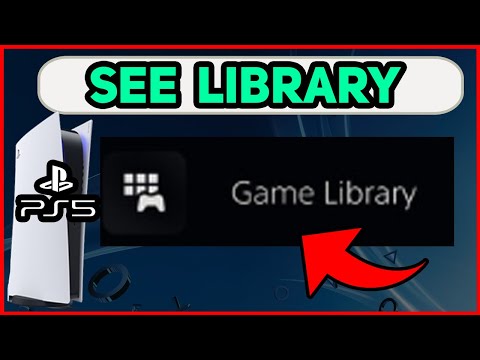
The PS5 Library is your central hub for accessing all your owned and available games. To find it, navigate to the Games home screen on your PS5 and select Game Library. This section houses all your purchased games, downloaded titles from PlayStation Plus, and even games you’ve installed. It’s a crucial part of managing your gaming experience on the PS5.
Navigating the Depths: Inside the PS5 Game Library
The Game Library on your PS5 is more than just a list; it’s a dynamic and organized space designed to help you manage your digital and physical game collection. Understanding its features is key to maximizing your gaming experience.
Accessing Your Collection
From the Games home screen, selecting Game Library will bring you to the central hub of your game collection. By default, you will likely see the Installed tab, which shows games currently on your console’s storage. Use the R1 button on your DualSense controller to switch to the Your Collection tab. This tab displays all the games you own, whether they are currently installed or not. This includes digital purchases, games redeemed through PlayStation Plus, and even games from physical discs that you’ve played on your console.
Understanding the Interface
The Game Library interface is clean and intuitive. Games are usually displayed in a grid format, making it easy to scroll through your collection. You can highlight a game to view more information, such as its size, play time, and available options. Pay attention to icons that might indicate whether a game is installed, requires an update, or is part of your PlayStation Plus subscription.
Managing Your Games
From the Game Library, you can initiate several actions:
- Download: For games in your collection that are not installed, you’ll see a download option.
- Launch: Launch installed games directly from the library.
- Options: Pressing the Options button (the small button to the right of the touchpad on your DualSense controller) brings up a menu with further options like:
- Delete: Uninstall the game from your console.
- Move: Move the game to extended storage (if you have an external hard drive connected).
- View Product: View the game’s page on the PlayStation Store.
Understanding PlayStation Plus Integration
PlayStation Plus significantly enriches the PS5 Library experience. There are several types of games you will see here relating to PS Plus:
Monthly Games
As a PlayStation Plus subscriber, you gain access to Monthly Games that you can add to your library each month. These games are yours to play as long as you maintain your PlayStation Plus subscription. To access them:
- From the function screen, scroll right and select PlayStation Plus.
- Scroll down and select Monthly Games.
- Claim the available games to add them to your library.
Game Catalog (Extra and Premium Tiers)
If you subscribe to PlayStation Plus Extra or Premium, you’ll have access to the Game Catalog, a vast library of downloadable PS4 and PS5 games. These games are available to play as long as they remain in the catalog and you maintain your subscription. Note that games in the Extra and Premium tiers are only accessible as long as they are listed in the catalog.
PS Plus Collection (Legacy)
The PlayStation Plus Collection, a library of 20 standout PS4 games for PS5 owners, was discontinued on May 9, 2023. If you claimed these games before the shutdown, you can still access them as long as you have an active PlayStation Plus subscription.
Troubleshooting Library Issues
Sometimes, you might encounter issues with your PS5 Library. Here are some common problems and how to resolve them:
Games Not Appearing
If a game you purchased or claimed through PlayStation Plus is not appearing in your library, try the following:
- Check Your Account: Ensure you are logged in with the correct PlayStation Network (PSN) account that you used to purchase the game or claim it through PlayStation Plus.
- Restore Licenses: Go to Settings > Users and Accounts > Other > Restore Licenses. This process refreshes your account’s licenses and can resolve issues with missing games.
- Restart Your Console: A simple restart can sometimes fix temporary glitches.
Download Issues
If you are having trouble downloading a game from your library, try these steps:
- Check Your Internet Connection: Ensure you have a stable internet connection.
- Pause and Resume: Go to Downloads/Uploads in the control center and select the download. Select Pause and Resume to restart the download.
- Delete and Redownload: If the issue persists, select Cancel and Delete to remove the game from the download list. Then, find the game in your Game Library and try downloading it again.
- Free Up Space: Make sure you have enough free space on your PS5’s internal storage or extended storage (if applicable).
Locked Games
If a game in your library is locked (indicated by a padlock icon), it may be due to parental controls. Ask your parent or guardian to adjust the parental control settings to allow access to the game.
Maximizing Your PS5 Library Experience
Here are some tips to get the most out of your PS5 Library:
- Organize Your Games: While the PS5 doesn’t offer custom folders, you can use the sorting options in the Game Library to arrange your games by recently played, alphabetically, or by installation status.
- Utilize Extended Storage: If you have a large game collection, consider using an external hard drive to store PS4 games and less frequently played PS5 games. You can move games between the internal storage and extended storage as needed.
- Stay Informed About PlayStation Plus: Keep track of the Monthly Games and games added to the Game Catalog each month to maximize the value of your PlayStation Plus subscription.
- Games Learning Society: Consider exploring the resources available at the Games Learning Society website https://www.gameslearningsociety.org/ to learn more about the educational and social impact of video games.
FAQs: Deep Diving into the PS5 Library
1. How do I access my PS Plus games on PS5?
From the function screen, scroll right and select PlayStation Plus. Scroll down and select Monthly Games. Here, you can find and download games that are available as part of your PS Plus subscription.
2. What does “Add to Library” mean on PS5?
“Add to Library” means you’re adding a game to your collection, typically a PS Plus game. You can play this game anytime you have an active PS Plus membership.
3. How many games are there in the PS5 library?
The number of games available natively for the PS5 is constantly growing. Including the vast catalog of backwards compatible PS4 games expands your library significantly.
4. Why can’t I download games from my PS5 library?
Check your internet connection, try pausing and resuming the download, or delete and redownload the game. Ensure you have enough storage space. Restoring licenses can also help.
5. Will I have access to my PS4 library on PS5?
Yes! The PS5 is backwards compatible with PS4 software, so you can access all of your PS4 purchases from the PlayStation Store, assuming you’re using the same PSN account.
6. Can I redownload purchased games on PS5?
Absolutely. Simply head to the Game Library, go to Your Collection, find the game, press the options button, and select Download.
7. How do I move games to the library on PS5?
You can’t directly move games to the library. The library is where your owned games are listed. You can move games between your PS5’s internal storage and USB extended storage. Go to your Game Library, highlight the game, press the options button, and select Move Games and Apps.
8. Is the PS Plus library going away?
The PlayStation Plus Collection was shut down on May 9, 2023. However, the Monthly Games and Game Catalog (for Extra and Premium tiers) continue to offer a rotating selection of games.
9. How do I find downloads on the PS5 app?
To check downloads in the PlayStation app, navigate to your Library and select a game download in progress.
10. Can I share my PS library?
When you enable console sharing and offline play, anyone who uses your PS5 console can play your games and media, even when the console is offline. They can also enjoy some benefits of your PlayStation Plus membership.
11. Do you lose PS Plus Extra games if you downgrade?
Yes, once you downgrade your PlayStation Plus subscription, you lose access to the benefits exclusive to your previous, higher-tier membership plan, including games downloaded from the Game Catalog.
12. What happens when you add a PS Plus game to your library?
Any game you add to your library through PS Plus is tied to your membership. You’ll have access to it as long as you have an active membership.
13. Why are games in my PS5 library locked?
If parental controls are blocking you from playing a game, you’ll see a padlock icon. Ask your parent or guardian for help to adjust the settings.
14. How do I claim free games on PS5?
Check the PlayStation Store regularly for free games. Also, remember to claim the Monthly Games offered through PlayStation Plus.
15. Why can’t I store PS5 games on an external hard drive?
You can store PS5 games on an external storage device, but you cannot play them directly from there. You have to copy the game data back to the PS5’s internal SSD storage beforehand for optimal performance. This is to leverage the internal SSD drive which is way faster.