Why Are Some of My Xbox Captures Gone? Understanding Xbox Capture Deletion and Storage
Fast answer first. Then use the tabs or video for more detail.
- Watch the video explanation below for a faster overview.
- Game mechanics may change with updates or patches.
- Use this block to get the short answer without scrolling the whole page.
- Read the FAQ section if the article has one.
- Use the table of contents to jump straight to the detailed section you need.
- Watch the video first, then skim the article for specifics.
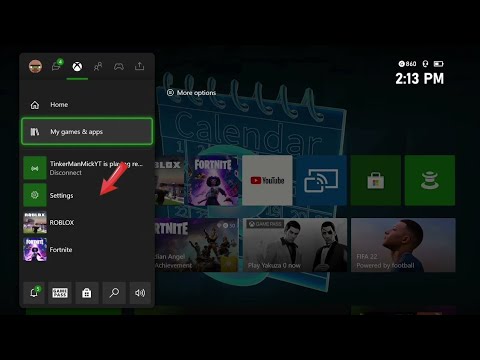
So, you went to relive that epic gaming moment, that clutch win, that hilarious fail – only to find your Xbox capture is…gone. Vanished. Missing in action. Don’t panic! It’s a common issue, and the reasons are usually straightforward. The most likely reason your Xbox captures are gone is because Xbox now automatically deletes game clips and screenshots stored on the Xbox network after 90 days. This change in policy means you need to proactively back up your favorite gaming moments to avoid losing them forever. Let’s dive deeper into why this happens and how to prevent it.
The 90-Day Deletion Policy: A New Reality
For a long time, Xbox users enjoyed seemingly unlimited storage for their captures on the Xbox network, as long as the content had at least one view. That’s no longer the case. Microsoft implemented a change where any game clip or screenshot stored on their network is subject to automatic deletion after 90 days. This policy shift puts the responsibility of managing and backing up captures squarely on the gamer’s shoulders. Think of it like a digital spring cleaning – if you don’t move it, it gets swept away!
This decision was likely driven by several factors, including:
- Storage Costs: Maintaining vast amounts of user-generated content requires significant infrastructure and resources.
- Content Management: Handling an ever-growing library of captures becomes increasingly complex.
- User Engagement: Encouraging users to actively manage their content promotes a more curated and engaged experience.
Where Did My Captures Go? Potential Locations
Before assuming the worst, let’s explore all the places your captures might be lurking:
- Xbox Network: As mentioned, this is the first place to check, but remember the 90-day deletion policy.
- Xbox Console (Local Storage): If you saved captures directly to your console’s hard drive, they should still be there, unless you’ve manually deleted them or run out of storage space.
- External Storage: If you’ve configured your Xbox to save captures to an external USB drive, that’s the first place to look. Ensure the drive is properly connected.
- Xbox App (Windows): The Xbox app on Windows 10/11 syncs captures uploaded to the Xbox network. It’s another place to verify if your captures are still available.
- OneDrive: Some users utilize OneDrive for backing up their captures. Check your OneDrive account to see if they were uploaded there.
- Deleted Files/Recycle Bin: If you accidentally deleted captures from your computer or external drive, check the Recycle Bin or Deleted Files folder.
Prevention is Key: Backing Up Your Captures
The best way to avoid the heartbreak of lost captures is to establish a reliable backup strategy. Here’s a breakdown of effective methods:
- External Hard Drive: Dedicate a USB 3.0 (or faster) external hard drive specifically for Xbox captures. Configure your Xbox to automatically save captures to this drive.
- Cloud Storage (OneDrive, Google Drive, etc.): Manually upload your favorite captures to a cloud storage service for safekeeping. This provides an extra layer of redundancy.
- Social Media: Share your captures to social media platforms like YouTube or Twitter. This not only preserves your content but also allows you to share it with others.
- PC Backup: Regularly transfer captures from your Xbox or external drive to your PC for long-term storage.
Troubleshooting Capture Visibility
Even with a solid backup strategy, you might encounter situations where captures seem to disappear or aren’t visible where you expect them to be. Here are some common troubleshooting steps:
- Check Upload Status: Ensure your captures have actually been uploaded to the Xbox network. Locally saved captures won’t be visible on the Xbox app until they’re uploaded.
- Verify Storage Space: Make sure your console or external drive isn’t running out of storage space. Insufficient space can prevent new captures from being saved and may affect the visibility of existing ones.
- Network Connection: A stable internet connection is crucial for uploading captures to the Xbox network and syncing them with the Xbox app.
- Xbox App Sync Issues: Sometimes, the Xbox app might experience syncing problems. Try signing out and signing back in, or reinstalling the app.
- Filter Settings: The Xbox app and your console might have filter settings that are hiding certain captures. Double-check your filter settings to ensure you’re seeing all your content.
The Broader Context: Gaming and Learning
The ease with which we can capture and share gaming moments has revolutionized how we experience and learn from games. Captures are not just for bragging rights; they can be valuable tools for:
- Analyzing Gameplay: Reviewing captures allows you to identify mistakes, improve your strategies, and learn from your successes.
- Creating Tutorials: Sharing captures with commentary can help other players learn specific techniques or overcome challenging sections of a game.
- Documenting Gaming Experiences: Captures serve as digital mementos of memorable gaming moments, allowing you to relive those experiences in the future.
- Educational Applications: Games are increasingly being used in educational settings, and captures can be used to document student progress, showcase learning outcomes, and facilitate collaborative projects.
The study of how we learn through games is a fascinating field, and organizations like the Games Learning Society are at the forefront of this research. Visit GamesLearningSociety.org to learn more about the intersection of gaming and education.
FAQs: Your Xbox Capture Questions Answered
Here are 15 frequently asked questions to further clarify Xbox capture deletion and storage:
1. Why did my Xbox captures delete?
The most common reason is the Xbox network’s 90-day deletion policy for game clips and screenshots.
2. Why can’t I see all my captures on the Xbox app?
Ensure your captures have been uploaded to the Xbox service and aren’t just saved locally on your console. Also, check your network connection and Xbox app sync settings.
3. Where do my Xbox captures go?
Captures can be stored on the Xbox network, your console’s internal storage, an external USB drive, or synced with the Xbox app on Windows.
4. How do I get my Xbox clips back after they have been deleted?
Check your Recycle Bin or Deleted Files folder on your computer or external drive. If permanently deleted from the Xbox network, they are likely unrecoverable without a third-party recovery tool.
5. Do Xbox captures delete over time?
Yes, captures stored on the Xbox network are automatically deleted after 90 days.
6. Where are my game captures saved by default?
By default, they’re saved to your console’s internal storage. You can change the default location to an external drive in the settings.
7. Do Xbox captures take up storage space?
Yes, captures take up storage space on your console’s hard drive or your external drive.
8. Are Xbox captures private?
By default, Xbox Series X/S automatically uploads captures to Xbox Live. You can disable this function in the Capture & Share settings to keep them private.
9. Can police track my Xbox through captures?
Police generally need a subpoena to obtain IP-related data from networks and a warrant to access data stored directly on your Xbox console.
10. Can you see other people’s screenshots on Xbox?
Yes, you can view your friends’ screenshots and achievements by visiting their profile page.
11. How long can an Xbox capture last?
Captures can last up to 10 minutes when capturing to internal storage or 1 hour when capturing to external storage, depending on the game clip resolution and available storage space.
12. Will clearing local saved games delete my captures?
No, clearing local saved games only removes the local copy of game saves. Your captures are stored separately.
13. What’s the best storage solution for Xbox captures?
An external USB 3.0 (or faster) hard drive is the recommended storage solution for Xbox captures.
14. How do I check my Xbox activity and capture history?
You can check your activity through the Xbox Family Settings app or by accessing your account settings on the console.
15. Does Xbox auto-delete screenshots?
Yes, Xbox auto-deletes screenshots stored on the Xbox network after 90 days. You’ll receive a notification before deletion, giving you time to back them up.
Conclusion: Mastering Your Xbox Captures
Losing your precious gaming moments can be frustrating, but understanding the Xbox capture system and implementing a proactive backup strategy will save you from future heartache. Embrace the power of capturing and sharing your gaming experiences, and remember to manage your storage responsibly. Happy gaming!